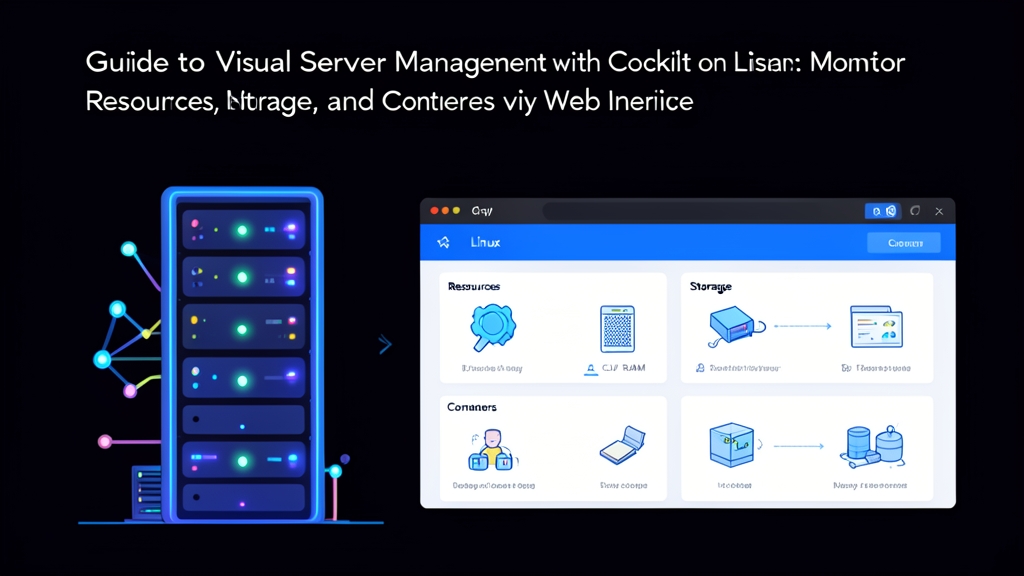
When Does SSH in the Terminal Start Getting Inconvenient?
SSHing into a terminal is second nature for sysadmins. However, real-world situations aren’t always ideal. Imagine being on call after hours and getting a 100% CPU alert on your phone. Opening a laptop, connecting to a VPN, and running commands like top, iostat, lsblk, or digging through logs with journalctl takes considerable time.
Control panels like cPanel or Plesk are often bloated. They consume hundreds of megabytes of RAM, heavily modify core configuration files, and aren’t suited for infrastructure servers. Cockpit solves this problem differently: a lightweight, POSIX-compliant web interface that activates only when you actually access it.
How Does Cockpit Work Under the Hood?
Cockpit is an open-source project sponsored by Red Hat. It comes pre-installed on RHEL, Fedora, AlmaLinux, and Rocky Linux, and runs smoothly on Ubuntu and Debian as well. Its uniqueness lies in three core design principles:
- Zero footprint when idle: Cockpit relies on
systemdsocket activation (cockpit.socket). In standby mode, the process merely listens on port 9090, consuming barely a few kilobytes of memory. Only when you open a browser to log in does the worker process spin up, taking around 30MB to 50MB of RAM and releasing it automatically after the session ends. - 1:1 parity with the terminal: Cockpit doesn’t invent its own management layer. Every action in the web UI communicates directly with D-Bus APIs, NetworkManager, LVM, and systemd. Whether you change an IP or restart a service via the web UI, running CLI commands reflects the exact same result immediately.
- Uses native PAM accounts: There is no separate user database. You log in using existing Linux user accounts on the server, with permissions determined entirely by your existing
sudoersconfiguration.
Hands-on: Installing and Using Cockpit in Practice
1. Installing Cockpit and Extension Modules
Alongside the core package, you should install storage management (cockpit-storaged) and container management (cockpit-podman) modules.
For RHEL, AlmaLinux, Rocky Linux, or Fedora:
# Install Cockpit along with required plugins
sudo dnf install -y cockpit cockpit-storaged cockpit-podman

# Enable and start the socket at boot
sudo systemctl enable --now cockpit.socket

# Open port 9090 on firewalld
sudo firewall-cmd --add-service=cockpit --permanent
sudo firewall-cmd --reload
For Ubuntu or Debian:
sudo apt update
sudo apt install -y cockpit cockpit-storaged cockpit-podman

# Enable and start the socket
sudo systemctl enable --now cockpit.socket

# Open port via UFW if the firewall is active
sudo ufw allow 9090/tcp
Once installed, open your browser and navigate to https://<Server-IP>:9090. Because it uses a self-signed certificate, your browser will display a security warning. Simply bypass the warning to proceed to the login screen.
2. Switching to Administrative Access
By default upon login, sudo accounts operate in Limited Access mode (read-only metrics). To make configuration changes, look at the top-right corner of the screen, click the Turn on administrative access button, and re-enter your account password. This mechanism prevents accidental changes when you only intend to inspect the system.
3. Resource Monitoring and Log Analysis
The Overview / Metrics menu displays real-time graphs for CPU, RAM, Disk I/O, and Network. Spotting a CPU spike up to 95%? Just click on the graph, and the top resource-consuming processes will appear immediately.
The Logs tab consolidates all records from systemd-journald into one place. You can filter instantly by log severity (Error, Critical, Warning) or isolate specific services like nginx.service or mariadb.service.
Real-world tip: a Node.js worker process once crashed repeatedly due to directory permission issues in /var/log/app/. Running unfiltered journalctl commands made the logs scroll past too fast to catch. With Cockpit, a highlighted red alert filtered directly to that service pinpointed the exact permission error in under 30 seconds.
4. LVM Storage Management: Avoiding Data Loss from Typos
Manual partitioning with fdisk, parted, or lvextend always carries the risk of mistyping drive paths, such as entering /dev/sda instead of /dev/sdb. A simple typo can wipe out the entire operating system.
In the Storage tab, Cockpit visualizes your entire disk layout:
- Read S.M.A.R.T. metrics to catch failing hard drives early (bad sectors, high temperatures).
- Extend Volume Groups or expand Logical Volumes (e.g., adding 50GB to
/dev/mapper/vg0-data) using an intuitive slider with size previews. - Format partitions to ext4/xfs and automatically configure mount points, with the system writing valid entries to
/etc/fstabfor you. - Mount NFS shares simply by entering the target IP and destination directory.
5. Container Management with cockpit-podman
If your server runs containers, the cockpit-podman module provides a lightweight alternative to Portainer (which typically consumes 100MB of RAM and requires a background Docker daemon):
- Search and pull images directly from Docker Hub, Quay.io, or private registries.
- Create containers with full port mappings, volume mounts, and environment variables via an intuitive web form.
- Monitor live container logs and open an interactive terminal console directly inside the container from your browser tab.
- Automatically generate systemd unit files for containers to ensure they restart after server reboots.
6. Security Hardening: Don’t Expose Port 9090 Directly to the Internet
Exposing a web management port directly makes it an easy target for port scans and brute-force attacks. Implement these two protective steps:
Change the default port: Switch port 9090 to a non-standard port (e.g., 44990) using a systemd drop-in configuration file:
sudo mkdir -p /etc/systemd/system/cockpit.socket.d/
sudo bash -c 'cat <<EOF > /etc/systemd/system/cockpit.socket.d/listen.conf
[Socket]
ListenStream=
ListenStream=44990
EOF'

sudo systemctl daemon-reload
sudo systemctl restart cockpit.socket
Place behind an Nginx Reverse Proxy: Run Cockpit behind Nginx secured with a Let’s Encrypt SSL certificate, and whitelist only internal IP ranges or your static IP. Make sure to define the domain in /etc/cockpit/cockpit.conf so WebSocket connections remain stable:
sudo bash -c 'cat <<EOF > /etc/cockpit/cockpit.conf
[WebService]
Origins = https://cockpit.yourdomain.com
ProtocolHeader = X-Forwarded-Proto
EOF'
Conclusion
Cockpit does not replace the Linux command line. Instead, it serves as a powerful observational assistant that lets you check server health in seconds, expand disk storage safely, and troubleshoot issues rapidly. Try installing Cockpit on a personal VPS or staging server to see how it streamlines your daily workflow.