Why Upgrade VCSA from 7.0 to 8.0?
vCenter Server Appliance (VCSA) provides centralized management for all virtual machines and hosts across a vSphere cluster. With vSphere 7.0 officially reaching its End of General Support milestone (October 2025), upgrading to vSphere 8.0 ensures your infrastructure continues receiving critical security patches while unlocking valuable capabilities like vSphere Distributed Services Engine (DPU/SmartNIC offloading) and enhanced vSphere lifecycle management.
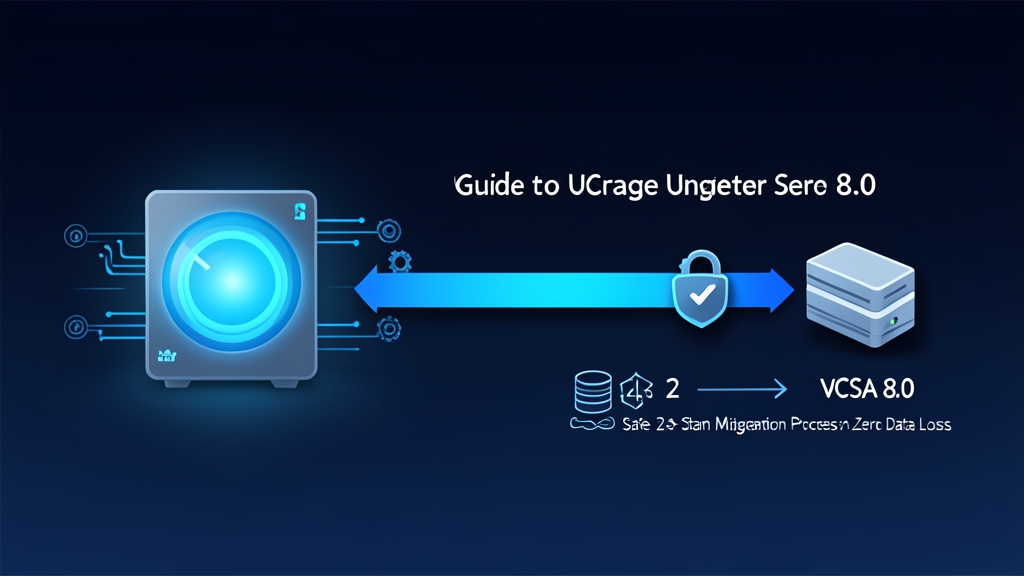
Upgrading from 7.0 to 8.0 is a major version upgrade, not a routine patch. Rather than performing an in-place upgrade over the existing Photon OS, VMware uses a two-stage side-by-side migration mechanism. The installer deploys a brand-new VCSA 8.0 virtual machine alongside your existing 7.0 appliance. Next, the system copies over all configurations, databases, and SSL certificates before shutting down the old appliance.
This approach provides exceptional safety. Workload VMs continue running uninterrupted throughout the deployment. If an error occurs at any point, you can simply delete the new VCSA 8.0 VM and power the old 7.0 appliance back on. Your infrastructure instantly reverts to its original state without data loss.
Unlike Proxmox, which features a built-in distributed cluster architecture without requiring a dedicated management server, VMware consolidates its entire control plane within VCSA. If the appliance encounters an issue, you temporarily lose management capabilities for DRS, HA, and vMotion. As a result, thorough preparation prior to initiating the upgrade accounts for 90% of its success.
Technical checklist to verify before launching the installer:
- NTP Synchronization: Time drift between the ESXi host, VCSA 7.0, and the machine running the installer must be under 2 seconds. Clock skew is the most common reason Stage 2 fails during SSL certificate handshakes.
- Forward and Reverse DNS Resolution: Both A and PTR records for the vCenter FQDN must resolve accurately from your internal DNS server.
- Reliable Backups: Perform a file-based backup via the VAMI interface (
https://<vcsa-ip>:5480) to an SMB/NFS share. Afterward, take a snapshot of the VCSA 7.0 VM (deselect Snapshot the virtual machine's memory). - Temporary IP Address: Allocate an available static IP address on the same subnet/VLAN as the existing VCSA to assign to the new appliance during Stage 1.
You can open an SSH terminal to VCSA 7.0 to quickly verify DNS and NTP:
# Log in to VCSA 7.0 via SSH as root
# 1. Verify forward and reverse DNS resolution
nslookup vcsa.itfromzero.local
nslookup 192.168.10.50

# 2. Check NTP offset and synchronization status
ntpq -p
Stage 1: Deploying the New VCSA 8.0 VM
During the first stage, the installer only deploys the VCSA 8.0 OVF template onto your infrastructure. The existing VCSA 7.0 continues serving production traffic normally without any impact.
Download the VMware-VCSA-all-8.0.x.iso image (approximately 12 GB) from VMware Customer Connect or the Broadcom Support Portal. Mount the ISO file on your administrator workstation (Windows, macOS, or Linux). On Windows, navigate to the vcsa-ui-installer\win32 directory and run installer.exe as Administrator.
Click Upgrade on the main screen. The deployment wizard will prompt you for the required technical parameters:
- Source vCenter: Enter the FQDN or IP address of VCSA 7.0, the SSO credentials (
[email protected]), and the root password. You must also specify the ESXi host directly hosting this VM. - Target Host: Specify the target ESXi host where the new VM will be placed. Operational tip: Target the physical ESXi host IP directly instead of pointing to a vCenter cluster. This avoids session drops if the source vCenter becomes overloaded.
- Appliance VM Settings: Specify a display name for the new VM in the inventory (e.g.,
VCSA8-Prod-New) and configure a strong root password. - Deployment Size: Choose a size tailored to your actual environment. Tiny supports up to 10 hosts / 100 VMs (requires 2 vCPUs, 14 GB RAM). Small accommodates up to 100 hosts / 1,000 VMs (requires 4 vCPUs, 19 GB RAM).
- Temporary Network Configuration: Enter the temporary IP address, subnet mask, default gateway, and DNS servers. VCSA 8.0 will use this temporary IP to pull data from the old appliance.
If you manage remote Linux environments without a graphical interface, you can automate Stage 1 deployment via the CLI:
# Deploy Stage 1 using a JSON template file
cd /mnt/iso/vcsa-cli-installer/lin64
./vcsa-deploy upgrade --accept-eula --acknowledge-ceip /opt/configs/vcsa8-upgrade-spec.json
After reviewing your settings, click Finish. Deploying the OVF template to the datastore typically takes 15 to 25 minutes depending on network bandwidth and SAN/NAS storage throughput.
Stage 2: Data Synchronization and Identity Cutover
Once Stage 1 reaches 100%, the installer displays a prompt to proceed to Stage 2. If you accidentally close the browser, simply navigate to https://<temporary-ip>:5480 to resume the process.
Stage 2 exports the database from the old appliance, imports it into the new one, and swaps network identities.
Step 1: Run Pre-Upgrade Checks
The installer automatically scans VCSA 7.0 to detect potential software conflicts. If third-party plugins—such as backup solutions or storage providers—are incompatible with vSphere 8.0, the UI will display red or yellow warnings. You must resolve all red warnings before proceeding to the next step.
Step 2: Select Data Migration Scope
The wizard presents three migration data options:
- Configuration: Transfers only system configuration, inventory, and licensing data. This is the fastest option, taking roughly 10–15 minutes.
- Configuration, Events, and Tasks: Adds historical task logs and user event history.
- Configuration, Events, Tasks, and Performance Metrics: Transfers all historical performance statistics.
Field insight: On vCenter instances running for 2–3 years or more, metrics data can easily balloon from 50 GB to over 150 GB. Copying such massive datasets can stretch Stage 2 out over several hours. For standard production environments, selecting Configuration, Events, and Tasks offers the optimal balance between maintenance downtime and retained audit history.
Step 3: Execute Network Cutover
Once confirmed, the installer automatically executes the following sequence of tasks:
- Stops all services on the old VCSA 7.0 appliance.
- Exports data from the legacy VM and imports it into the new 8.0 VM.
- Automatically shuts down the VCSA 7.0 VM.
- Releases the temporary IP and assigns the original production IP, FQDN, and MAC address to VCSA 8.0.
- Starts all vSphere 8.0 services.
All production virtual machines hosted on ESXi continue processing packets and running workloads normally. Internal VM network connectivity remains entirely unaffected throughout this process.
Post-Migration Validation & Acceptance
While the Upgrade Complete notification is a welcome milestone, thorough post-migration acceptance testing remains essential.
First, SSH into VCSA 8.0 using its official IP address to verify the status of core services:
# Check the status of all vCenter services
service-control --status --all

# Ensure the core vpxd service is running properly
vmon-cli --status vpxd
Next, log in to the vSphere Client via web browser (https://<vcsa-fqdn>) and verify the following checklist:
- Clusters & HA/DRS: Confirm that vSphere HA and DRS show normal health status without configuration alarms or warnings.
- Licensing: vSphere 7.0 licenses are incompatible with vCenter 8.0. The appliance will default to a 60-day Evaluation Mode. Navigate to Administration > Licensing to assign valid 8.0 license keys.
- vSphere Distributed Switch (vDS): Ensure distributed port groups are passing network traffic as expected. Note: Do not upgrade the vDS version to 8.0 until all ESXi hosts in the cluster have been successfully upgraded.
- Third-Party Backup Solutions: Run a test backup job using enterprise backup software like Veeam Backup & Replication or Commvault. Verify that agents connect seamlessly without failing on the new SSL certificate thumbprint.
Finally, keep the old VCSA 7.0 VM in a powered-off state for at least 48 to 72 hours. Do not delete it from the datastore until routine backup cycles and daily operations have proven completely stable.