
Demystifying Path Selection Policy (PSP) in vSphere
Enterprise virtualization environments connected to a SAN (Fibre Channel, iSCSI, or FCoE) cannot afford downtime. A failed HBA port, a faulty SAN switch, or a crashed storage controller? Virtual machines must remain online. VMware addresses this challenge through the Native Multipathing Plugin (NMP), split into two sub-plugins: the Storage Array Type Plugin (SATP) for hardware detection and the Path Selection Plugin (PSP) for I/O routing.
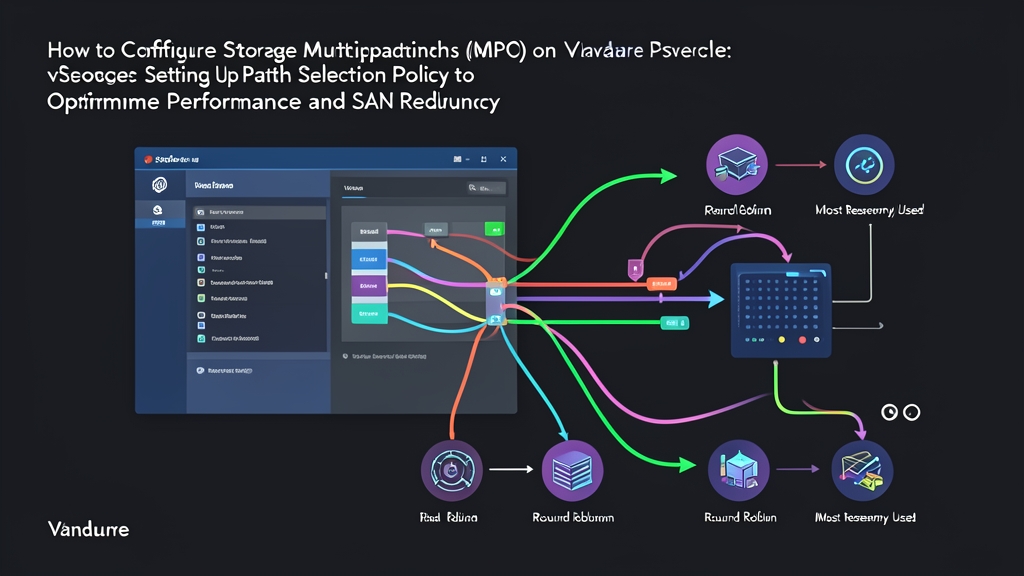
On vSphere, you will encounter three core PSP policies:
- Fixed (VMW_PSP_FIXED): ESXi binds all I/O strictly to a designated Preferred Path. Only when this path completely fails will the host failover to an alternate link. As soon as the primary link recovers, traffic immediately reverts to the original path.
- Most Recently Used – MRU (VMW_PSP_MRU): The host routes traffic through the active path until a failure occurs. Upon link disruption, ESXi fails over to the next available path and remains there (non-reverting), never automatically failing back, thus avoiding path thrashing.
- Round Robin – RR (VMW_PSP_RR): ESXi distributes I/O requests across all Active/Optimized paths in rotation. This mechanism provides both path failover and bandwidth load balancing. By default, VMware switches paths after every 1,000 I/O operations.
Real-World Comparison: Pros and Cons of Each Mechanism
1. Fixed Path
This policy gives you absolute control over data flows, making it straightforward to predict traffic distribution across Fabric A and Fabric B.
On the flip side, it leads to severe resource waste. You may invest in expensive 32Gbps HBA pairs only to have one port active while the other sits idle. Worse yet, on Active-Passive storage arrays, if you mistakenly point the preferred path to the passive controller, latency can spike from 2ms to over 30ms because traffic must traverse the storage array’s internal interconnect.
2. Most Recently Used (MRU)
MRU was designed as a lifeline for legacy Active-Passive SAN arrays, such as older EMC Clariion systems. It completely eliminates trespass storms — a condition where two ESXi hosts continually fight over LUN ownership between two controllers, grinding I/O to a halt.
Its biggest drawback is the total absence of load balancing. Imagine a SAN switch fluctuating for a few seconds; multiple ESXi hosts will fail over to a single controller. The result is one controller bearing 90% of the load while the other remains underutilized, with no automatic rebalancing.
3. Round Robin (RR)
This is the gold standard for modern server clusters. Round Robin extracts full bandwidth from all installed HBA ports. I/O-intensive workloads like MS SQL or Oracle Database benefit the most. If a link drops, remaining paths take over instantly without packet loss.
However, if your storage array does not support ALUA (Asymmetric Logical Unit Access), Round Robin can backfire due to continuous metadata synchronization between controllers. Furthermore, VMware’s default threshold of 1,000 I/O operations is excessively high, resulting in sub-optimal load distribution in real-world environments unless tuned via CLI.
Which Policy Should You Choose for Your Infrastructure?
Golden rule: Always consult your SAN vendor’s Best Practices guide. Here is the recommended baseline drawn from production experience:
- Modern All-Flash arrays supporting ALUA (Dell PowerStore, Pure Storage FlashArray, NetApp AFF, HPE Alletra): Select Round Robin (VMW_PSP_RR) immediately. For NVMe-oF on vSphere 7.x and 8.x, prioritize the High Performance Plugin (HPP).
- Legacy Active-Passive arrays: Strictly use MRU to prevent datastores from locking up due to continuous controller thrashing.
- Active-Active arrays without ALUA: Use Fixed and manually balance paths: Datastores 1–10 over Fabric A (HBA 1), Datastores 11–20 over Fabric B (HBA 2).
Step-by-Step Configuration and MPIO Optimization on ESXi
Step 1: Change Policy via vSphere Client
- Log in to vCenter and select the target ESXi host.
- Navigate to the Configure tab > Storage > select Storage Devices.
- Click the target LUN, scroll down to the bottom pane, and select the Properties tab.
- Under Multipathing Policies, click Edit Multipathing….
- Change the policy to Round Robin (VMware) and click OK.
Step 2: Supercharge Round Robin with IOPS=1 via esxcli
By default, vSphere queues 1,000 I/Os before switching paths. This causes uneven load distribution across dual 16Gb FC or 10GbE iSCSI links. To interleave data packets evenly across all paths, lower the iops parameter to 1. Latency can drop from 5ms down to just 1.5ms during peak workloads.
Establish an SSH session to your ESXi host and identify the NAA identifier of the LUN:
# List LUNs along with their current Multipathing policy
esxcli storage nmp device list | grep -E "naa\.|Path Selection Policy"
Assign the Round Robin policy to the device (replace with your actual NAA identifier):
esxcli storage nmp device set --device naa.6000d3100022f400000000000000005a --psp VMW_PSP_RRChange the path switching threshold from 1,000 I/Os down to 1 I/O:
esxcli storage nmp psp roundrobin deviceconfig set \
  --device naa.6000d3100022f400000000000000005a \
  --type "iops" \
  --iops 1
Verify that the configuration has taken effect:
esxcli storage nmp psp roundrobin deviceconfig get --device naa.6000d3100022f400000000000000005aWhen IOPS: 1 and Byte Limit: 0 appear on the screen, the setting is active.
Step 3: Automatically Apply Settings to New LUNs Using SATP Claim Rules
Rather than manually tuning every LUN as you scale your SAN, create an automated claim rule. Any new LUN provisioned from the storage array to the host will automatically inherit Round Robin with IOPS=1.
# Create rule for all Pure Storage arrays (Vendor: PURE, Model: FlashArray)
esxcli storage nmp satp rule add \
  -s VMW_SATP_ALUA \
  -V "PURE" \
  -M "FlashArray" \
  -P VMW_PSP_RR \
  -O "iops=1" \
  -e "Pure Storage claim rule with IOPS=1"

# Apply the new rule immediately without rebooting
esxcli storage core claimrule load
esxcli storage core claimrule run
Step 4: Verify Traffic Distribution Using esxtop
Don’t rely on assumptions; let the metrics speak for themselves. Run the following command on the ESXi console:
esxtop
# Press 'd' to switch to the Disk Adapter (HBA) screen
# Press 'u' to view details for each LUN Device
Monitor the MBREAD/s and MBWRTN/s columns. If throughput across both adapters (e.g., vmhba1 and vmhba2) displays roughly equal values — for instance, ~450 MB/s each — your multipathing optimization is working as intended.