
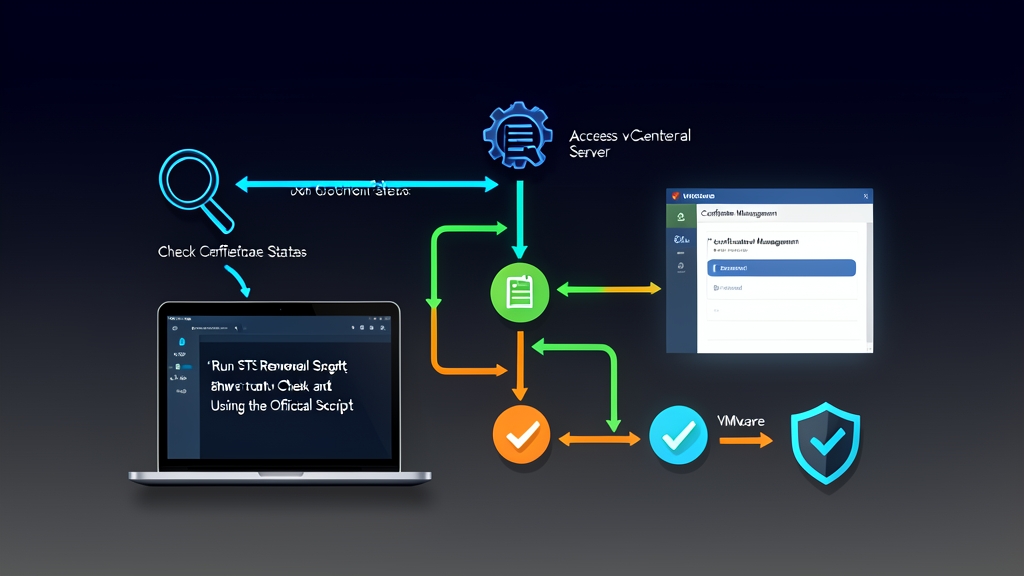
Opening vSphere Client on a Monday morning, you are greeted with a blank page showing error code 503 Service Unavailable or Signing certificate is not valid. On the data center floor, ESXi hosts and enterprise workloads are running normally. However, vCenter is completely down, leaving you unable to power VMs on or off, perform vMotion migrations, or monitor resources. The most common culprit after about two years of running vCenter is that the internal STS certificate has quietly expired.
5-Minute Emergency Fix (Quick Fix)
If you have confirmed that vSphere Client cannot connect due to an expired STS certificate, follow these 4 quick steps to restore management access:
Step 1: Take a Snapshot of the vCenter VM (Mandatory)
Log in directly to the ESXi host hosting the vCenter VM (VCSA). Create a backup snapshot immediately. Never check the box for Snapshot the virtual machine’s memory. Taking a snapshot without memory completes in under 30 seconds and avoids PostgreSQL database locking issues inside VCSA if you ever need to roll back.
Step 2: Enable SSH and Access the Bash Shell
Open an SSH session to the VCSA IP address using PuTTY or Terminal with the root account. Enable the Linux command-line shell:
# Switch from appliance shell to standard bash shell
shell.set --enabled True
shell
Step 3: Check Expiration Date Using checksts.py
Broadcom provides a quick check tool documented in KB 79248. Upload the script to the temporary directory on VCSA via WinSCP (or use vi /tmp/checksts.py to paste the code directly) and run it:
cd /tmp
python checksts.py
If the screen displays the red warning line: STS Signing Certificate Status: Expired, your authentication token signing certificate has expired.
Step 4: Run the fixsts.py Script and Restart Services
The fixsts.py script regenerates a new key pair and updates it directly in the VMware Endpoint Certificate Store (VECS):
# Grant execution permissions and run the script in the /tmp directory
chmod +x fixsts.py
python fixsts.py

# Enter the [email protected] password when prompted
# Once 'Finished successfully!' is displayed, restart all services:
service-control --stop --all && service-control --start --all
Restarting the services typically takes about 5 to 8 minutes depending on the vCPU and RAM allocated to the VCSA (Tiny/Small deployments usually take longer). Once core services such as vmware-vpxd and vsphere-ui reach the Started state, reload the login page.
Understanding the STS Certificate and Why vCenter Suddenly Fails
The Security Token Service (STS) is the core of VMware’s Single Sign-On (SSO) mechanism. This service is responsible for issuing SAML-formatted encrypted tokens for all internal communications. Every component, from the core management daemon vpxd and the administrative web interface vsphere-ui to backup solutions like Veeam Backup & Replication or SAN storage plugins, strictly requires this token to communicate.
On fresh installations of vCenter 6.5 Update 2, 6.7, and early releases of 7.0, VMware set the default validity period for the STS Certificate to just 2 years (730 days). The insidious part is that this certificate is not exposed on the browser’s address bar like the Machine SSL Certificate (port 443). Instead, it is tucked away inside the VECS store and the internal LDAP directory vmdir.
The moment the certificate hits its expiration date, the entire authentication chain breaks instantly:
- SSO refuses to issue new tokens for all incoming sessions.
- The
vpxdservice and the Web Client lose communication with each other, triggering anHTTP 503error. - Logins using both the internal
[email protected]account and Active Directory credentials fail completely.
Handling Linked Mode Environments and Common Issues
For standalone environments (Embedded PSC), the success rate of fixsts.py exceeds 95%. However, larger enterprise infrastructures often present special scenarios:
1. Enhanced Linked Mode (Multiple vCenters Sharing an SSO Domain)
When vCenters are joined in a single Single Sign-On domain, the STS Certificate is automatically replicated via the VMware Directory Service (vmdir). You must strictly adhere to the following procedure:
- Execute on a single node only: Select the first primary vCenter server to run
python fixsts.py. Never run it concurrently across the other nodes. - Verify replication status: Before restarting services on secondary nodes, run the following command to verify that the new certificate data has fully synchronized:
/usr/lib/vmware-vmdir/bin/vdcrepadmin -f showpartnerstatus -h localhost -u administrator
If the Partner is at USN values match across nodes, restart the services sequentially on the remaining vCenter servers without re-running the script.
2. Services Hang During Restart
Occasionally, service-control --start --all may hang at vmware-vmon or encounter errors in vmware-vpxd due to stale SSO cache conflicts in memory. Check the log file immediately:
tail -n 100 /var/log/vmware/vpxd/vpxd.log
If the log repeatedly shows Failed to authenticate with STS even after the script succeeded, the cleanest solution is to execute reboot to restart the entire appliance and clear orphaned processes from RAM.
Operational Best Practices and Field Experience
- Schedule automated expiration checks: Rather than waiting for a system crash, set up a simple cron job on a Linux monitoring server (such as Zabbix or Prometheus) or a PowerShell script running
Connect-VIServerevery 30 days to alert on upcoming certificate expiration well in advance. - Distinguish between STS Certificates and Machine SSL Certificates: The
fixsts.pyscript only replaces the SAML token signing keys. It does not renew browser SSL certificates. If port 443 is also nearing expiration, use option 1 in/usr/lib/vmware-vmca/bin/certificate-managerto renew it. - Clean up snapshots after 24 to 48 hours: Once the vCenter environment is stable and overnight backups complete smoothly, delete the snapshot created in Step 1. Leaving snapshots active for too long inflates VMDK delta disks and degrades storage I/O performance.