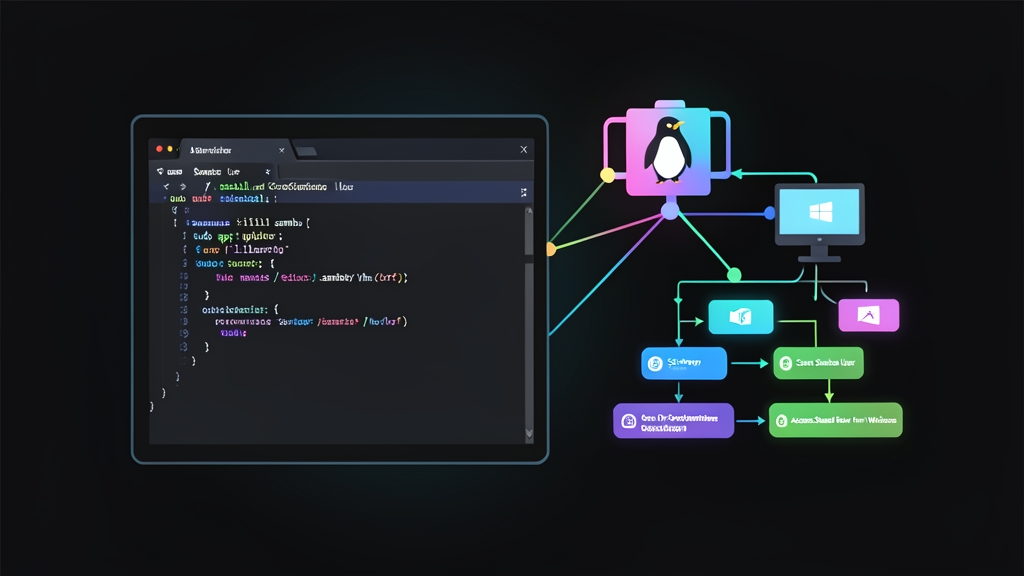
Real-World Challenges: File Sharing Hurdles Between Linux and Windows in the Office
In companies with 20 to 100 employees, most office workstations run Windows 10 or 11. Conversely, storage servers (File Servers, NAS) typically run Linux distributions such as Ubuntu, Debian, or Rocky Linux. The rationale is straightforward: saving thousands of dollars in Windows Server licensing fees each year. On top of that, Linux servers are rock-solid and rarely require a reboot.
Trouble begins as soon as you start sharing internal documents. Allowing employees to transfer files via messaging apps or USB flash drives exposes the company to data leaks and malware infections. Yet, when sysadmins deploy a Linux file server for Windows clients to access, support tickets start flooding in: workstations cannot discover the server, Windows throws “Windows cannot access… Permission Denied” errors, or worse, everyone can view and delete confidential payroll sheets.
The root cause is clear. Windows uses the SMB (Server Message Block) protocol for network sharing, whereas Linux manages file permissions according to POSIX standards. To bridge these two environments seamlessly, the most reliable industry-standard solution for decades has been Samba.
Understanding the Mechanism: Samba’s Two Independent Permission Layers
Samba re-implements the SMB/CIFS protocol on Linux, allowing a Linux server to act just like a native Windows File Server. Windows users can browse folders, read/write documents, and map network drives using familiar shortcuts without installing third-party software.
Two Security Gates: smb.conf and the Linux Filesystem
Many beginners assume that configuring permissions inside smb.conf is enough. This is the most common misconception that leads to frustrating Permission Denied errors.
In practice, Samba operates on two completely independent control layers:
- Layer 1 – Samba Configuration (smb.conf): Controls who can discover the share, who has write permissions (
read only = no,write list), and who is restricted to read-only access. - Layer 2 – Linux File Permissions (chmod / chown): Determines whether the underlying Linux user running the process actually possesses filesystem rights to the physical directory on disk.
The golden rule: Samba can never override underlying Linux filesystem permissions. If smb.conf grants write access (read only = no), but the Linux directory is set to 755 owned by root, any Windows user attempting to drop a file will be blocked instantly.
The Relationship Between Linux Users and Samba Users
Every Samba user must be tied to an existing local Linux user. After creating the user in Linux, you synchronize that account into Samba’s dedicated database using the smbpasswd command. Both accounts share the same username, but the network share password can be entirely independent from the Linux system password.
Hands-on: Installing and Configuring Samba Server on Ubuntu
We will configure Samba on an Ubuntu Server (IP: 192.168.1.100) to address two classic enterprise scenarios:
- Public Folder: All employees can read shared notices and templates; only admin accounts can write or modify files.
- Accounting Folder (KeToan): Restricted exclusively to accounting staff, who have full read and write privileges over financial data.
Step 1: Install Samba
Update the package index and install Samba along with client utilities for testing:
sudo apt update
sudo apt install samba smbclient -y
Verify that the service is running properly:
sudo systemctl status smbd
Step 2: Create User Groups and Configure Linux Permissions
Create the ketoan_dept group, followed by users lan_kt (accountant) and tuan_nv (sales rep). We disable interactive shell logins (-s /usr/sbin/nologin) for enhanced security:
# Create department group
sudo groupadd ketoan_dept

# Create system users without shell login access
sudo useradd -M -s /usr/sbin/nologin -g ketoan_dept lan_kt
sudo useradd -M -s /usr/sbin/nologin tuan_nv
Next, create the storage directory tree under /samba and assign strict permissions:
sudo mkdir -p /samba/public
sudo mkdir -p /samba/ketoan

# Public folder: World-readable (755), writable only by root
sudo chown -R root:nogroup /samba/public
sudo chmod -R 755 /samba/public

# Accounting folder: Accessible only by ketoan_dept members (770)
sudo chown -R root:ketoan_dept /samba/ketoan
sudo chmod -R 770 /samba/ketoan

# Enable SGID bit: Newly created files automatically inherit the ketoan_dept group
sudo chmod g+s /samba/ketoan
The chmod g+s command is crucial. Thanks to the SGID (Set Group ID) bit, any document created by Lan will automatically inherit the ketoan_dept group ownership, allowing other accountants in the department to access and edit it seamlessly.
Step 3: Set Samba Passwords for Users
Set and enable Samba network passwords for each user account:
# Set Samba password for Lan (Accounting dept)
sudo smbpasswd -a lan_kt
sudo smbpasswd -e lan_kt

# Set Samba password for Tuan (Staff)
sudo smbpasswd -e tuan_nv
sudo smbpasswd -a tuan_nv
Step 4: Configure smb.conf for Production
Before editing, back up the original configuration file:
sudo cp /etc/samba/smb.conf /etc/samba/smb.conf.bak
Open /etc/samba/smb.conf and append the following configuration to the bottom:
# --- Global Settings ---
[global]
   workgroup = WORKGROUP
   server string = Ubuntu File Server
   security = user
   map to guest = bad user
   dns proxy = no

   # Disable legacy, insecure SMBv1 protocol
   server min protocol = SMB2_10
   client min protocol = SMB2_10

# --- Public Shared Folder ---
[Public_Data]
   path = /samba/public
   browseable = yes
   read only = yes
   guest ok = yes
   create mask = 0644
   directory mask = 0755

# --- Accounting Folder (Restricted) ---
[KeToan_Secret]
   path = /samba/ketoan
   browseable = yes
   read only = no
   valid users = @ketoan_dept
   force group = ketoan_dept
   create mask = 0660
   directory mask = 0770
Setting server min protocol = SMB2_10 completely phases out SMBv1. This configuration mitigates the risk of ransomware propagation (such as WannaCry) while sustaining optimal file transfer speeds across gigabit networks.
Step 5: Verify Syntax and Restart Samba Services
Run testparm to check for syntax errors before applying changes:
testparm
Once the output confirms “Loaded services file OK”, reload and enable the service:
sudo systemctl restart smbd
sudo systemctl enable smbd
Step 6: Configure the UFW Firewall
For security, restrict SMB ports (port 445 for direct SMB and port 139 for NetBIOS) to your local office subnet (e.g., 192.168.1.0/24):
sudo ufw allow from 192.168.1.0/24 to any port 445 proto tcp
sudo ufw allow from 192.168.1.0/24 to any port 139 proto tcp
sudo ufw reload
Step 7: Connect from Windows and Clear Credential Cache
On a Windows workstation on the local network:
- Press
Windows + R, type\\192.168.1.100, and hit Enter. - Two shared folders will appear: Public_Data and KeToan_Secret.
- Click KeToan_Secret, then enter the
lan_ktusername and password configured in Step 3.
Common Gotcha: Windows aggressively caches SMB session credentials. If you previously connected using tuan_nv, clicking the accounting folder triggers an immediate access denied error instead of prompting you for new credentials.
To purge cached network sessions and re-authenticate, open CMD (Command Prompt) in Windows and execute:
net use * /delete /y
Conclusion
Cross-platform file sharing between Linux and Windows is straightforward once you master the dual-layer permission model: Linux filesystem permissions (chmod/chown) and Samba share definitions (smb.conf). When aligned correctly, your file server will run smoothly with rock-solid access control, putting an end to daily IT permission headaches.