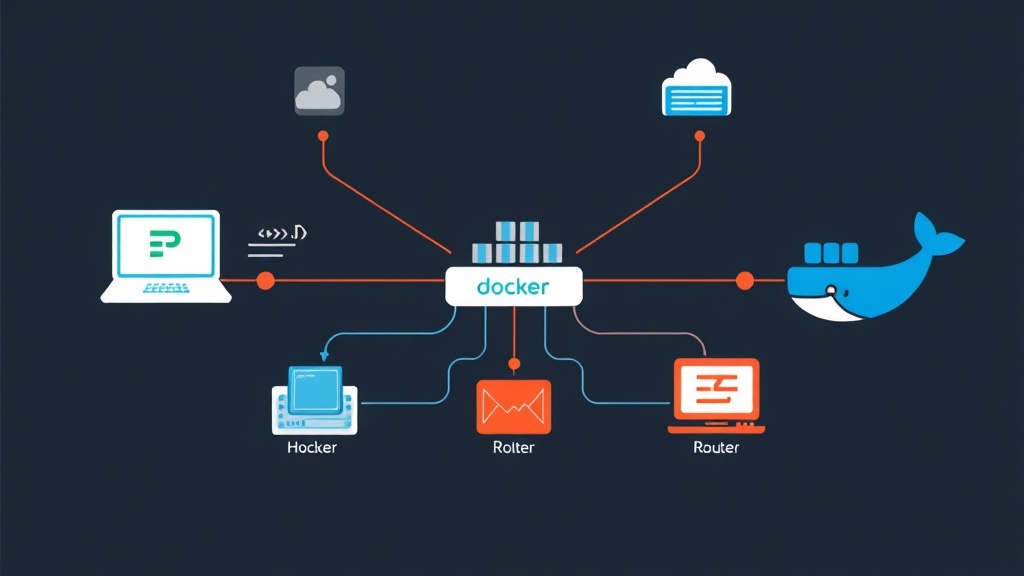
Bridge vs Macvlan: When Does NAT Become a Burden?
If you’ve worked with Docker, you’re likely familiar with the default Bridge mode. It’s fast and convenient but comes with a major drawback: NAT. When using Bridge, containers are hidden behind the host machine’s IP address. You are forced to use port mapping (e.g., 8080:80) to access services. This is incredibly tedious for applications that require fixed ports or need to broadcast signals within the LAN.
Back in 2021, I deployed an Asterisk VoIP system using Docker for a client. The SIP protocol is notoriously “allergic” to NAT. Despite mapping the entire RTP port range from 10000-20000, audio was still one-way or extensions couldn’t register. After two sleepless nights of debugging, I decided to switch to Macvlan. The result was surprising: the container received an IP directly from the Router, running as smoothly and stably as a true physical server.
Macvlan allows you to assign a unique physical MAC address to each container. At this point, the Router treats the container like a laptop or phone connected to the network. All port mapping hurdles completely disappear.
How Macvlan Networking Works
Simply put, Macvlan creates sub-interfaces from the host machine’s physical network card. Each container is assigned its own MAC address and an IP within your current LAN range (e.g., 192.168.1.x).
Key Advantages:
- Impressive Performance: Removing the NAT layer reduces network latency by about 10-15%.
- Intuitive Management: You assign static IPs directly, eliminating the need to remember complex port mapping lists.
- High Visibility: Other devices in the LAN can ping and connect directly to the container without an intermediary.
A Few Drawbacks to Consider:
- Security: Containers are fully exposed on the network, so you need to configure firewalls very carefully.
- Host-Container Communication: By default, the host machine and Macvlan containers cannot see each other. However, we can resolve this with a few commands.
- Promiscuous Mode: The host’s network card must support this mode to receive all packets.
Detailed Docker Macvlan Configuration Guide
First, identify the name of the network card connected to the Router. On Linux, run the following command:
ip addr showAssume your network card is eth0, your IP range is 192.168.1.0/24, and the Gateway is 192.168.1.1.
Step 1: Enable Promiscuous Mode
This command allows the network card to receive packets that do not match its own MAC address.
sudo ip link set eth0 promisc onStep 2: Initialize the Macvlan Network
This is the crucial step. You need to define the IP range that Docker is allowed to allocate to avoid conflicts with other devices like phones or TVs.
docker network create -d macvlan \
  --subnet=192.168.1.0/24 \
  --gateway=192.168.1.1 \
  --ip-range=192.168.1.192/27 \
  -o parent=eth0 my_macvlan
Parameter breakdown:
--ip-range: I am reserving IPs from .192 to .223 for Docker to prevent duplicates.-o parent=eth0: Specifies the physical network card acting as the bridge.
Step 3: Deploy a Container with a Static IP
Let’s try running an Nginx container and assigning it a static IP of 192.168.1.200.
docker run -d \
  --name web-server \
  --network my_macvlan \
  --ip 192.168.1.200 \
  nginx
Now, from any device in your home, you can simply type http://192.168.1.200 to access Nginx directly. No more complicated 8080 or 8888 ports.
Troubleshooting Tip: When the Host Cannot Ping the Container
After setup, you might encounter a strange phenomenon. Other machines on the network can ping the container, but the host machine running Docker cannot. This is due to the Linux kernel’s security mechanism.
To fix this, create a sub-interface for the host machine so it can “talk” to the Macvlan range:
# Create a virtual link named macvlan-br
sudo ip link add macvlan-br link eth0 type macvlan mode bridge

# Assign a specific IP to this interface
sudo ip addr add 192.168.1.210/32 dev macvlan-br
sudo ip link set macvlan-br up

# Configure routing
sudo ip route add 192.168.1.200 dev macvlan-br
Done! Now the host machine can connect to the 192.168.1.200 container seamlessly.
Hard-earned Real-world Experience
Implementing Macvlan isn’t difficult, but there are a few important notes to keep in mind:
- IP Control: Always use
--ip-range. Don’t let Docker assign IPs randomly, as it might hijack the IP of a printer or another critical device. - Say No to Wi-Fi: Macvlan performs poorly on Wi-Fi cards because the drivers often do not support multiple MAC addresses. If you’re using a Raspberry Pi, prioritize a LAN cable.
- Network Security: Since the container is “exposed” on the LAN, set up
iptablesor an internal firewall for the application if the data is sensitive.
In fact, I once had a frustrating experience while deploying Home Assistant. Because I forgot to limit the ip-range, Docker assigned the exact IP of the Router acting as the Gateway. The entire office lost internet for 15 minutes due to one careless line of code. Don’t let yourself fall into that situation!
Summary
Macvlan Networking is the perfect solution when you need to make a container an independent entity within your local network. It completely resolves NAT issues and is particularly useful for VoIP, media servers, or surveillance systems. While the configuration is slightly more meticulous than Bridge mode, the performance and convenience it provides are well worth the effort.