I/O Bottlenecks and Disk Data Leak Risks
If you have ever run containers handling heavy file operations—such as video conversion with ffmpeg, extracting multi-gigabyte tarballs, or running parallel test suites—you have likely seen server SSDs quickly choke on IOPS. Continuously writing thousands of temporary files with lifespans of just a few seconds not only slows down other services, but also rapidly exhausts the disk’s write endurance (TBW).
The second issue is security. When an application writes session tokens, temporary private keys, or newly decrypted PDF files to a container layer, they persist on the host’s block storage. Even after running docker rm -f, the raw data still lingers on disk, allowing anyone with root access on the host to potentially recover it.
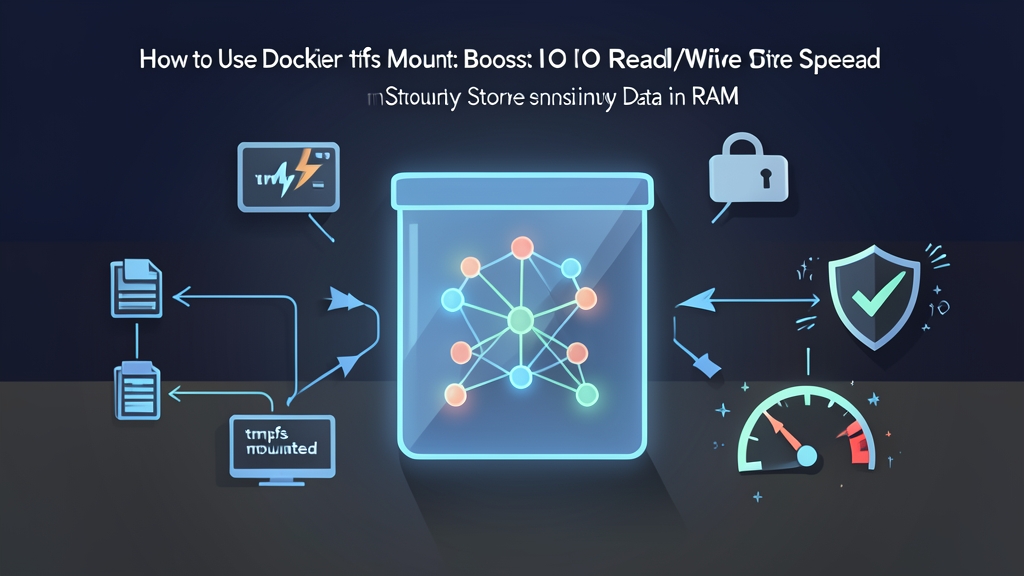
This is where Docker tmpfs mount comes into play: shifting all temporary files directly into RAM.
How Does Docker tmpfs Mount Work?
Docker currently supports three primary data mounting options:
- Volumes: Managed by Docker under
/var/lib/docker/volumes/, keeping data intact even after containers stop. - Bind mounts: Directly map a directory from the host into a container, depending heavily on the host’s directory structure.
- tmpfs mount: Creates an in-memory virtual filesystem residing entirely in the Linux host’s RAM. Data never touches physical disk storage and is wiped automatically as soon as the container stops.
Quick Comparison: tmpfs vs. Volumes and Bind Mounts
Because it lives directly in physical memory, tmpfs offers distinct advantages:
- Superior throughput: Read/write speeds on DDR4/DDR5 RAM can reach 20–50 GB/s with microsecond latency, far outpacing the 3–7 GB/s typical of Gen4 NVMe SSDs.
- Secure self-destruction: Stopping the container immediately frees the RAM. No traces remain on disk for forensic analysis or data recovery.
- Keeps container layers lean: Writing tens of gigabytes of temporary files will not bloat your rootfs, preventing disk exhaustion in the
/var/lib/dockerpartition.
Hands-on: Configuring and Using Docker tmpfs Mount
1. Quick Start with the Basic –tmpfs Flag
The simplest syntax uses the --tmpfs flag:
docker run -d \
  --name redis-test \
  --tmpfs /tmp \
  redis:7-alpine
All files generated inside /tmp within the container now reside in RAM. However, this approach has one major limitation: it cannot restrict maximum RAM usage.
2. Using –mount Syntax to Limit Size and Set Permissions
If a container enters an uncontrolled file-writing loop, the default --tmpfs flag can consume all available host RAM, triggering the Linux OOM Killer and crashing the server. For production safety, use the --mount syntax instead:
docker run -d \
  --name secure-app \
  --mount type=tmpfs,destination=/app/cache,tmpfs-size=512m,tmpfs-mode=1770 \
  nginx:alpine
Breakdown of each parameter:
destination=/app/cache: The target directory inside the container mounted to RAM.tmpfs-size=512m: Caps memory usage at 512MB (supports k, m, and g suffixes). If the app exceeds this limit, the system throws a No space left on device error instead of bringing down the host.tmpfs-mode=1770: Linux octal permissions. Here,1770grants read/write permissions to the owner and group, along with the sticky bit.
3. Configuring with Docker Compose
In real-world setups, you will define this inside docker-compose.yml. You can use the concise array syntax:
version: '3.8'
services:
  worker:
    image: python:3.11-slim
    command: python app.py
    volumes:
      - ./src:/app
    tmpfs:
      - /app/scratch:size=256m,mode=0755
      - /tmp:size=128m
Or use the long syntax under the volumes block for greater clarity:
services:
  api:
    image: node:20-alpine
    volumes:
      - type: tmpfs
        target: /app/temp_tokens
        tmpfs:
          size: 64M
          mode: 0700
4. Verification and Debugging
To verify whether a directory is genuinely mounted to RAM, run df -h inside the container:
docker exec -it secure-app df -h /app/cacheThe output will show a filesystem of type tmpfs with a capacity of 512M.
When you need to inspect the container’s mount configuration in detail from the host side:
docker inspect secure-app --format '{{ json .Mounts }}'The JSON output returned by inspect can be lengthy and difficult to read. If you are connected via SSH without terminal extensions installed, you can paste it into toolcraft.app/en/tools/developer/json-formatter to quickly format it.
When to Use and When Not to Use tmpfs
RAM is fast, but it is expensive and volatile. Choose your use cases wisely:
- Best used for: Video/image rendering buffers, temporary sessions, uncompressing downloaded archives, CI/CD runner build workspaces (such as GitLab Runner or GitHub Actions runners), and temporarily storing decrypted private keys during runtime.
- Avoid using for: Database engines (PostgreSQL, MySQL, MongoDB) or any data that must persist across restarts. For durable storage, Docker Volumes remain mandatory.
- Platform considerations: tmpfs mounts run natively on Linux. On macOS or Windows, containers run inside Docker Desktop’s underlying Linux VM, meaning I/O performance remains bound to the resources allocated to that virtual machine.
Summary
tmpfs mount is a straightforward tool that definitively eliminates I/O bottlenecks for ephemeral data. Isolating persistent data in Volumes and moving scratch files to RAM keeps applications running smoothly, minimizes storage drive wear, and significantly mitigates security risks as your container workloads scale.