2:00 AM, a Silent Database Backup Failure, and an Expensive Lesson with Crontab
At exactly 2:15 AM, my phone buzzed violently with alerts from our monitoring system. The /backup partition had hit 98% capacity. The synchronization job pushing data to a 4TB storage NAS had been completely frozen for four hours—without spitting out a single line of error logs.
I rushed to SSH into the production CentOS Stream 9 cluster. Typing crontab -l showed the backup schedule right there, syntax spot-on with its five asterisks. Checking /var/log/cron, the system revealed only a single line: the job had fired at 22:00. That was it. No clues, no exit code, and no sign of where the Python script had silently died.
The fatal flaw of cron lies in its “fire-and-forget” nature. Cron launches a background process and walks away. When a script leaks memory, devours 8GB of RAM, and prompts the Linux OOM Killer to ruthlessly terminate it, cron stays dead silent. You are left sifting through dozens of scattered log files just to guess the root cause. That painful outage convinced our team to retire crontab across all new infrastructure. In its place, we adopted the powerful duo of systemd service and systemd timer.
Core Concepts: Why Systemd Timers Outperform Crontab
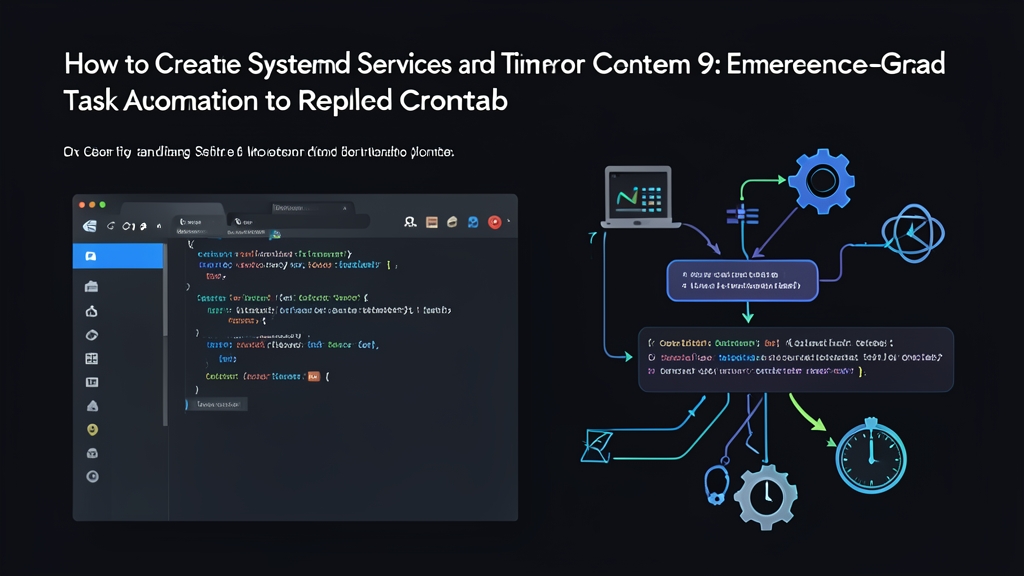
Unlike a single, isolated line in crontab, systemd separates the automation workflow into two distinct components:
- Service Unit (.service): Defines what task to run. This specifies the script path, execution user, environment variables, and CPU/RAM limits.
- Timer Unit (.timer): Defines when to trigger execution. You can set it to run on a calendar schedule, repeat at fixed intervals, or trigger 5 minutes after the operating system boots up.
This modular architecture delivers major advantages in production operations:
- Centralized logging via journalctl: Both
stdoutandstderrstreams automatically route into the systemd journal. You can trace errors down to the millisecond without relying on messy>> /var/log/app.log 2>&1redirects. - Strict resource governance: Easily enforce resource ceilings using Cgroups—such as capping a script at 512MB RAM and 50% of a single CPU core—safeguarding primary applications.
- Catch-up on missed runs: Server rebooted for maintenance during the scheduled backup window? The
Persistent=trueoption automatically catches up and runs the task as soon as the OS finishes booting. - Randomized delays: The
RandomizedDelaySecdirective staggers execution times across hundreds of servers, eliminating simultaneous disk I/O bottlenecks.
Step-by-Step Tutorial: Configuring Systemd Services & Timers on CentOS Stream 9
Let’s walk through a real-world scenario: writing a script to clean up temporary logs older than 7 days, wrapping it in a service unit, and scheduling it to run daily at 02:00 AM.
Step 1: Prepare the Executable Script
Create a standard directory for system operational scripts:
sudo mkdir -p /opt/ops-scripts
sudo nano /opt/ops-scripts/cleanup-backup.sh
Add the script contents:
#!/bin/bash
set -euo pipefail

NOW=$(date '+%Y-%m-%d %H:%M:%S')
echo "[$NOW] INFO: Starting log inspection and cleanup..."

# Find and delete log files older than 7 days in the temp directory
DELETED_COUNT=$(find /tmp -type f -name "*.log" -mtime +7 -print -delete | wc -l)

echo "[$NOW] SUCCESS: Successfully cleaned up $DELETED_COUNT log files in total."
Grant execution permissions and restrict access exclusively to root:
sudo chmod 750 /opt/ops-scripts/cleanup-backup.sh
sudo chown root:root /opt/ops-scripts/cleanup-backup.sh
Step 2: Create the Systemd Service Unit
Create a new unit file inside /etc/systemd/system/:
sudo nano /etc/systemd/system/cleanup-backup.serviceDefine the service configuration:
[Unit]
Description=Clean up system backups and old logs
After=network.target local-fs.target

[Service]
Type=oneshot
User=root
ExecStart=/opt/ops-scripts/cleanup-backup.sh
MemoryMax=512M
CPUQuota=50%
Technical note: For batch jobs that execute once and exit, setting Type=oneshot is mandatory. Do not use Restart=on-failure on a standalone Type=oneshot service because systemd will refuse to run it; execution scheduling is now entirely governed by the Timer.
Step 3: Create the Systemd Timer Unit
Create a timer file matching the base name of your service file so systemd automatically binds them together:
sudo nano /etc/systemd/system/cleanup-backup.timerDeclare the timer configuration:
[Unit]
Description=Timer to trigger cleanup-backup.service at 2:00 AM

[Timer]
OnCalendar=*-*-* 02:00:00
Persistent=true
RandomizedDelaySec=10m
Unit=cleanup-backup.service

[Install]
WantedBy=timers.target
Breaking down key directives:
OnCalendar=*-*-* 02:00:00: Triggers the execution at 02:00 every day.Persistent=true: Persists the last trigger timestamp to disk. If the server is offline at 02:00, the task will automatically run right after the system reboots.RandomizedDelaySec=10m: Introduces a random delay between 0 and 10 minutes to evenly distribute disk I/O load.
Step 4: Reload Configurations and Enable the Timer
Instruct systemd to scan for new unit files:
sudo systemctl daemon-reloadEnable and start the timer immediately (only enable the timer, not the service):
sudo systemctl enable --now cleanup-backup.timerInspect the timer queue on CentOS Stream 9:
systemctl list-timers --all | grep cleanup-backupThe output provides a clear overview of the next trigger time and the remaining countdown:
NEXT                         LEFT          LAST PASSED UNIT                  ACTIVATES
Fri 2026-11-06 02:07:14 UTC  13h left      n/a  n/a    cleanup-backup.timer  cleanup-backup.service
Step 5: Testing and Quick Troubleshooting
You don’t need to manipulate the system clock or stay up until 2:00 AM to test. Manually invoke the service to verify its execution logic:
sudo systemctl start cleanup-backup.serviceCheck the exit status code:
systemctl status cleanup-backup.serviceReview the complete, structured execution logs with journalctl:
sudo journalctl -u cleanup-backup.service -e --no-pagerTail logs in real-time, just like tail -f:
sudo journalctl -u cleanup-backup.service -fConclusion
Writing a systemd timer requires slightly more initial setup than crontab: you have to manage two files instead of quickly typing a single command. But the payoff is immense. In return, you gain centralized logging through journalctl, strict RAM/CPU capping via Cgroups, and reliable catch-up execution. As your infrastructure scales to dozens of CentOS Stream 9 hosts, this reliability is what keeps your systems resilient and helps you sleep soundly at night.