1. Why Google Analytics 4 (GA4) Is No Longer Ideal for Small Websites
All you want is to see how many people visited your blog yesterday and where they came from. Yet, opening GA4 means wading through dozens of submenus, wrestling with convoluted report configurations, and waiting 24 to 48 hours for data to refresh. GA4 was clearly built for large enterprises tracking intricate user funnels, not for lean, straightforward needs.
Two other major bottlenecks are performance and privacy:
- Website slowdown: Google’s
gtag.jslibrary weighs around 45KB (nearly 100KB uncompressed). It directly hurts your Core Web Vitals scores, especially on mobile. - Intrusive cookie banners: GDPR compliance forces you to slap a massive cookie consent banner across the screen, blocking a third of the view the moment a reader lands on your article.
What we actually need is a clean, intuitive dashboard: Who is reading? Where did they come from? Which posts are trending? All of this data should stay completely under your control, load instantly, and never annoy your visitors.
2. Solution Architecture: Umami + Docker Compose + PostgreSQL
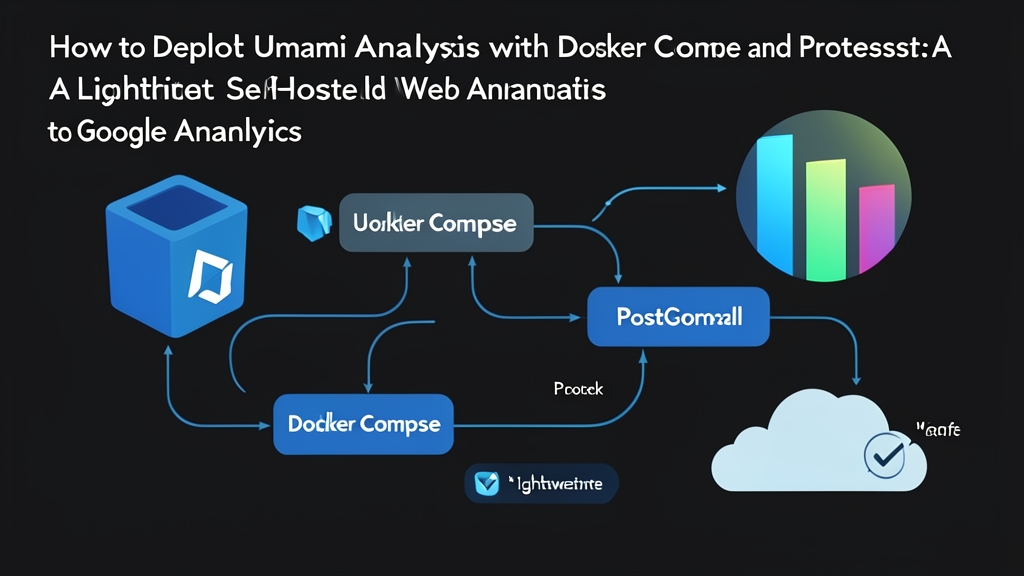
Umami solves all these issues cleanly. The entire stack works smoothly through three core components:
- Umami Analytics: An admin dashboard built with Next.js. Umami’s tracking script is tiny—just around 2KB, almost 20 times lighter than GA4. It requires zero cookies. Instead, it identifies unique visitors using a daily-rotating hash generated from the IP address and User-Agent, making it fully GDPR-compliant without annoying consent banners.
- PostgreSQL 15: Stores all pageviews and custom events. Your data remains entirely on your own server’s drive, never transmitted to any third-party services.
- Docker Compose: The orchestrator that spares you from installing Node.js or compiling code manually. The entire Umami and database stack is neatly defined in a single file and spins up with just one command.
This setup uses only about 180MB to 250MB of RAM. A budget VPS with 1 vCPU and 1GB RAM (around $4–$5/month) is more than enough to handle hundreds of thousands of pageviews per month, while keeping your database protected behind an internal Docker network.
3. Steps to Deploy Umami on a Linux VPS
Prepare an Ubuntu or Debian server with Docker Engine (be sure to configure Docker daemon.json properly to prevent disk full issues) and the Docker Compose plugin (v2) installed. Then, follow the step-by-step instructions below.
Step 1: Create a Project Directory
Open your VPS terminal and create a dedicated directory for configuration files:
mkdir -p ~/umami-analytics && cd ~/umami-analyticsStep 2: Create the docker-compose.yml File
Before creating the file, generate a random secret string for APP_SECRET using this command:
openssl rand -hex 32Next, create the docker-compose.yml file:
nano docker-compose.ymlPaste the standard configuration below into the file, which fetches the pre-built image from GitHub Container Registry (GHCR). Remember to replace my_strong_db_password with your actual database password and YOUR_GENERATED_SECRET with the hex string generated above:
services:
  umami-db:
    image: postgres:15-alpine
    container_name: umami_postgres
    environment:
      POSTGRES_DB: umami
      POSTGRES_USER: umami_user
      POSTGRES_PASSWORD: my_strong_db_password
    volumes:
      - umami-db-data:/var/lib/postgresql/data
    restart: always

  umami-app:
    image: ghcr.io/umami-software/umami:postgresql-latest
    container_name: umami_server
    ports:
      - "3000:3000"
    environment:
      DATABASE_URL: postgresql://umami_user:my_strong_db_password@umami-db:5432/umami
      DATABASE_TYPE: postgresql
      APP_SECRET: YOUR_GENERATED_SECRET
    depends_on:
      - umami-db
    restart: always

volumes:
  umami-db-data:
Step 3: Launch and Check the Logs
Pull the images and run the containers in the background:
docker compose up -dOn the initial startup, the container will automatically run migration scripts to initialize the database tables. This takes about 20 to 40 seconds. You can monitor the progress through the logs:
docker compose logs -f umami-appOnce you see Ready in ...ms along with a message indicating it is listening on port 3000, the application is ready.
Quick tip: When debugging Docker logs or inspecting JSON responses from the Umami API, you can quickly paste them into an online tool like toolcraft.app/en/tools/developer/json-formatter to format and validate the structure easily.
Step 4: Log In and Change the Default Password Immediately
Open your browser and navigate to http://YOUR_VPS_IP:3000. The default credentials are:
- Username:
admin - Password:
umami
After logging in successfully, immediately go to Settings > Profile to update your password. Do not skip this step, as automated bots on the internet constantly scan port 3000 for default credentials.
Step 5: Add Your Website and Embed the Tracking Code
Go to Settings > Websites, click Add website, and enter your site’s name and domain (for example, myblog.com). Umami will generate a tracking script snippet like this:
<script defer src="https://analytics.yourdomain.com/script.js" data-website-id="12345678-abcd-ef01-2345-6789abcdef01"></script>Paste this snippet inside the <head> tag of your website. To prevent Mixed Content security warnings when your main site runs over HTTPS, configure Nginx, Caddy, or Traefik v3 with automatic SSL as a reverse proxy for your Umami subdomain.
Now, open your website in an incognito window and refresh the page. Head back to the Umami dashboard, and you should see the real-time analytics chart update instantly. For a complete monitoring stack, you can also deploy Uptime Kuma with Docker Compose to track site uptime and receive incident alerts.
4. Conclusion
Self-hosting Umami with Docker Compose frees you from the burden of cookie banners, boosts page load speeds thanks to a featherlight 2KB script, and gives you complete ownership of your traffic data. Set it up once, and it will run reliably for years with virtually zero maintenance.