
The Problem: The Tedium of Manual Container Updates
Managing two or three containers on a personal VPS is trivial. But once you scale to 15–20 services, keeping track of updates quickly becomes a time-consuming chore. Every few days, you have to SSH into your server, run docker pull, and restart each service one by one. Skip it, and you risk unpatched security vulnerabilities. Update manually, and it is both tedious and prone to typos.
When I first started using Docker, I wrote a bash script scheduled via cron to pull fresh images at midnight. The result? A container got stuck in a crash loop right after updating. Sleeping soundly until morning, I only realized my website had been down for five hours because the script had no alerting mechanism whatsoever.
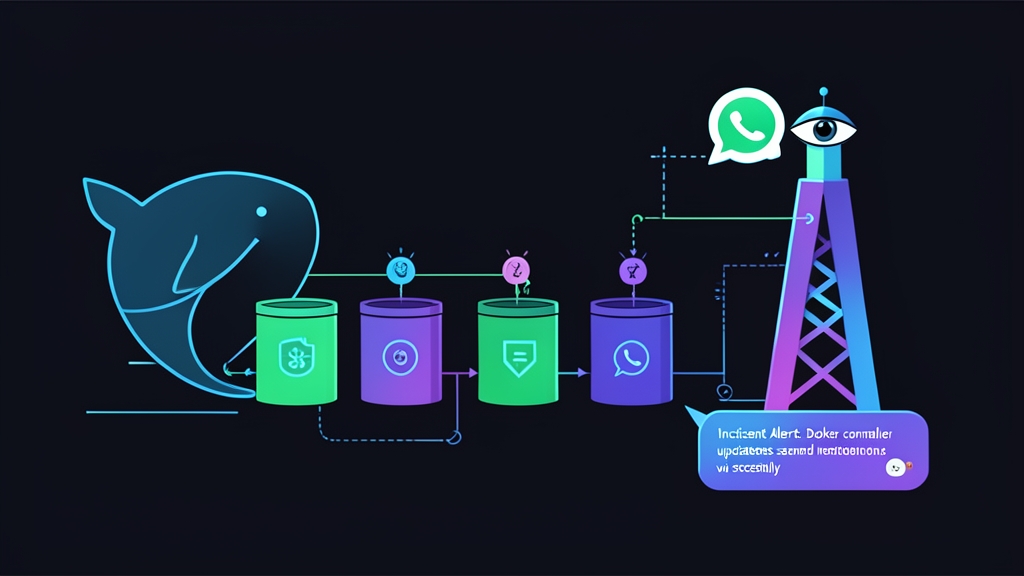
Watchtower was built to solve this exact problem. It automatically detects new images, gracefully recreates containers, and sends update reports straight to your Telegram.
Core Concepts: How Does Watchtower Work?
Watchtower is essentially a Docker container running in the background, tasked with monitoring other containers on the same host. Here is how the process works:
- Communicating via Docker Socket: Watchtower mounts the host volume
/var/run/docker.sockto inspect container states and manage their lifecycle. - Image Digest Matching (Polling): On a set schedule, Watchtower polls registries (Docker Hub, GHCR, etc.) to check if your current image has a newer SHA256 digest.
- Graceful Restarts: Upon detecting an update, Watchtower pulls the new image and sends a SIGTERM signal to shut down the old container safely. It then spins up a new container using identical parameters: environment variables (ENV), port mappings, volumes, networks, and restart policies.
- Disk Cleanup: Watchtower automatically prunes obsolete images after replacement. This prevents budget VPS instances with limited storage (around 20–30GB) from running out of disk space after a few weeks.
- Alerting via Shoutrrr: Powered by the Shoutrrr notification library, Watchtower effortlessly forwards detailed upgrade logs or error alerts to Telegram, Discord, or Slack.
Step-by-Step Guide: Installing and Configuring Watchtower
Step 1: Set Up Telegram Bot and Chat ID
To receive notifications, you need to create a bot and retrieve your target group Chat ID:
- Open Telegram, search for @BotFather, send
/newbot, and follow the prompts to obtain your Bot Token (e.g.,123456789:ABCdefGhIJKlmNoPQRsTUVwxyZ). - Create a new Telegram group and add your newly created bot to it.
- Send any message into that group (e.g.,
/startorping). - Run the following command in your terminal (replacing it with your bot token) to retrieve your Chat ID:
curl -s https://api.telegram.org/bot<YOUR_BOT_TOKEN>/getUpdatesLocate the "chat":{"id":-100xxxxxxxxxx} segment in the JSON response. That negative number is your group’s Chat ID.
Step 2: Create docker-compose.yml
Managing Watchtower with Docker Compose keeps your setup clean and maintainable. We will configure Watchtower to only monitor explicitly tagged containers, poll every hour, and report back to Telegram.
Create a working directory and open your compose file:
mkdir -p ~/watchtower && cd ~/watchtower
nano docker-compose.yml
Paste in the following configuration:
services:
  watchtower:
    image: containrrr/watchtower:latest
    container_name: watchtower
    restart: unless-stopped
    volumes:
      - /var/run/docker.sock:/var/run/docker.sock
    environment:
      - TZ=Asia/Ho_Chi_Minh
      # Poll interval: check every 3600 seconds (1 hour)
      - WATCHTOWER_POLL_INTERVAL=3600
      # Automatically prune old images after updating
      - WATCHTOWER_CLEANUP=true
      # Only update containers with the enable label set
      - WATCHTOWER_LABEL_ENABLE=true
      # Configure notifications via Shoutrrr
      - WATCHTOWER_NOTIFICATIONS=shoutrrr
      - WATCHTOWER_NOTIFICATION_URL=telegram://<TELEGRAM_BOT_TOKEN>@telegram?chats=<TELEGRAM_CHAT_ID>
      # Only send notifications on updates or errors
      - WATCHTOWER_NOTIFICATION_REPORT=true

  # Demo container to test functionality
  demo-nginx:
    image: nginx:alpine
    container_name: demo-nginx
    restart: always
    ports:
      - "8080:80"
    labels:
      # Enable Watchtower monitoring for this container
      - "com.centurylinklabs.watchtower.enable=true"
Step 3: Launch and Inspect Logs
Run the following command to start Watchtower along with the demo service:
docker compose up -dInspect the logs to verify that Watchtower connected to the Docker socket successfully:
docker logs -f watchtowerIf configured properly, the logs will indicate that Watchtower is watching labeled containers along with the scheduled timestamp for the next check.
Step 4: Trigger an Immediate Update (Run-once)
You do not have to wait 60 minutes to verify your setup. Trigger an immediate scan using the --run-once flag via the Docker CLI:
docker run --rm \
  -v /var/run/docker.sock:/var/run/docker.sock \
  -e WATCHTOWER_NOTIFICATIONS=shoutrrr \
  -e WATCHTOWER_NOTIFICATION_URL="telegram://<BOT_TOKEN>@telegram?chats=<CHAT_ID>" \
  containrrr/watchtower \
  --run-once demo-nginx
Watchtower will immediately inspect the demo-nginx image. If Docker Hub has an updated digest, it will pull the image, recreate the container, and deliver a status report straight to Telegram.
Important Production Considerations
- Always Use Labels: Always set
WATCHTOWER_LABEL_ENABLE=true. By default, Watchtower attempts to update every single container on your host. This is extremely hazardous for stateful databases like MySQL or PostgreSQL. An unexpected major version bump (such as upgrading PostgreSQL 15 to 16) will trigger a data directory mismatch and crash your database immediately. - Pin Specific Image Tags: Avoid relying on the
latesttag for critical backend services. Specify exact version tags (e.g.,node:20-alpineinstead ofnode:latest) to maintain predictable changes. - Use Cron Schedules Instead of Poll Intervals: Avoid midday container restarts during peak user traffic. Switch to the
WATCHTOWER_SCHEDULE="0 0 4 * * *"environment variable (using Go’s 6-field cron syntax) to ensure Watchtower only checks and deploys updates at 4:00 AM.
Conclusion
Automation does not mean giving up control. By combining Watchtower with selective container labels and Telegram alerts, you keep your containers patched with the latest releases while staying fully informed of every change on your server—without running commands manually every day.