
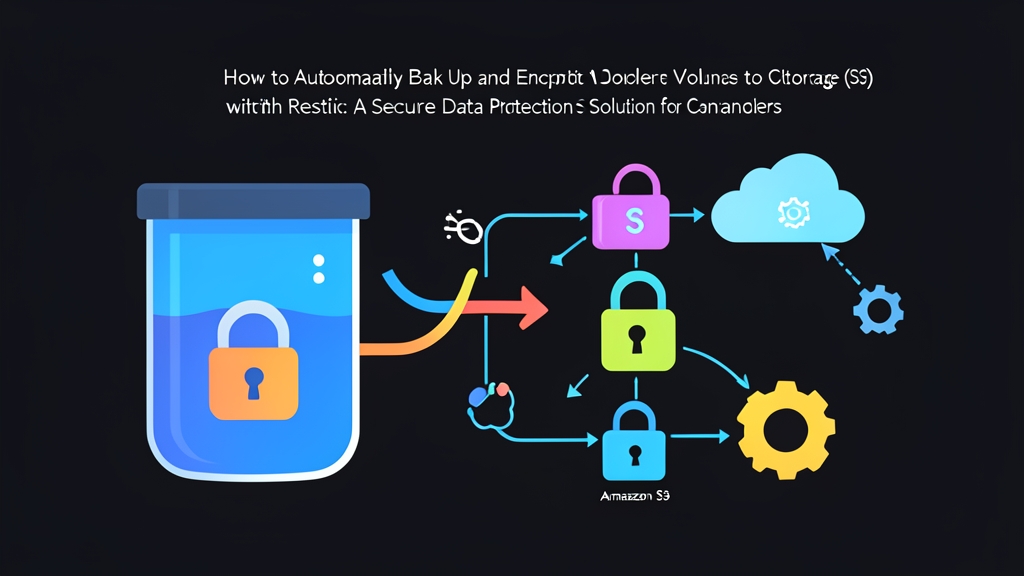
Real-World Reality: Container Data Is More Fragile Than You Think
When a container crashes, it takes barely 10 seconds to pull a new image and spin it back up. However, databases and user uploads are not that simple. This persistent data must live inside a Docker Volume or a bind mount. Many developers new to Docker assume that as long as the volume resides on the host’s drive, it is safe.
Disaster strikes without warning. A server’s SSD can develop bad sectors. An errant maintenance script executing docker volume prune -a -f will wipe out every volume not actively attached to a running container. Even worse was the catastrophic 2021 OVH datacenter fire that destroyed thousands of servers. Without off-site backups, your entire product can vanish overnight.
Many sysadmins still rely on custom Bash scripts running tar, compressing directories, and pushing them via rsync or FTP. This approach works fine when data stays under a few gigabytes. Once a database reaches 50GB or 100GB, host CPUs spike during compression, network bandwidth gets saturated, and the files pushed to the cloud lack end-to-end encryption. Restic solves every single one of these bottlenecks.
How Does Restic Handle Backups Intelligently?
Restic is an open-source backup tool written in Go that ships as a single standalone binary. Instead of packing the entire disk into a bloated zip archive, Restic adopts a block-based approach:
- Client-side Encryption: Restic encrypts every data block using AES-256 or ChaCha20-Poly1305 before transmitting it over the wire. Even administrators at AWS, Cloudflare R2, or Wasabi cannot inspect your data.
- Content-Defined Deduplication: Restic breaks files into dynamic chunks. If your 20GB PostgreSQL volume only accumulated 150MB of new logs today, Restic uploads strictly those 150MB to the cloud. This immediately slashes S3 storage costs by 70% to 85%.
- Standalone Snapshots: Each backup run creates an independent snapshot. You can restore your data to any point in time without dealing with convoluted chains of full and incremental backups.
- Broad S3 Compatibility: Restic works seamlessly out of the box with AWS S3, Cloudflare R2 (which features 100% free egress bandwidth), MinIO, and Backblaze B2.
Step-by-Step Implementation: Backing Up Docker Volumes to S3
We will implement a Zero-install pattern: using a temporary Restic container to back up the volumes. Your host machine requires no additional packages, keeping your underlying OS completely clean.
Step 1: Prepare the S3 Bucket and Credentials
First, create a bucket on your chosen S3-compatible service (e.g., my-docker-backups). Next, prepare the required environment variables:
# S3 access credentials
export AWS_ACCESS_KEY_ID="AKIAIOSFODNN7EXAMPLE"
export AWS_SECRET_ACCESS_KEY="wJalrXUtnFEMI/K7MDENG/bPxRfiCYEXAMPLEKEY"
export AWS_DEFAULT_REGION="ap-southeast-1"

# S3 repository path
# Standard AWS S3: s3:s3.amazonaws.com/bucket-name
# Cloudflare R2: s3:https://<account-id>.r2.cloudflarestorage.com/bucket-name
export RESTIC_REPOSITORY="s3:s3.ap-southeast-1.amazonaws.com/my-docker-backups/production"

# Repository encryption password (save to your password manager now!)
export RESTIC_PASSWORD="SuperSecurePassword@2026_Safe"
Step 2: Initialize the Repository on S3
Before the first backup, initialize the repository’s cryptographic layout:
docker run --rm -it \
  -e AWS_ACCESS_KEY_ID \
  -e AWS_SECRET_ACCESS_KEY \
  -e RESTIC_REPOSITORY \
  -e RESTIC_PASSWORD \
  restic/restic:latest init
Once you see created restic repository ... at s3:..., your remote repository is primed and ready to store data.
Step 3: Back Up a Docker Volume
Suppose you want to back up a volume named postgres_data. Mount this volume into the Restic container in read-only mode (:ro) to ensure the backup process never inadvertently alters source data:
docker run --rm \
  -e AWS_ACCESS_KEY_ID \
  -e AWS_SECRET_ACCESS_KEY \
  -e RESTIC_REPOSITORY \
  -e RESTIC_PASSWORD \
  -v postgres_data:/data:ro \
  restic/restic:latest backup /data --tag postgres_prod
The initial backup may take several minutes since it must upload all blocks. On subsequent runs, Restic scans only for modified chunks. A 10GB volume often completes its incremental backup in just 15 to 30 seconds.
Step 4: Automate via Crontab
To schedule daily automated runs, create a script at /opt/scripts/backup-docker.sh:
#!/bin/bash
set -euo pipefail

export AWS_ACCESS_KEY_ID="AKIAIOSFODNN7EXAMPLE"
export AWS_SECRET_ACCESS_KEY="wJalrXUtnFEMI/K7MDENG/bPxRfiCYEXAMPLEKEY"
export RESTIC_REPOSITORY="s3:s3.ap-southeast-1.amazonaws.com/my-docker-backups/production"
export RESTIC_PASSWORD="SuperSecurePassword@2026_Safe"

VOLUMES=("postgres_data" "wordpress_uploads" "grafana_storage")

for VOL in "${VOLUMES[@]}"; do
    echo "[$(date)] Backing up: $VOL"
    docker run --rm \
      -e AWS_ACCESS_KEY_ID \
      -e AWS_SECRET_ACCESS_KEY \
      -e RESTIC_REPOSITORY \
      -e RESTIC_PASSWORD \
      -v "${VOL}:/data:ro" \
      restic/restic:latest backup /data --tag "$VOL"
done

# Keep the last 7 daily, 4 weekly, and 6 monthly snapshots
echo "[$(date)] Cleaning up old snapshots according to retention policy..."
docker run --rm \
  -e AWS_ACCESS_KEY_ID \
  -e AWS_SECRET_ACCESS_KEY \
  -e RESTIC_REPOSITORY \
  -e RESTIC_PASSWORD \
  restic/restic:latest forget \
    --keep-daily 7 \
    --keep-weekly 4 \
    --keep-monthly 6 \
    --prune

echo "[$(date)] Backup process completed successfully!"
Grant execution permissions and set up a cron job to trigger every day at 2:00 AM:
chmod +x /opt/scripts/backup-docker.sh

# Add cron job using: crontab -e
0 2 * * * /opt/scripts/backup-docker.sh >> /var/log/restic-backup.log 2>&1
Step 5: Run a Recovery Drill
A backup is worthless until you prove it can be restored. Discovering a corrupted backup during a real production outage is a recipe for disaster.
First, list all existing snapshots stored on S3:
docker run --rm \
  -e AWS_ACCESS_KEY_ID \
  -e AWS_SECRET_ACCESS_KEY \
  -e RESTIC_REPOSITORY \
  -e RESTIC_PASSWORD \
  restic/restic:latest snapshots
Next, restore the latest snapshot into a scratch volume (postgres_data_restore_test). Ensure you mount the target volume to /data with the target flag set to / to preserve proper directory hierarchy:
# 1. Create a test volume
docker volume create postgres_data_restore_test

# 2. Restore directly into the volume
docker run --rm \
  -e AWS_ACCESS_KEY_ID \
  -e AWS_SECRET_ACCESS_KEY \
  -e RESTIC_REPOSITORY \
  -e RESTIC_PASSWORD \
  -v postgres_data_restore_test:/data \
  restic/restic:latest restore latest --target /
Data decrypts on the fly and writes directly into the volume. No raw, unencrypted payloads are ever exposed on intermediate host disks.
Field-Tested Best Practices for Container Backups
Before rolling this workflow out to production environments, keep these four essential rules in mind:
- Ensure Database Consistency: For high-write databases like PostgreSQL or MySQL, backing up raw volume files directly can lead to table corruption if a WAL write is mid-flight. Always run a consistent dump using
pg_dumpormariadb-dumpto a temporary directory first, then point Restic to that directory. - Guard Your Repository Password: Losing your
RESTIC_PASSWORDmeans permanently losing your data. No recovery backdoor exists. Store this credential securely in your team’s password vault, such as Vaultwarden, 1Password, or AWS Secrets Manager. - Always Enforce the
:roFlag: Mount volumes to backup containers in read-only mode without exception. A syntax error or faulty script command could otherwise wipe your active production volume if write privileges are granted. - Set Up Real-Time Failure Alerts: Append a Telegram alert or Discord webhook notification at the end of the script whenever a backup command yields a non-zero exit code. Never wait until an outage to discover that your automated backup logs have been silently failing.