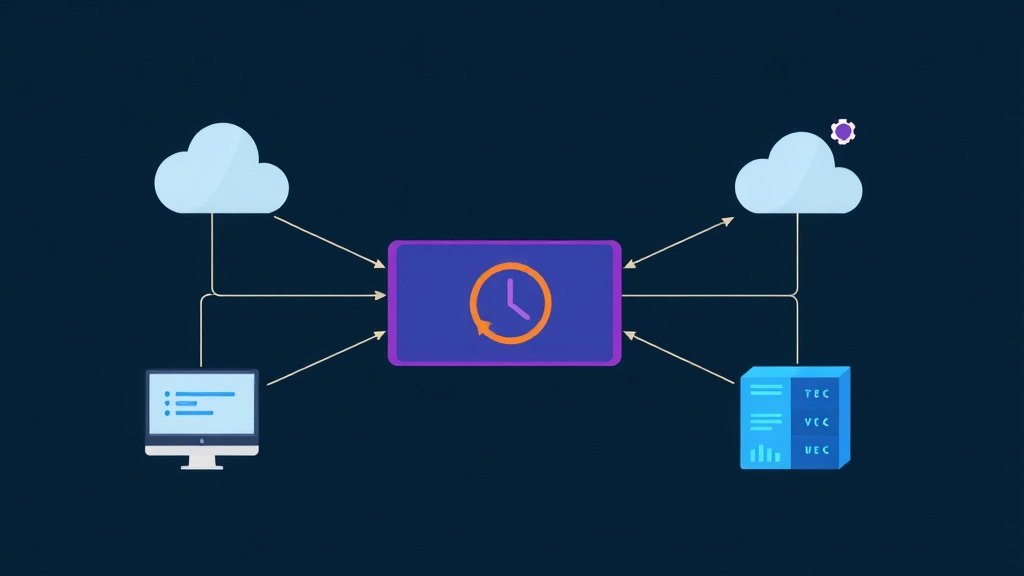
Why Advanced Cross vCenter vMotion is a Life-Saver
Migrating virtual machines (VMs) between different vCenters used to be a nightmare for administrators. Previously, you usually had two options: configuring complex Enhanced Linked Mode (ELM) or shutting down the machine to export the OVF manually. Both were labor-intensive. Exporting a 500GB VM and then importing it again could consume your entire morning just waiting.
In a recent infrastructure upgrade project, I had to migrate over 50 service VMs from an old vCenter 6.7 to a new 7.0 system. This was when Advanced Cross vCenter vMotion (XVM) solved the problem in a heartbeat. It allows you to “push” or “pull” virtual machines between vCenters in different SSO Domains without needing to connect them beforehand.
XVM is particularly useful in real-world scenarios such as:
- Migrating VMs to Hybrid Cloud environments.
- Replacing old vCenters with new versions without performing an in-place upgrade to avoid legacy errors.
- Consolidating resources after business mergers or Datacenter splits.
Technical Checklist Before You Start
While XVM is very flexible, you still need to ensure technical specifications are correct to avoid tasks failing at the 20% mark.
1. Software Versions
The destination vCenter must be version 7.0 Update 1c or higher to have the UI available. For the source vCenter, you only need to run version 6.5 or higher to qualify.
2. Network Infrastructure (Networking)
This is the Achilles’ heel of failed vMotion cases. Ensure the following ports are open:
- Port 443: HTTPS management between two vCenters.
- Ports 8000 & 902: Used for vMotion and NFC traffic transfer between ESXi hosts.
- Bandwidth: Minimum 250 Mbps. In reality, with a 1Gbps connection, migrating a 100GB VM took me about 12-15 minutes.
3. Licensing
This feature requires a vSphere Enterprise Plus license. Lower versions will be limited or the cross-vCenter migration option will not appear.
Step-by-Step Implementation Guide
You can choose “Push” or “Pull”. In my experience, you should use the Import VMs (Pull) method from the destination vCenter. This method helps you better control resources at the target point.
Step 1: Initiate the Import Command
In the vSphere Client of the destination vCenter, right-click on the Cluster or Host you want to receive the VM. Select Import VMs… from the menu.
Step 2: Connect the Source vCenter
Select Add vCenter Server. You need to enter the FQDN (or IP) along with the login credentials of the old vCenter. After authentication, the system will list all VMs running on the other side for you to choose from.
Step 3: Resource Mapping
This is the most critical step. You need to select:
- Storage: Select the destination Datastore. Prioritize Thin Provision to save SAN space.
- Network: Map the old Port Group to the new Port Group. If the IP ranges are different, prepare a plan to change the VM’s IP immediately after completion.
Step 4: Review and Confirm
Wait for the system to run Validation. If the text “Validation passed” appears in green, simply click Finish.
Automation with PowerCLI for Large Batches
Clicking through 5 VMs is fine, but for 50 VMs, it’s exhausting. The PowerCLI script below saved me hours of work:
# Connect to both vCenters simultaneously
Connect-VIServer -Server vcenter-old.local -User 'admin' -Password 'xxx'
Connect-VIServer -Server vcenter-new.local -User 'admin' -Password 'yyy'

# Declare parameters
$vm = Get-VM -Name "App-Server-01" -Server vcenter-old.local
$destHost = Get-VMHost -Name "esxi-new-01.local" -Server vcenter-new.local
$destDS = Get-Datastore -Name "PureStorage-LUN01" -Server vcenter-new.local
$destNet = Get-VirtualPortGroup -Name "VLAN100_Prod" -Server vcenter-new.local

# Trigger migration
Move-VM -VM $vm -Destination $destHost -Datastore $destDS -PortGroup $destNet -Server vcenter-new.local
Crucial Lessons from the Field
Throughout my operations, I’ve gathered a few lessons to avoid system hangs:
1. Always Unmount ISO Files
Many people forget to disconnect installation ISO files mounted in the virtual drive. The destination vCenter won’t find the ISO file path on the source vCenter and will immediately throw an error.
2. Check Domain Name Resolution (DNS)
Cross-vCenter vMotion is very sensitive to DNS. If the two vCenters cannot resolve each other’s FQDN, the handshake process will fail even if you can ping the IPs.
3. Monitor Packets (Ping Test)
When the process reaches 90%, open CMD and run a continuous ping to the VM. Usually, you will only lose 1 or 2 pings (about 2-4 seconds) during the handoff. If connection is lost for too long, re-check the VLAN configuration on the physical Switch to see if they match.
Mastering Advanced Cross vCenter vMotion makes you more confident when handling complex infrastructure migration projects. With no more SSO Domain barriers, everything becomes much more flexible and professional.