The Monday Morning “Log Check” Anxiety
When I first started as a VMware administrator, I learned a hard lesson from a classic scenario: On a Monday morning, just as I opened my laptop, my boss was already there asking, “Why has the Database VM been down since 2 AM Sunday without anyone noticing?”
At that moment, I could only frantically open vCenter, digging through the cluttered Tasks & Events to find the cause. It turned out a forgotten old snapshot had ballooned to over 200GB, overflowing the Datastore. The issue was that vCenter knew exactly what happened—it logged it clearly—but it stayed silent. It didn’t knock on my door to tell me; it waited for me to go looking for it.
If you are managing vSphere infrastructure and are tired of doing everything manually, this article is for you. Don’t wait for end-users to call and complain before you start fixing bugs.
Why Are Default vCenter Alarms Not Good Enough?
In reality, vCenter Server is a massive event data repository. Every action, from powering VMs on/off and vMotion to hardware failures, is recorded in detail. However, VMware’s default Alarms mechanism is quite outdated.
You can send emails, but few people monitor their inbox 24/7. Configuring SNMP Traps is a nightmare for those who aren’t network specialists. The core issue is that vCenter wasn’t designed with a modern Event-Driven architecture.
It’s like a passive diary. If someone wants to know something, they have to open it and read it themselves; it doesn’t automatically notify other applications when something happens.
Weaknesses of Traditional Solutions
Before finding the optimal solution, I tried many methods, but they all had flaws:
- vCenter Alarms (Email): Slow notifications, easily lost in spam folders, and extremely difficult to customize the content.
- PowerCLI Scripting: I once wrote a script running as a cron job to scan logs every 5 minutes. The result was still a delay, and the vCenter CPU was always overloaded from processing continuous queries.
- vRealize Operations (vROps): This tool is powerful, but licensing costs thousands of dollars. Configuration is also complex enough that you need a specialized course to master it.
VEBA: The Intelligent “Translator” for VMware
While tinkering to optimize my lab system, I discovered the VMware Event Broker Appliance (VEBA). This is an open-source project developed by top engineers at VMware.
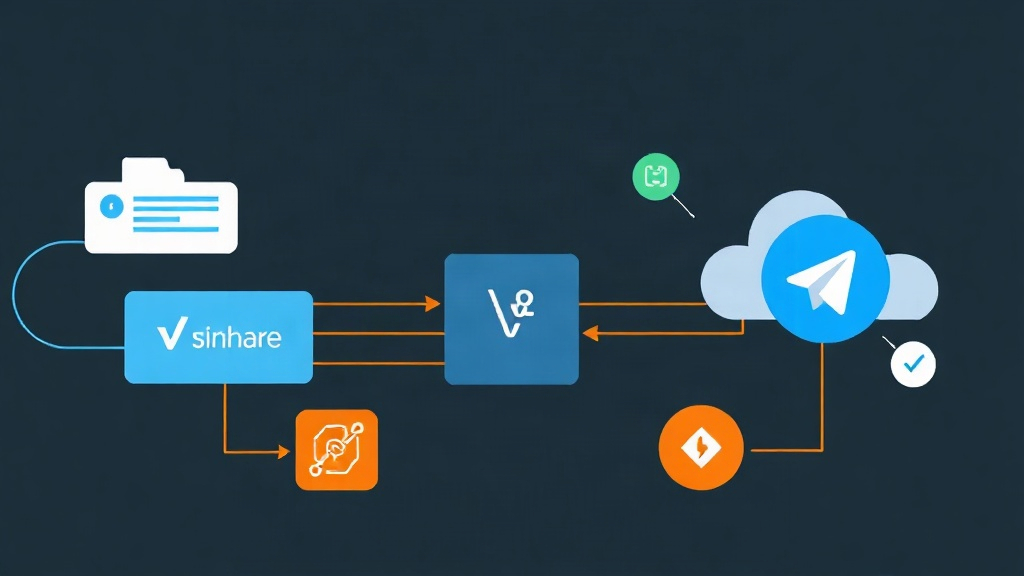
VEBA acts as an intermediary between vCenter and external applications. When vCenter generates any event, VEBA catches it immediately and triggers a Function to process it. You can command it: “If a VM is suddenly powered off, message me on Telegram immediately!”
Operational Mechanism
VEBA leverages the power of Knative or OpenFaaS to run Serverless Functions. You don’t need to manage complex servers. Just push your code (Python, PowerShell, Go…) and it will automatically execute when the corresponding event is triggered.
Steps to Deploy Automated Telegram Alerts
Here is a guide to setting up the system: When someone deletes a virtual machine (VM Removed), Telegram will send an instant alert to the administration group.
Step 1: Initialize the Telegram Bot
- Chat with @BotFather on Telegram and type the `/newbot` command to create a bot.
- Save the provided API Token.
- Send any message to the bot, then access this URL to get your `chat_id`:
https://api.telegram.org/bot<YOUR_TOKEN>/getUpdates
Step 2: Deploy the VEBA Appliance
Download the OVA file from the homepage `vmware.github.io/event-broker-appliance`. When importing into vCenter, note these important parameters:
- vCenter Server: The IP address or FQDN of the vCenter.
- vCenter User: An account with at least Read-only permissions for Events.
- Provider: Choose `knative` for the highest stability.
Step 3: Write the Processing Function in Python
The following code will receive data from VEBA and forward it as a dynamic Telegram message:
import requests
import os

def handler(context, event):
    # Get detailed information from the vCenter event
    data = event.data
    vm_name = data.get('Vm', {}).get('Name', 'N/A')
    user = data.get('UserName', 'N/A')

    msg = f"⚠️ WARNING: Virtual Machine {vm_name} was just deleted by user {user}!"

    token = os.getenv('TELEGRAM_TOKEN')
    chat_id = os.getenv('TELEGRAM_CHAT_ID')
    url = f"https://api.telegram.org/bot{token}/sendMessage"

    requests.post(url, data={"chat_id": chat_id, "text": msg})
    return "OK", 200
Step 4: Configure the Event Map (stack.yaml)
You need a configuration file to define when to run the code. Here, we target the `VmRemovedEvent`.
functions:
  telegram-notifier:
    runtime: python3
    handler: handler
    image: your-docker-hub/telegram-notifier:v1
    environment:
      TELEGRAM_TOKEN: "secret_token_here"
      TELEGRAM_CHAT_ID: "your_id"
    annotations:
      topic: "com.vmware.vsphere.VmRemovedEvent"
Use the `kn service apply` command to activate it. From now on, as soon as a VM is deleted, your phone will vibrate with an alert immediately.
Practical Tips to Avoid Notification “Spam”
After running VEBA for a system with over 100 Hosts, I’ve gathered a few tips:
- Smart Event Filtering: Don’t catch every event! A large system can generate 10,000 events per hour. If you capture login logs, the Telegram bot will crash from spam. Focus only on Critical errors like `VmPoweredOffEvent` or Datastore errors.
- Information Security: Never put your Telegram Token directly in the code. Use the built-in Kubernetes Secrets in VEBA for secure storage.
- Categorize by Tag: Combining this with vSphere Tags is a great trick. You can program it to only send alerts for VMs tagged “Production”, while “Test” VMs can just be logged silently.
Conclusion
The job of an IT engineer is not to sit and watch log screens. We should focus on building self-operating systems. VEBA is the piece that helps VMware infrastructure become more proactive and intelligent.
Since using VEBA, I no longer worry every Monday morning. I’ve even expanded the system to automatically open tickets on Jira when hardware failures are detected. If you are managing vSphere, try installing VEBA today to liberate your own labor!