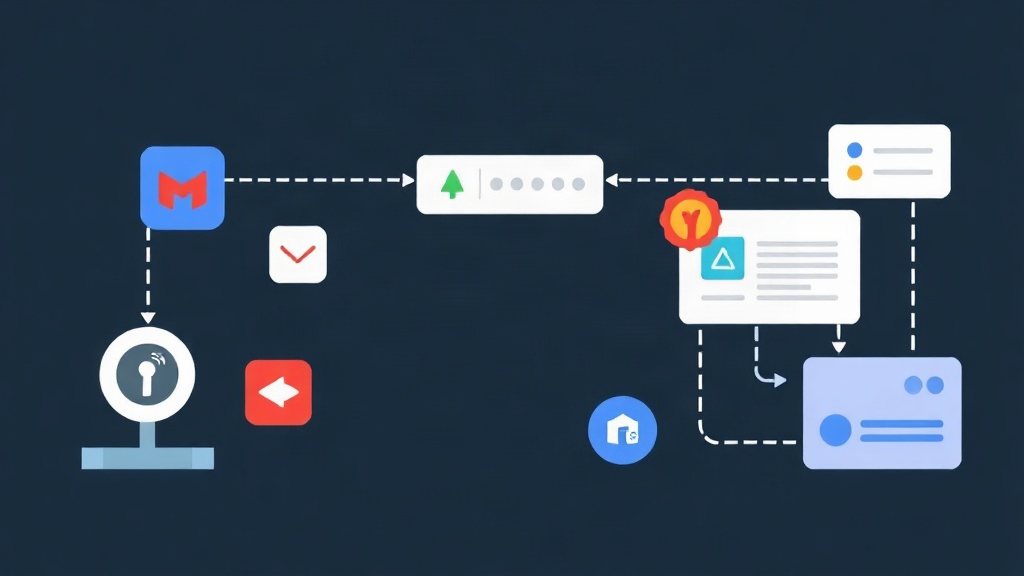
Comparing Commit Verification Methods in Git
Spoofing an author in Git is ridiculously easy. Just run git config user.name "Linus Torvalds" along with his email address, and you can create commits credited to the creator of Linux right on your local machine.
This poses an immediate threat to Software Supply Chain Security. To verify who actually pushed the code, the community currently relies on three approaches:
- Unsigned Commits: No signing at all. By default, Git blindly trusts whatever name and email are configured locally.
- Long-term Private Key Signing (GPG / SSH): Developers generate a key pair locally, store the private key, and upload the public key to GitHub. Every commit then carries a corresponding cryptographic signature.
- Keyless Signing (Sigstore & Gitsign): This mechanism leverages OpenID Connect (OIDC). Developers authenticate via GitHub, Google, or Microsoft accounts. Fulcio then issues an ephemeral digital certificate valid for just 10–15 minutes to sign the commit. The entire signature record is subsequently logged to Rekor, a public transparency ledger.
Pros and Cons of Each Approach in Practice
Major open-source projects such as Kubernetes and CPython are migrating entirely to Sigstore. Here is a detailed breakdown of each option in real-world operations.
1. Unsigned Commits
- Pros: Fast. New team members can clone the repo and start coding immediately without any configuration hurdles.
- Cons: Extremely high security risk. Bad actors can push backdoors masquerading as the Tech Lead without the repository detecting any tampering.
2. Traditional Key Management (GPG / SSH)
- Pros: Highly familiar. GitHub, GitLab, and Bitbucket all offer native support. Commits display that clean, reassuring green Verified badge.
- Cons: Key management is a nightmare. Developers must back up private keys, remember passphrases, and monitor expiration dates. Offboarding team members and revoking keys is tedious and cumbersome. If a private key is lost without a pre-generated revocation certificate, you are out of luck—that key floats around forever. If a key leaks, attackers can silently sign malicious code without the team ever noticing.
3. Keyless Signing with Sigstore & Gitsign
- Pros: No private keys stored on disk. Zero risk of key exposure. Identity binds directly to your corporate SSO or personal OAuth account. Fulcio issues temporary certificates valid for 10–15 minutes to stamp the commit and then discards them. Every signature trace is recorded on the Rekor ledger, guaranteeing full tamper resistance.
- Cons: Requires an active internet connection to open a browser for OIDC authentication. For offline CI/CD runners or air-gapped environments, teams must self-host an internal Fulcio and Rekor stack.
When Should You Choose Which Solution?
Every project operates under distinct infrastructure constraints. Consider your environment’s requirements:
- Choose GPG/SSH: Best when your infrastructure is completely isolated from the internet, or when your organization mandates hardware security keys like YubiKeys.
- Choose Gitsign (Keyless): Best when you want consistent commit signing across the entire team without anyone wrestling with key imports or renewals. It is an ideal fit for modern DevOps teams and open-source repositories.
The more friction in a workflow, the more likely developers will look for workarounds. Force them to type a passphrase dozens of times a day, and they will simply turn off commit signing to save time. Gitsign elegantly resolves this dilemma: enterprise-grade Sigstore security paired with a frictionless developer experience.
Installing and Configuring Gitsign
Gitsign is a CLI tool built by Sigstore as a drop-in replacement for Git’s default gpg binary. Setting it up on Linux and macOS is straightforward.
Step 1: Install the Gitsign Binary
On macOS, use Homebrew:
brew install gitsignOn Linux (Ubuntu/Debian), download the prebuilt binary release directly from GitHub:
# Fetch the latest release tag
VERSION=$(curl -s https://api.github.com/repos/sigstore/gitsign/releases/latest | grep tag_name | cut -d '"' -f 4)
curl -LO "https://github.com/sigstore/gitsign/releases/download/${VERSION}/gitsign_${VERSION#v}_linux_amd64.tar.gz"

# Extract and move to PATH
tar -xvzf "gitsign_${VERSION#v}_linux_amd64.tar.gz" gitsign
sudo mv gitsign /usr/local/bin/
gitsign --version
Step 2: Configure Git to Use Gitsign
Git allows swapping the signing program via the gpg.x509.program configuration. Point Git to the newly installed gitsign binary:
# Enable automatic signing for commits and tags
git config --global commit.gpgsign true
git config --global tag.gpgsign true

# Configure X.509 certificate format and point to Gitsign
git config --global gpg.format x509
git config --global gpg.x509.program gitsign
Step 3: Commit and Authenticate via OIDC
Once configured, continue working as usual. When you create a commit:
git add .
git commit -m "feat: implement authentication flow"
Gitsign will automatically open a browser tab requesting OIDC authentication:
[gitsign] Opening your browser to authenticate with Sigstore...
[gitsign] Successfully authenticated! Ephemeral certificate issued.
Simply select your Google or GitHub account. Gitsign retrieves a short-lived certificate from Fulcio, signs the commit matching your configured git config user.email, and records the audit trail.
Step 4: Verify the Commit Signature
To verify whether the commit was properly signed, run:
git log -1 --show-signatureThe output displays the X.509 certificate details, the issuer, and the Rekor log index:
commit a1b2c3d4e5f67890123456789abcdef012345678
gitsign: Valid signature from: [email protected]
gitsign: Issuer: https://github.com/login/oauth
gitsign: Rekor log index: 12948210
Author: Developer <[email protected]>
Date:   Sun Oct 11 08:30:00 2026 +0700

    feat: implement authentication flow
Bonus Tip: Enable Caching to Avoid Constant Browser Prompts
Having a browser window pop up on every commit can disrupt your flow. You can enable credential caching to preserve your session for up to an hour:
git config --global gitsign.connectorID "https://github.com/login/oauth"
gitsign cache enable
Log in once at the start of your workday, and subsequent commits will be signed instantly with sub-second response times—all while preserving full transparency.