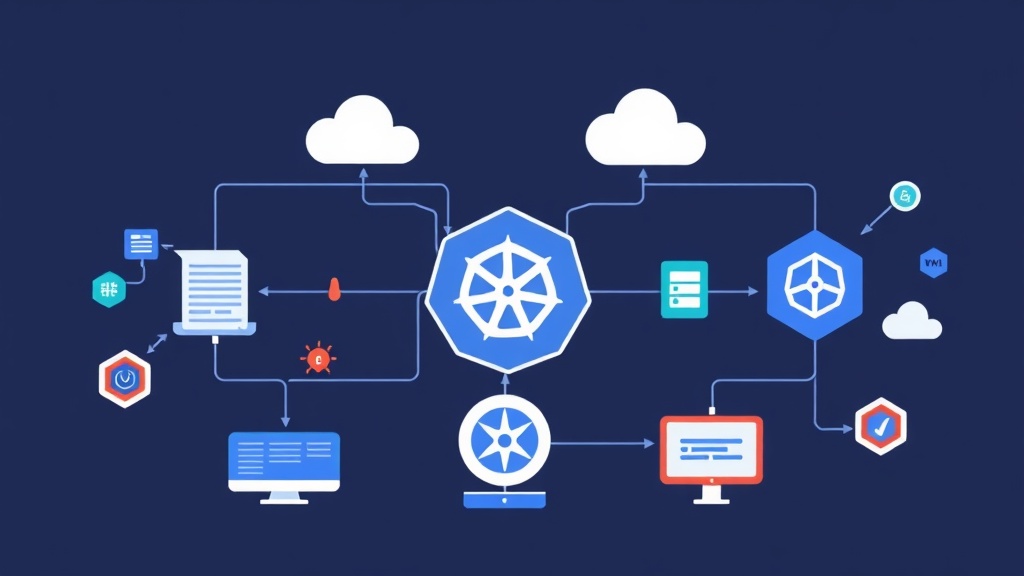
Bringing It All Together: When VMs and Containers Share a Home
DevOps engineers are all too familiar with the scene: one hand wielding kubectl to control containers, while the other fumbles through Proxmox or VMware to manage legacy database VMs. Maintaining two separate infrastructures is a massive drain on resources and manpower. In my own homelab, I once managed 12 VMs just for legacy apps that couldn’t be containerized, and jumping between different dashboards was a real headache.
KubeVirt comes to the rescue. It allows us to run KVM virtual machines directly inside Kubernetes Pods. Now, you can use YAML files to define a Windows Server exactly like you would declare a simple Nginx container.
Real-world Comparison: Traditional Virtualization vs. Cloud Native Virtualization
Before we start typing commands, let’s look at the core differences to understand where we stand.
- Traditional Virtualization (Proxmox, ESXi): Virtual machines are “first-class citizens.” Networking and storage are designed specifically for VMs. If you want to run K8s, you have to install it on top of these VMs.
- Cloud Native Virtualization (KubeVirt): Kubernetes acts as the underlay. The VM becomes a Resource (CRD) within K8s, inheriting the entire ecosystem from Scheduler and RBAC to Monitoring (Prometheus) and Logging (Loki).
Instead of worrying about separate VLAN configurations, VMs now share the cluster’s network range via Calico or Cilium. This is the key to making your network topology much less cluttered.
Is KubeVirt Really That Great? Weighing the Pros and Cons
The Benefits of KubeVirt
The biggest advantage is consistency. You use the same CI/CD pipeline and the same alerting system for both Pods and VMs. Next is resource utilization. K8s automatically schedules VMs onto nodes with available RAM/CPU, eliminating the need for manual calculations.
Important Caveats to Consider
The main issue is performance. Since the VM runs nested within a Pod, it carries an additional abstraction layer. Even with KVM support, CPU overhead is typically around 5-10% compared to running on bare metal. Additionally, handling storage for VMs on K8s (like creating Disk Images from PVCs) is still somewhat cumbersome compared to a few clicks on Proxmox.
When Should You Deploy KubeVirt?
Don’t rush to scrap your current VMware setup. In my experience, consider KubeVirt in these three scenarios:
- When you need to modernize infrastructure but are stuck with legacy modules that only run on Windows Server or specific kernels.
- When you want to build a self-service platform for Dev teams so they can quickly spin up both databases (VMs) and apps (containers) using a single set of YAML files.
- When you want to manage everything via GitOps and Kubernetes Custom Resources to synchronize configurations across the entire system.
Step-by-Step Practical KubeVirt Deployment
Step 1: Check Server Hardware Support
The node must support hardware virtualization for KubeVirt to run smoothly. Quickly check with the following command:
virt-host-validate qemuIf you see PASS all the way down, you’re good to go. If you get a FAIL, you’ll be forced to use software emulation mode, which is painfully slow and only suitable for tinkering.
Step 2: Install KubeVirt Operator
We will use an Operator to manage the KubeVirt lifecycle in the most professional way possible.
# Get the latest version from GitHub
export VERSION=$(curl -s https://api.github.com/repos/kubevirt/kubevirt/releases/latest | grep tag_name | cut -d '"' -f 4)

# Install Operator and Custom Resource
kubectl create -f https://github.com/kubevirt/kubevirt/releases/download/${VERSION}/kubevirt-operator.yaml
kubectl create -f https://github.com/kubevirt/kubevirt/releases/download/${VERSION}/kubevirt-cr.yaml
Grab a cup of coffee and wait a few minutes for the Pods in the kubevirt namespace to be ready.
Step 3: Equip Yourself with the virtctl CLI
To interact deeply with VMs, such as accessing the console or starting/stopping them, kubectl isn’t enough. You’ll need virtctl:
curl -L -o virtctl https://github.com/kubevirt/kubevirt/releases/download/${VERSION}/virtctl-${VERSION}-linux-amd64
chmod +x virtctl
sudo mv virtctl /usr/local/bin/
Step 4: Initialize Your First Virtual Machine
Here is a YAML template to run a “super lightweight” Fedora instance. It takes about 30 seconds to boot from a container image.
apiVersion: kubevirt.io/v1
kind: VirtualMachine
metadata:
  name: itfromzero-vm
spec:
  running: false
  template:
    spec:
      domain:
        devices:
          disks:
            - name: containerdisk
              disk: {}
          interfaces:
            - name: default
              masquerade: {}
        resources:
          requests:
            memory: 1024Mi
      networks:
        - name: default
          pod: {}
      volumes:
        - name: containerdisk
          containerDisk:
            image: kubevirt/fedora-cloud-container-disk-demo
After applying the file, wake up your virtual machine with this command:
virtctl start itfromzero-vmPro-Tips to Avoid Common Pitfalls
The most common error you’ll encounter is a Storage Class that doesn’t support ReadWriteMany (RWX). If you want Live Migration (moving VMs between nodes without downtime), the storage must be accessible from multiple locations simultaneously. Avoid using local paths unless you only intend to test on a single node.
Additionally, look into CDI (Containerized Data Importer). It allows you to pull .qcow2 or .iso files directly from a URL into a PVC, which is much more convenient than building Docker images manually.
KubeVirt might not completely replace VMware or Proxmox in every scenario, but it is the key to achieving a “Single Pane of Glass” centralized management model. Good luck with your lab build, and if you have any questions, feel free to leave a comment below!