Real-world Problem: The Command Line Nightmare During Server Outages
Imagine your boss calls you at 2 AM because the website is down. You frantically open your laptop, wait for the SSH connection, and repeatedly type df -h, top, free -m. In a sleepy daze, reading thousands of lines of black-and-white logs with the journalctl command is a total nightmare.
When I first started at a startup, remembering all the metrics for 10 servers at once was impossible. Just one wrong space while deleting logs could trigger a disaster. Back then, I wished for an intuitive dashboard—a place where I could just click to see CPU usage percentages and available RAM in MB.
Why CLI-based Administration Can Be a Barrier
The Command Line Interface (CLI) is extremely powerful, but it’s not always optimized for productivity. CLI has three fatal weaknesses:
- Lack of a holistic view: You can’t see real-time resource graphs to predict issues before they happen.
- Eye-straining log monitoring: Filtering errors with
tail -fmakes it easy to miss critical warnings. - Configuration risks: A single syntax error when editing a
netplanfile can completely disconnect your server from the network.
In many situations, a Graphical User Interface (GUI) helps us resolve problems three times faster and minimizes human error.
Comparing Popular Web Administration Tools
The Linux community has created several options to “web-ify” administration:
- Webmin: Very powerful, but the interface looks like it’s from the 90s. It’s too cluttered and consumes unnecessary resources.
- Ajenti: Looks more modern but is quite tedious to install due to complex dependencies.
- Installing a Desktop Environment (GNOME/KDE): This is the biggest mistake. It consumes about 500MB – 1GB of RAM and creates numerous security vulnerabilities.
Cockpit: The Lightweight Solution for Ubuntu Server 22.04
After trying everything, I chose Cockpit. It’s an open-source project sponsored by Red Hat. The best part is that Cockpit only runs when you access the web interface, maximizing resource savings.
On the staging system I manage, Cockpit only uses about 20MB of RAM when idle. This is negligible for modern VPS instances.
Step 1: Install Cockpit in 30 Seconds
Ubuntu 22.04 has Cockpit integrated into its official repositories. You only need to run two commands:
sudo apt update
sudo apt install cockpit -y
Once installed, the system will automatically activate the socket. Check it to ensure everything is stable:
systemctl status cockpit.socketStep 2: Open Firewall Ports (UFW)
Cockpit runs on port 9090 by default. You need to allow traffic through this port using the command:
sudo ufw allow 9090/tcp
sudo ufw reload
Step 3: Log in to the Web Interface
Now, open your browser and go to the following address:
https://server-ip-address:9090The browser will show a security warning because of the self-signed SSL certificate. Don’t worry—click Advanced and then Proceed…. Then, use your standard SSH account to log in.
Step 4: Features That Make Your Life Easier
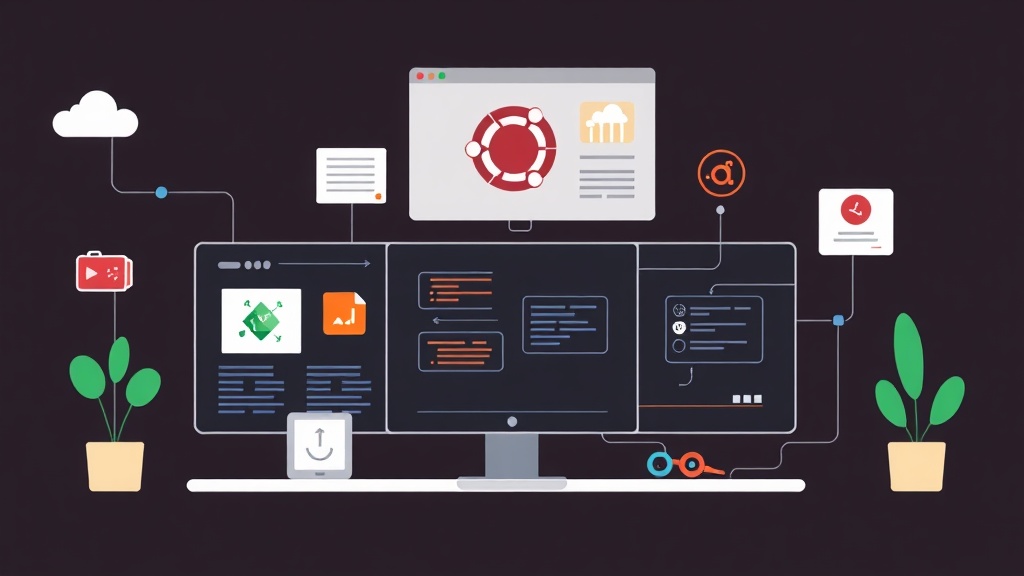
The Cockpit interface provides everything you need to monitor server health:
- System: Real-time CPU, RAM, and network traffic charts.
- Logs: Filter logs by severity (Error, Warning) lightning fast. No more endless scrolling in the terminal.
- Storage: Check disk I/O (IOPS) and manage partitions with just a few clicks.
- Networking: Change static IPs or configure bridges without worrying about config file typos.
- Software Updates: Click a button to apply all security patches for Ubuntu.
Step 5: Extend Functionality with Plugins
If you use Docker or Podman, install the container management module:
sudo apt install cockpit-podman -yAdditionally, the Cockpit Navigator plugin is a must-have. It turns your browser into a professional file manager. You can upload or edit files directly without needing FileZilla.
Critical Lessons Learned When Using Cockpit
To use Cockpit safely and effectively, keep these three things in mind:
- Port Security: Don’t leave port 9090 completely public. Use UFW to allow access only from your home IP or VPN.
- Admin Privileges: When logging in, remember to click the “Turn on administrative access” button in the top corner. Otherwise, you won’t have permission to modify the system.
- Performance: Cockpit is extremely lightweight and runs smoothly even on a 1 vCPU and 1GB RAM VPS. You can confidently install it on low-cost servers.
Combining CLI and Cockpit will help you manage Ubuntu Server more professionally. Instead of struggling with dry command lines, you can now control everything effortlessly. Give it a try—you’ll regret not knowing about it sooner!