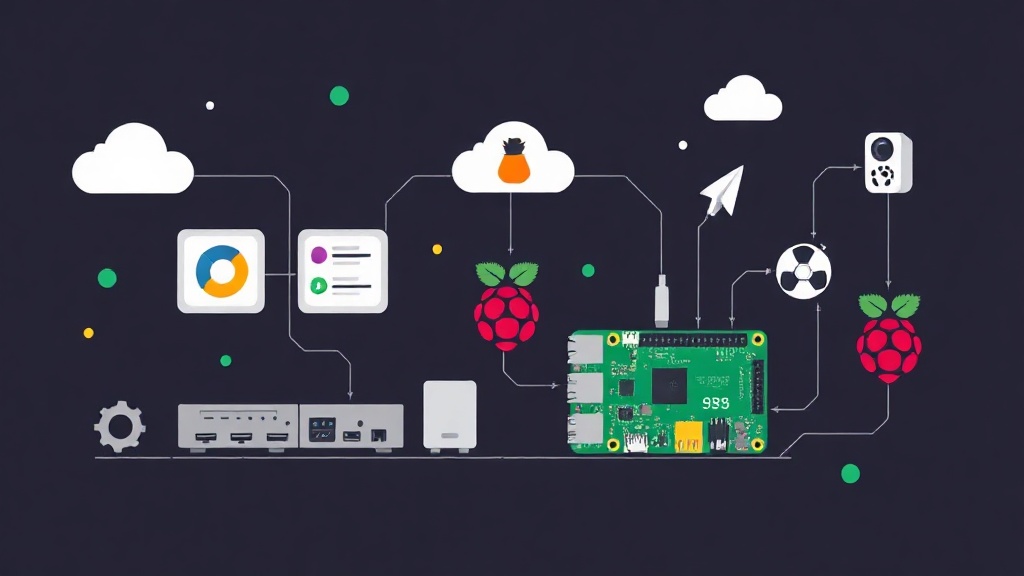
Why is the Raspberry Pi 5 a great fit for a home server?
If you want a small machine running 24/7 at home — storing files, running automation scripts, hosting a few internal web apps — the first problem you’ll hit is the electricity bill. An old PC running around the clock draws 60–100W, which translates to roughly $100–200 a year just to keep the lights on.
The Raspberry Pi 5 consumes around 5–15W depending on load. With its quad-core ARM Cortex-A76 at 2.4GHz and either 4GB or 8GB of RAM, the Pi 5 can comfortably handle most lightweight services a home server needs. Low power, compact, silent — tuck it into a network cabinet and forget about it.
Comparing OS options: what should you use?
Before you start flashing an SD card, you need to pick the right OS. There are three popular choices, each with its own strengths.
Raspberry Pi OS (Raspbian)
Pros: Optimized for Pi hardware, fast boot, official support for GPIO and camera modules. If you need physical hardware control, this is the top pick.
Cons: Based on Debian with a smaller ecosystem than Ubuntu. Documentation for specific server use cases is also noticeably thinner.
Ubuntu Desktop 24.04 ARM
Pros: Familiar, with a graphical interface.
Cons: The GNOME desktop eats 600MB–1GB of RAM at idle. On a 4GB Pi 5, that’s a quarter of your RAM consumed by a display nobody’s looking at. Not sensible for a headless server.
Ubuntu Server 24.04 LTS ARM
Pros: Lightweight (idle at ~150–200MB RAM), 5-year LTS support, built-in cloud-init for effortless headless configuration, rich apt package selection, large community.
Cons: No GUI — but this is a server, you don’t need one. A few Pi-specific drivers require additional configuration compared to Raspberry Pi OS.
I went with Ubuntu Server 24.04 LTS. When I first switched from CentOS to Ubuntu, it took me about a week to get comfortable with the package management — apt and dpkg behave quite differently from yum/dnf. But after that, Ubuntu Server became my default choice for every small server setup. Tons of documentation, and every error message has already been asked about on Stack Overflow.
What you’ll need
- Raspberry Pi 5 (4GB or 8GB RAM)
- microSD card ≥32GB Class 10, or an SSD via USB 3.0 (recommended — much more durable)
- Official USB-C 5V/5A power supply — the Pi 5 needs 5A; the old Pi 4 adapter won’t cut it
- Ethernet cable — wired is more reliable than Wi-Fi for a server
- A computer to flash the image and SSH into the Pi
Flashing Ubuntu Server and configuring headless access
Headless means the Pi runs entirely without a monitor or keyboard. You SSH in from your laptop to manage it. The Pi sits quietly in your network cabinet, taking up no space.
Step 1: Flash the image with Raspberry Pi Imager
Download Raspberry Pi Imager on your machine (available for Windows, Mac, and Linux). When selecting the OS, navigate to Other general-purpose OS → Ubuntu → Ubuntu Server 24.04 LTS (64-bit).
Before flashing, click the gear icon ⚙ to pre-configure via cloud-init:
- Hostname: e.g.
homeserver - Enable SSH: select “Use password authentication”
- Username/Password: create a dedicated user, don’t use the default
pi - Wi-Fi (optional): if you don’t have an Ethernet cable handy at first
These settings are written by Imager into the user-data file on the first partition of the SD card. Cloud-init reads that file on the first boot and applies the configuration automatically — no monitor needed.
Step 2: Boot and SSH into the Pi
Insert the SD card into the Pi, plug in the Ethernet cable and power. Wait about 2–3 minutes for cloud-init to finish (the first boot always takes longer). Then find the Pi’s IP address:
# Scan LAN to find the Pi (replace subnet to match your network)
nmap -sn 192.168.1.0/24 | grep -A 2 "Raspberry"

# Or check your router's admin page
SSH into the Pi:
ssh [email protected]
# First SSH connection will ask you to confirm the fingerprint — type "yes"
Configuring a static IP with Netplan
A dynamic IP (DHCP) is unreliable for a server — every time you restart your router, the Pi’s IP might change, breaking any internal DNS settings or reverse proxy configurations you’ve set up. Ubuntu Server uses Netplan instead of nmcli like CentOS/RHEL.
First, check your network interface name:
ip link show
# On Ubuntu 24.04 it's typically: eth0 or end0
Create a static IP configuration file:
sudo nano /etc/netplan/99-static.yamlFile contents (adjust values to match your network):
network:
  version: 2
  ethernets:
    eth0:                        # or end0 — check from "ip link show"
      dhcp4: false
      addresses:
        - 192.168.1.100/24       # Static IP you want to assign to the Pi
      routes:
        - to: default
          via: 192.168.1.1       # Gateway — usually your router's IP
      nameservers:
        addresses:
          - 1.1.1.1              # Cloudflare DNS
          - 8.8.8.8              # Google DNS
Apply the configuration and verify:
sudo netplan apply

# Check the new IP
ip addr show eth0

# Verify internet connectivity
ping -c 3 google.com
If netplan apply reports a file permission error, run: sudo chmod 600 /etc/netplan/99-static.yaml — Netplan requires that config files not be world-readable.
Deploying lightweight services on your home server
A Pi 5 running Ubuntu Server can handle all of the following services comfortably, with headroom to spare:
Pi-hole — Network-wide ad blocking
Pi-hole acts as an internal DNS server, blocking ads for every device on your network without needing to install browser extensions on each one.
curl -sSL https://install.pi-hole.net | bash
# After installation, change the DNS in your router to the Pi's static IP
# Pi-hole uses only ~50MB RAM at idle
Uptime Kuma — Service uptime monitoring
A clean web UI for monitoring the uptime of websites and internal services, with notifications when something goes down:
# Install Docker first
curl -fsSL https://get.docker.com | sh
sudo usermod -aG docker $USER
newgrp docker

# Run Uptime Kuma
docker run -d --restart=unless-stopped \
  -p 3001:3001 \
  -v uptime-kuma:/app/data \
  --name uptime-kuma \
  louislam/uptime-kuma:1

# Access: http://192.168.1.100:3001
Vaultwarden — Self-hosted password manager
Compatible with the Bitwarden client but far lighter, making it a great fit for the Pi:
docker run -d \
  --name vaultwarden \
  -v /vw-data/:/data/ \
  -p 8080:80 \
  --restart unless-stopped \
  vaultwarden/server:latest

# Access: http://192.168.1.100:8080
Monitoring Pi resources
# View RAM and CPU usage in real time
htop

# Check Pi 5 temperature (important if you don't have a heatsink)
vcgencmd measure_temp
# Should stay below 70°C under load — if not, you need better cooling
Practical tips to keep in mind
- Use an SSD instead of an SD card if possible: SD cards wear out from frequent read/write cycles within 1–2 years. An SSD via USB 3.0 or an NVMe HAT is significantly more durable and faster for server workloads.
- Cooling is mandatory for the Pi 5: The Pi 5 runs noticeably hotter than the Pi 4. Use a case with a fan, or at minimum the official heatsink.
- A small UPS for your network cabinet: A sudden power cut while the Pi is writing to disk can corrupt the filesystem. A mini UPS costing a few dollars protects your entire setup.
- Schedule a weekly reboot: Clears any memory leaks and keeps the system clean.
# Reboot at 4 AM every Sunday
sudo crontab -e
# Add the line:
0 4 * * 0 reboot
Building a home server with a Pi 5 and Ubuntu Server is a setup that teaches you an enormous amount about real-world Linux administration — in a safe environment where the worst case is only affecting your home network — before you ever touch a production VPS.