Public Container Registries: Convenient but Riddled with Risk
Packaging applications into containers is much like loading cargo into freight containers. Each image contains application source code, third-party dependencies, and an entire miniature operating system under the hood.
Many teams take the easy path and push images straight to public registries like Docker Hub. That is where vulnerabilities begin. A simple slip-up leaving a repository set to Public can expose an entire .env file packed with internal API keys. Worse yet, developers might inadvertently pull an untrusted base image laced with an XMRig cryptominer or a backdoor beaconing back to a C2 server.
Back around 2022, our staging server was compromised by a cryptominer after a developer accidentally pulled an unverified Redis image from the internet. CPU utilization stayed pinned at 100%, and server fans whined all night. Ever since that incident, I enforced a strict rule: never promote an image to production without internal verification. That is precisely why you need Harbor — a private container registry fully under your control.
How Harbor Protects Your Infrastructure
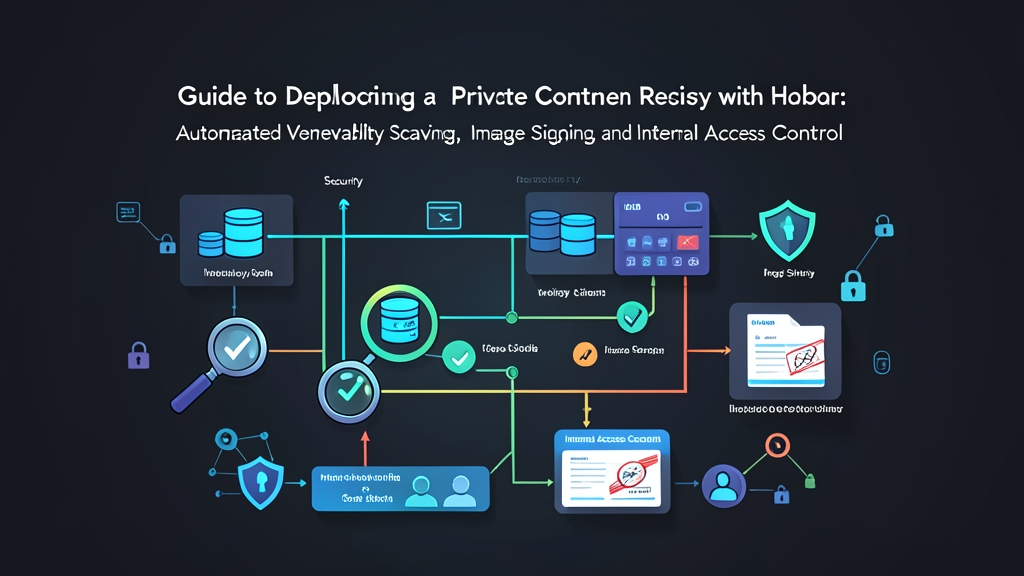
Harbor is an open-source project hosted by the Cloud Native Computing Foundation (CNCF). Far beyond merely storing and serving images like a basic Docker Registry, Harbor serves as an enterprise security gatekeeper with three defensive layers:
- Automated Vulnerability Scanning with Trivy: Harbor comes pre-integrated with the Trivy scanner. The moment a
docker pushcommand runs, the system automatically unpacks the image and scans it against CVE databases. If a Critical vulnerability is detected, Harbor immediately blocks the image, preventing anyone from pulling it down to production servers. - Digital Signing and Tamper-Proofing with Cosign: This mechanism ensures downloaded images have never been altered in transit. Leveraging Cosign from the Sigstore project, each container is tagged with a cryptographic signature. Kubernetes clusters or Docker hosts only permit execution for images bearing a valid signature verified against your company’s pipeline.
- RBAC and Robot Accounts: Projects are completely isolated. The backend team cannot tamper with frontend images. CI/CD pipelines are issued dedicated tokens with least-privilege permissions instead of sharing administrative credentials.
Deploying a Production-Grade Harbor Registry on Ubuntu
Step 1: Server Preparation
The system requires a minimum of 2 vCPUs, 4GB of RAM, and 40GB of disk space (SSD recommended). Install Docker Engine and Docker Compose v2:
# Update repositories and install auxiliary tools
sudo apt update && sudo apt install -y curl wget ca-certificates gnupg

# Install latest Docker version
curl -fsSL https://get.docker.com -o get-docker.sh
sudo sh get-docker.sh
sudo systemctl enable --now docker

# Verify version
docker compose version
Step 2: Generate SSL/TLS Certificates
Harbor rejects unencrypted HTTP traffic by default. If you do not yet have a certificate from Let’s Encrypt or an internal CA, you can generate a self-signed certificate for testing:
sudo mkdir -p /data/cert
cd /data/cert

# Generate a 4096-bit private key
sudo openssl genrsa -out registry.example.com.key 4096

# Generate a 365-day SSL certificate
sudo openssl req -x509 -new -nodes -sha512 -days 365 \
  -subj "/C=VN/ST=Hanoi/L=Hanoi/O=DevOps/CN=registry.example.com" \
  -key registry.example.com.key \
  -out registry.example.com.crt

# Configure the Docker daemon to trust this self-signed certificate
sudo mkdir -p /etc/docker/certs.d/registry.example.com
sudo cp /data/cert/registry.example.com.crt /etc/docker/certs.d/registry.example.com/ca.crt
sudo systemctl restart docker
Step 3: Configure and Launch Harbor
Download the official offline installer package from GitHub Releases:
cd /tmp
wget https://github.com/goharbor/harbor/releases/download/v2.10.0/harbor-offline-installer-v2.10.0.tgz
tar -xzvf harbor-offline-installer-v2.10.0.tgz
cd harbor
cp harbor.yml.tmpl harbor.yml
Open harbor.yml and configure key parameters:
hostname: registry.example.com

http:
  port: 80
https:
  port: 443
  certificate: /data/cert/registry.example.com.crt
  private_key: /data/cert/registry.example.com.key

harbor_admin_password: StrongPassword2026!#
data_volume: /data/harbor
Run the installation script with the Trivy scanner enabled:
sudo ./install.sh --with-trivyAfter about 2-3 minutes, verify the status using docker ps. You should see Harbor’s 9 core containers (registry, core, trivy-adapter, postgresql, redis, etc.) running healthy.
Step 4: Enable Vulnerability Blocking Policies
Open your browser, navigate to https://registry.example.com, and log in with the admin credentials.
- Navigate to Projects > click New Project. Name it
fintech-coreand keep it set to Private. - Click on the
fintech-coreproject and select the Configuration tab. - Toggle on Automatically scan images on push.
- Toggle on Prevent vulnerable images from running, and set the severity threshold to High or Critical.
This configuration serves as your definitive safety valve. Even if an engineer inadvertently pushes an image harboring known critical CVEs, any downstream docker pull requests from production servers will be rejected on the spot by Harbor.
Step 5: Sign Container Images with Cosign
Blocking CVEs is only half the battle. You also need to guarantee that images have not been altered or tampered with along the delivery chain. For this, we turn to Cosign:
# Install Cosign binary
wget https://github.com/sigstore/cosign/releases/download/v2.2.3/cosign-linux-amd64 -O cosign
chmod +x cosign && sudo mv cosign /usr/local/bin/

# Generate key pair for signing (enter passphrase when prompted)
cosign generate-key-pair
# Generates 2 files: cosign.key (private key) and cosign.pub (public key)

# Log in to Harbor
docker login registry.example.com

# Tag and push test image
docker tag nginx:alpine registry.example.com/fintech-core/web:v1.0
docker push registry.example.com/fintech-core/web:v1.0

# Sign the pushed image
cosign sign --key cosign.key registry.example.com/fintech-core/web:v1.0

# Verify digital signature
cosign verify --key cosign.pub registry.example.com/fintech-core/web:v1.0
When the verify command returns a payload containing the exact SHA-256 digest, the system guarantees the image is untampered and authentic since it left your pipeline.
Step 6: Enforce Least Privilege in CI/CD Using Robot Accounts
Never hardcode personal accounts or administrator passwords into CI/CD scripts. If credentials leak in pipeline logs, an attacker gains unrestricted control over the registry. The industry standard approach is to use Robot Accounts:
- Under the
fintech-coreproject, open the Robot Accounts tab > click Add Robot Account. - Name it
gitlab-runnerand set an expiration timeframe (e.g., 90 days). - Grant strictly necessary permissions: check only Push and Pull scopes for this project.
- Click Save and immediately copy the Secret Token. This token is displayed only once.
In Harbor 2.x, project robot account usernames include the project prefix. Authenticate from your CI/CD runner using the following syntax:
docker login registry.example.com -u 'robot$fintech-core+gitlab-runner' -p 'YOUR_SECRET_TOKEN'Conclusion
Setting up Harbor is about far more than having a place to store Docker image blobs. It acts as an authoritative defense shield that empowers DevOps teams to govern exactly what code gets deployed onto company servers.
Investing roughly two hours to spin up Harbor with Trivy and Cosign will insulate your infrastructure from widespread supply chain attack vectors. The sooner you implement this baseline, the less technical debt and security exposure your systems will carry down the road.