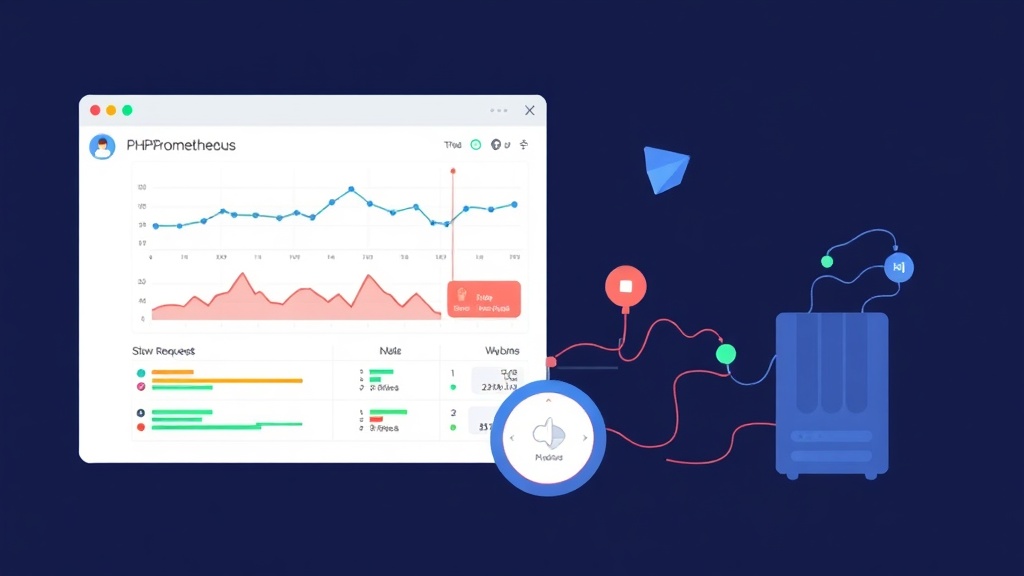
Yesterday my team got a ticket: “The website is slow, customers are complaining.” I SSH’d into the server, ran ps aux | grep php-fpm, and manually counted each process — it took nearly 10 minutes to confirm that PHP-FPM was running out of workers and requests were queueing up. With a monitoring dashboard already in place, I could have caught this before customers ever noticed the problem.
Before I had monitoring, I had to SSH into each server to check — now I just open the dashboard and see everything at a glance. In this post, I’ll share how to set up PHP-FPM monitoring with Prometheus, focusing on the 3 metrics that most commonly cause issues: active processes, idle workers, and slow requests.
Why Does PHP-FPM Need Its Own Monitoring?
Prometheus and Grafana can monitor CPU, RAM, and disk — but that’s server health, not PHP application health. PHP-FPM can be choking on workers while the CPU sits idle at 20%. The two are completely independent.
PHP-FPM operates on a process pool model: each PHP request is handled by a worker process. The pool has a maximum worker limit (pm.max_children). When all workers are busy, new requests must wait in a queue. If the queue fills up, the server returns a 502 or 504 error.
Three core metrics to monitor:
- Active Processes: The number of workers currently handling requests at any given moment
- Idle Workers: The number of free workers ready to accept new requests
- Slow Requests: Requests that take too long to process (based on the
request_slowlog_timeoutthreshold)
When active processes approach pm.max_children and idle workers drop to 0, that’s a sign PHP-FPM is about to choke. When slow requests spike suddenly, it could be due to slow database queries or external API timeouts dragging on.
Enabling the PHP-FPM Status Page
PHP-FPM has a built-in endpoint that returns metrics — you just need to enable it. Open the pool configuration file (typically /etc/php/8.x/fpm/pool.d/www.conf):
sudo nano /etc/php/8.2/fpm/pool.d/www.confFind and uncomment (or add) the following lines:
; Enable status page
pm.status_path = /status

; Enable slow request log
request_slowlog_timeout = 5s
slowlog = /var/log/php-fpm/slow.log
Restart PHP-FPM:
sudo systemctl restart php8.2-fpmVerify the status page is working (via Unix socket):
sudo -u www-data php-fpm8.2 -d "error_log=/dev/null" 2>/dev/null
curl --unix-socket /run/php/php8.2-fpm.sock http://localhost/status

# Or if using TCP port:
curl http://127.0.0.1:9000/status
The output is returned as plain text with metrics such as active processes, idle processes, slow requests…
If you’re using Nginx, add a location block to expose the endpoint for internal access only:
server {
    listen 127.0.0.1:9001;  # Internal access only

    location /status {
        fastcgi_pass unix:/run/php/php8.2-fpm.sock;
        fastcgi_param SCRIPT_FILENAME $document_root$fastcgi_script_name;
        include fastcgi_params;
    }
}
sudo nginx -t && sudo systemctl reload nginx
curl http://127.0.0.1:9001/statusInstalling php-fpm_exporter
Prometheus can’t read PHP-FPM’s text format — you need an exporter to convert it. I use the php-fpm_exporter by hipages (a Go binary, lightweight, no runtime required).
# Download the latest binary
wget https://github.com/hipages/php-fpm_exporter/releases/download/v2.2.0/php-fpm_exporter_2.2.0_linux_amd64.tar.gz
tar xzf php-fpm_exporter_2.2.0_linux_amd64.tar.gz
sudo mv php-fpm_exporter /usr/local/bin/
sudo chmod +x /usr/local/bin/php-fpm_exporter
Create a systemd service to run it automatically:
sudo nano /etc/systemd/system/php-fpm-exporter.service[Unit]
Description=PHP-FPM Exporter for Prometheus
After=network.target php8.2-fpm.service
[Service]
Type=simple
User=www-data
ExecStart=/usr/local/bin/php-fpm_exporter \
--phpfpm.scrape-uri="tcp://127.0.0.1:9000/status" \
--web.listen-address=":9253"
Restart=on-failure
[Install]
WantedBy=multi-user.targetIf PHP-FPM uses a Unix socket instead of TCP:
ExecStart=/usr/local/bin/php-fpm_exporter \
    --phpfpm.scrape-uri="unix:///run/php/php8.2-fpm.sock;/status" \
    --web.listen-address=":9253"
sudo systemctl daemon-reload
sudo systemctl enable --now php-fpm-exporter
# Verify metrics are being exported
curl http://localhost:9253/metrics | grep phpfpmThe output will show metrics like:
phpfpm_active_processes 3
phpfpm_idle_processes 7
phpfpm_max_children_reached_total 0
phpfpm_slow_requests_total 12
phpfpm_listen_queue 0
phpfpm_max_listen_queue 5
Configuring Prometheus to Scrape PHP-FPM
Add a new job to prometheus.yml:
scrape_configs:
  # ... existing jobs ...

  - job_name: 'php-fpm'
    static_configs:
      - targets: ['localhost:9253']
        labels:
          server: 'web01'
          pool: 'www'
    scrape_interval: 15s
Reload Prometheus:
sudo systemctl reload prometheus

# Check if the target is up
curl http://localhost:9090/api/v1/targets | python3 -m json.tool | grep -A5 php-fpm
Creating Dashboards and Alerts in Grafana
Create a new dashboard and add panels with PromQL queries:
Panel 1 — Active vs Idle Workers (Graph):
# Active processes
phpfpm_active_processes{job="php-fpm"}

# Idle processes
phpfpm_idle_processes{job="php-fpm"}

# Max children (upper limit)
phpfpm_max_active_processes{job="php-fpm"}
Panel 2 — Slow Requests (Rate per minute):
rate(phpfpm_slow_requests_total{job="php-fpm"}[5m]) * 60Panel 3 — Listen Queue (number of waiting requests):
phpfpm_listen_queue{job="php-fpm"}Panel 4 — Worker Utilization % (most important):
phpfpm_active_processes / (phpfpm_active_processes + phpfpm_idle_processes) * 100When this number exceeds 80%, it’s time to pay attention; above 95%, PHP-FPM is on the verge of choking.
Configure Alert Rules in Grafana (or Alertmanager) for when the queue starts accumulating:
# alerting_rules.yml
groups:
  - name: php-fpm
    rules:
      - alert: PHPFPMHighWorkerUtilization
        expr: phpfpm_active_processes / (phpfpm_active_processes + phpfpm_idle_processes) * 100 > 85
        for: 2m
        labels:
          severity: warning
        annotations:
          summary: "PHP-FPM workers running low on {{ $labels.server }}"
          description: "Worker utilization is at {{ $value | printf \"%.1f\" }}%, risk of request queuing"

      - alert: PHPFPMListenQueueFull
        expr: phpfpm_listen_queue > 0
        for: 30s
        labels:
          severity: critical
        annotations:
          summary: "PHP-FPM queue is accumulating pending requests"
          description: "There are {{ $value }} requests waiting for available workers on {{ $labels.server }}"
How to Read the Metrics in Practice
A few patterns I commonly see when looking at the dashboard:
- Active spikes then returns to normal: A temporary traffic spike — the pool is large enough to handle it, nothing to worry about.
- Active stays high, Idle near 0 for an extended period: Not enough workers in the pool. Increase
pm.max_children(but account for RAM: each PHP-FPM worker uses ~30-50MB). - Slow requests spike at a fixed time of day: Likely a heavy cron job or scheduled report query running periodically. Optimize the query or offload it to a separate queue.
- Listen queue > 0: This is when users are actively feeling the slowness. Act immediately.
I typically set pm.max_children = free RAM (MB) / 50. For example, if a server has 2GB of RAM available for PHP-FPM, set a maximum of 40 workers.
Conclusion
Monitoring PHP-FPM with Prometheus isn’t complicated — just enable the status page and run a small exporter to get comprehensive metrics. The key is knowing how to read the numbers: consistently high worker utilization is a real concern, but short spikes are perfectly normal.
With a dashboard in place, you can tell the difference between “the site is slow because PHP-FPM doesn’t have enough workers” and “the site is slow because database queries are slow” — two problems with completely different solutions. Without monitoring, you might increase worker count and still see slowness because the root cause lies elsewhere.