Three Ways to Monitor Kafka — and Why None of Them Is a Perfect Fit
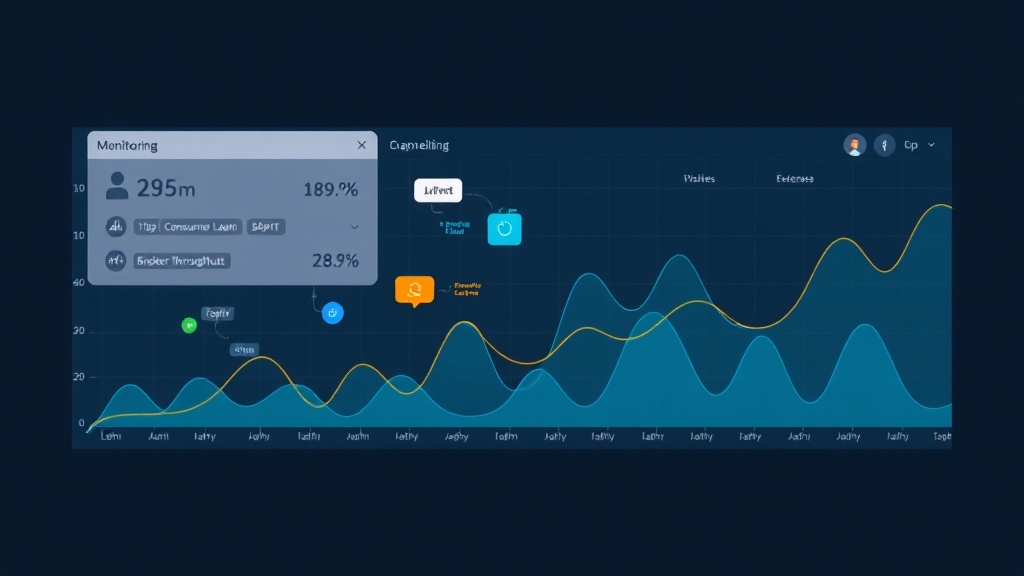
Before having proper monitoring in place, I had to SSH into each broker individually to run kafka-consumer-groups.sh and check lag — an incredibly time-consuming process that made early detection nearly impossible. Now I just open the dashboard and can see the entire cluster at a glance, from throughput to consumer lag per group.
But before getting there, I went through three main approaches — each with its own drawbacks.
Approach 1: AKHQ (Kafka HQ) — Pure GUI
AKHQ is a web UI that lets you view topics, consumer groups, and broker status. It’s easy to install, intuitive, and great for exploring your cluster. But the major downside: no time-series data, no alerting, and no integration with your broader alerting system. When something goes wrong at 3 AM, nobody is opening AKHQ to check things manually.
Approach 2: Burrow (by LinkedIn)
Burrow is a dedicated consumer lag monitoring tool with a fairly smart “consumer health” evaluation algorithm — it doesn’t just look at instantaneous lag but also analyzes trends. However, setup is complex, you need an additional adapter to expose metrics to Prometheus, and the community has been less active since around 2022.
Approach 3: JMX Exporter + kafka-exporter with Prometheus
This is the stack I’m currently running in production. The two exporters complement each other: JMX Exporter pulls detailed metrics from Kafka’s JMX interface (broker-level: throughput, request rate, replication lag), while kafka-exporter retrieves consumer group and topic metrics (lag, offset, partition count). Both expose Prometheus-compatible endpoints.
Weighing the Trade-offs to Make the Right Choice
After trying all three, here’s a practical comparison:
- AKHQ: Fast to set up, clean UI — but no alerting, no time-series, can’t integrate into a shared observability stack.
- Burrow: Smarter consumer health evaluation — but complex to deploy, requires a separate adapter, and is less actively maintained.
- JMX Exporter + kafka-exporter: Full metrics coverage, integrates with Prometheus/Grafana/Alertmanager — but requires more configuration steps upfront.
Why I chose the third stack: we already had Prometheus running across our entire infrastructure. Grafana dashboards let us correlate Kafka metrics with server metrics (CPU, memory, disk I/O) — invaluable when debugging a performance issue and not knowing whether the bottleneck is in Kafka or on the consumer service side.
Choosing the Right Stack for Your Situation
- Small team, few brokers, need quick visibility: AKHQ is enough to get started.
- Want in-depth consumer lag monitoring without complex alerting: Burrow + Burrow-exporter.
- Production environment, need alerting, integrating with an existing observability stack: JMX Exporter + kafka-exporter + Prometheus + Grafana.
Deployment Guide: JMX Exporter + kafka-exporter
Step 1: Configure JMX Exporter on the Kafka Broker
JMX Exporter runs as a Java agent attached to the Kafka process. Download the agent jar:
wget https://repo1.maven.org/maven2/io/prometheus/jmx/jmx_prometheus_javaagent/0.20.0/jmx_prometheus_javaagent-0.20.0.jar \
  -O /opt/kafka/libs/jmx_prometheus_javaagent.jar
Create the configuration file /opt/kafka/config/kafka-jmx-exporter.yaml with the most important metrics:
startDelaySeconds: 0
ssl: false
lowercaseOutputName: true
lowercaseOutputLabelNames: true
rules:
  - pattern: 'kafka.server<type=BrokerTopicMetrics, name=MessagesInPerSec><>OneMinuteRate'
    name: kafka_broker_messages_in_per_sec
  - pattern: 'kafka.server<type=BrokerTopicMetrics, name=BytesInPerSec><>OneMinuteRate'
    name: kafka_broker_bytes_in_per_sec
  - pattern: 'kafka.server<type=BrokerTopicMetrics, name=BytesOutPerSec><>OneMinuteRate'
    name: kafka_broker_bytes_out_per_sec
  - pattern: 'kafka.server<type=ReplicaManager, name=UnderReplicatedPartitions><>Value'
    name: kafka_broker_under_replicated_partitions
  - pattern: 'kafka.controller<type=KafkaController, name=ActiveControllerCount><>Value'
    name: kafka_broker_active_controller_count
Add the JVM flag to the Kafka startup file — typically via the KAFKA_OPTS variable:
export KAFKA_OPTS="-javaagent:/opt/kafka/libs/jmx_prometheus_javaagent.jar=7071:/opt/kafka/config/kafka-jmx-exporter.yaml"After restarting the broker, verify the endpoint:
curl http://localhost:7071/metrics | grep kafka_brokerStep 2: Deploy kafka-exporter
kafka-exporter is a standalone Go binary that connects to your Kafka cluster to retrieve consumer group and topic metrics:
docker run -d --name kafka-exporter \
  -p 9308:9308 \
  danielqsj/kafka-exporter \
  --kafka.server=kafka-broker-1:9092 \
  --kafka.server=kafka-broker-2:9092 \
  --kafka.server=kafka-broker-3:9092
Verify that consumer lag metrics are being exposed:
curl http://localhost:9308/metrics | grep kafka_consumergroup_lagStep 3: Configure Prometheus Scrape
Add two jobs to prometheus.yml:
scrape_configs:
  - job_name: 'kafka-jmx'
    static_configs:
      - targets:
          - 'kafka-broker-1:7071'
          - 'kafka-broker-2:7071'
          - 'kafka-broker-3:7071'
    scrape_interval: 30s

  - job_name: 'kafka-exporter'
    static_configs:
      - targets: ['kafka-exporter:9308']
    scrape_interval: 15s
The different scrape intervals are intentional: JMX metrics change slowly, so 30s is sufficient. kafka-exporter needs 15s to catch lag spikes early, before they breach alert thresholds.
Step 4: Import Grafana Dashboards
Two dashboards from Grafana.com work best:
- Dashboard ID 7589 — Kafka Overview (uses kafka-exporter metrics, focuses on consumer lag)
- Dashboard ID 721 — Kafka Metrics (uses JMX metrics, focuses on broker internals)
To import: Grafana → Dashboards → Import → enter the ID → select your Prometheus datasource.
The Most Important Metrics and How to Write PromQL
Consumer Lag — The #1 Metric You Need to Alert On
Consumer lag is the number of messages a producer has written to a partition that the consumer hasn’t yet processed. A continuously rising lag means the consumer can’t keep up with the producer — this is the first sign of a pipeline problem.
# Total lag for a consumer group broken down by topic
sum(kafka_consumergroup_lag{consumergroup="my-app-group"}) by (topic)

# Alert when lag exceeds the threshold (adjust per group SLA)
alert: KafkaConsumerLagHigh
expr: kafka_consumergroup_lag{consumergroup="payment-consumer"} > 5000
for: 5m
Broker Throughput
# Messages per second across the entire cluster
sum(kafka_broker_messages_in_per_sec) by (instance)

# Bytes in/out for bandwidth monitoring
sum(kafka_broker_bytes_in_per_sec) by (instance)
sum(kafka_broker_bytes_out_per_sec) by (instance)
Topic Health — Under-replicated Partitions
This is the metric I assign the highest alert priority to. When UnderReplicatedPartitions > 0, some replicas are failing to sync with the leader — if a broker dies at that moment, there’s a risk of message loss.
# Alert immediately on any under-replicated partition — no for: delay needed
alert: KafkaUnderReplicatedPartitions
expr: kafka_broker_under_replicated_partitions > 0

# Active controller count must always equal exactly 1 across the cluster
alert: KafkaControllerAbnormal
expr: sum(kafka_broker_active_controller_count) != 1
Practical Tips from a Production Environment
- Separate consumer lag alerts by group: don’t alert on total cluster lag — each consumer group has different throughput and SLA requirements. A payment-processing group might need a threshold of 1,000, while an analytics group can tolerate 100,000.
- Add Grafana variables: create variables for
consumergroupandtopicin your dashboard for quick filtering during troubleshooting, instead of having to edit queries every time. - kafka-exporter with SASL: if your cluster has authentication enabled, add the flags
--sasl.enabled --sasl.username --sasl.password --sasl.mechanismwhen running kafka-exporter. - Network partition alert: also monitor the
kafka_controller_offline_partitions_countmetric — offline partitions often signal network issues between brokers.
Since setting up this stack, whenever we get a “consumer lag spike” alert, our team immediately correlates on the same Grafana dashboard: CPU/memory of the consumer service, broker network throughput, disk I/O. Instead of opening 5 SSH terminals into 5 different servers, all the information is on one screen — debug time dropped from 20 minutes to 3–4 minutes.