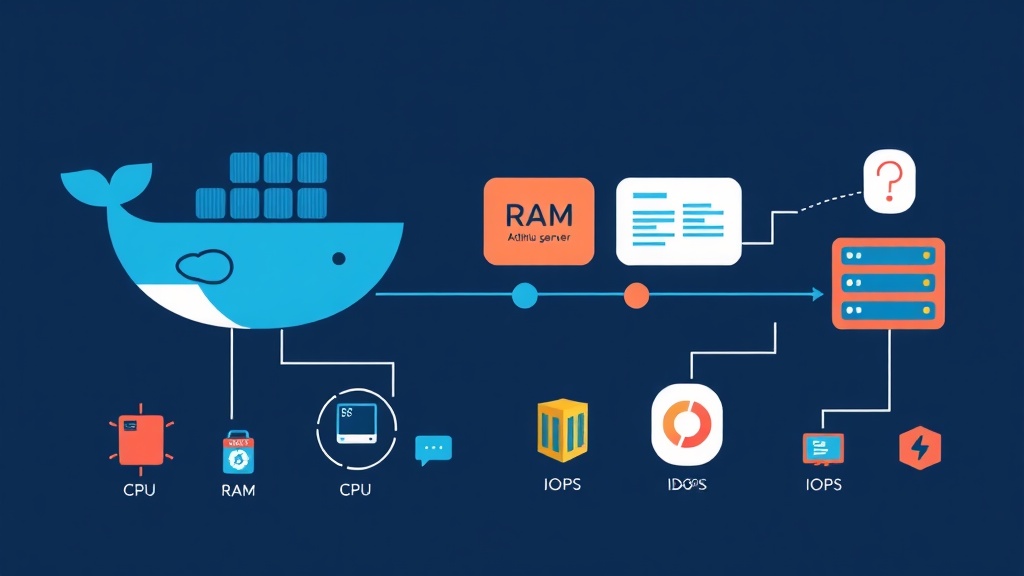
The Nightmare of “Server Hangs”
Seeing a Linux server running smoothly suddenly “freeze,” with SSH becoming unresponsive and the web returning 504 errors, is a nightmare for any Ops engineer. I once learned the hard way when a Node.js container had a memory leak, consuming 16GB of RAM in just 10 minutes. As a result, the Kernel had to trigger the OOM (Out Of Memory) Killer, terminating other critical processes to save the system.
The issue is that by default, Docker allows containers to consume host resources unchecked. Without setting Resource Limits as guardrails, you are putting your system in a dangerous position. Implementing these limits provides three immediate benefits:
- Stop the “Noisy Neighbor” effect: Prevent a “misbehaving” service from impacting its neighbors on the same host.
- Optimize costs: I previously managed a 50+ node cluster, and setting proper limits helped reduce Cloud infrastructure costs by 35% through more efficient container bin-packing.
- Give the system breathing room: Ensure the server always has spare resources for administrative tasks and logging.
Memory Limits: Vital for Stability
RAM is the most easily exhausted resource. In Docker, you need to clearly distinguish between the following two thresholds.
Hard Limit (–memory)
This is the ultimate ceiling. If a container tries to exceed this number, the Kernel will “kill” it immediately. I usually set this to 1.5 times the app’s average usage.
docker run -d --name production-api --memory="1g" nginxThe example above forces the app to stay within a maximum of 1GB RAM.
Soft Limit (–memory-reservation)
This is a committed amount. A container can exceed this threshold if the server has idle resources. However, when resources become scarce, Docker will force the container to release RAM back down to the reservation level.
docker run -d --name worker-app --memory="2g" --memory-reservation="512m" my-appThis configuration is very flexible: The app runs normally at 512MB but can spike up to 2GB during heavy data processing without being killed.
Controlling CPU Power
CPU differs from RAM: If exceeded, the container is just slowed down (throttled) rather than killed. However, if a container is allowed to occupy 100% of the CPU continuously, the entire server will lag significantly.
Using the –cpus parameter
This is the most intuitive method. Suppose the server has 8 cores and you want to limit the app to a maximum of 2.5 cores:
docker run -d --name heavy-task --cpus="2.5" python-workerCPU Shares (–cpu-shares)
This parameter is used to define priority levels. If App A is set to 1024 and App B is set to 512, when both compete for CPU, App A will be prioritized with twice the processing time compared to App B.
Don’t Forget Disk I/O Limits (IOPS)
Many people overlook IOPS until the hard drive hits a bottleneck. A container writing excessive logs or running a heavy database can hang the server’s entire I/O. In practice, I always limit the write speed for backup or crawler tasks.
docker run -d --name backup-job \
  --device-write-bps /dev/sda:20mb \
  ubuntu-backup
This command caps the write speed to /dev/sda at 20MB/s, ensuring the system remains responsive during backups.
Standard Deployment with Docker Compose
In real-world environments, Docker Compose is the primary tool. Starting from version 3, resource configuration is located under the deploy section. Here is the configuration I typically use for API services:
version: '3.8'
services:
  backend-api:
    image: nodejs-api:v2.1
    deploy:
      resources:
        limits:
          cpus: '0.50' # Limit to half a core
          memory: 1G
        reservations:
          cpus: '0.10'
          memory: 256M
    restart: unless-stopped
Monitoring and “Stress” Testing
Never guess. Use the docker stats command to view real-time resource consumption. You will see the MEM USAGE / LIMIT column, showing exactly what percentage of the allowed threshold your app is consuming.
Stress Testing
To verify, use the progrium/stress image to simulate a high RAM usage scenario. If you set a 200MB limit and force it to use 300MB, you will see the container killed instantly. This gives me much more confidence when pushing code to Production.
Final advice: Don’t wait for the server to crash before you start configuring. Treat Resource Limits as a standard part of your deployment process. Start with generous numbers, then fine-tune them based on actual data from docker stats.