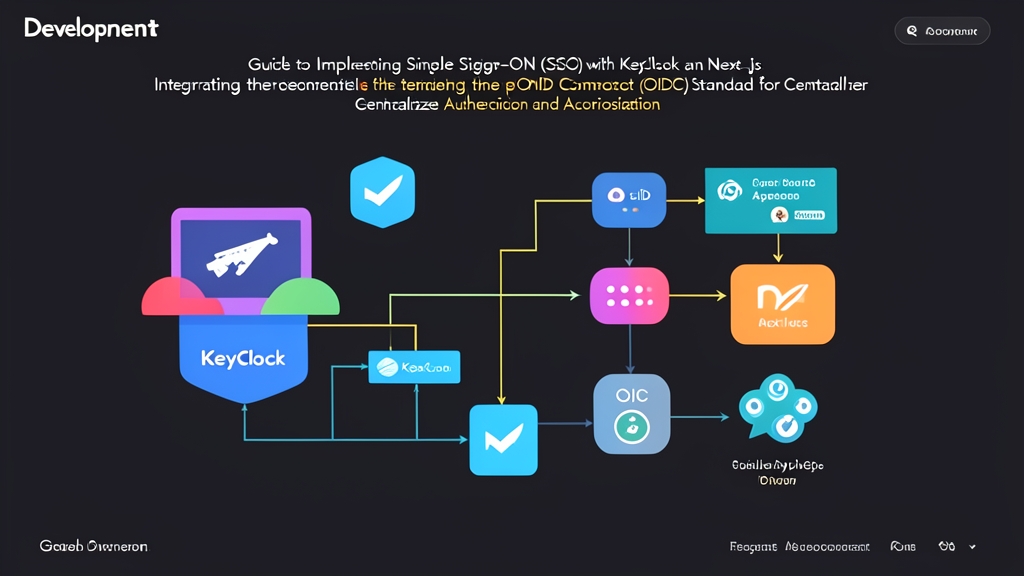
The 2 AM Session Nightmare
At 2:15 AM, PagerDuty alerts began firing relentlessly. Over 300 night-shift staff logged into the ERP system simultaneously, grinding everything to a halt. As soon as users navigated from the main portal to the analytics dashboard, they were booted straight back to the login page. An infinite redirect loop ensued. The 5-minute access tokens had expired, but the client failed to refresh them automatically. Meanwhile, the user database hit its 100-connection pool limit as more than 10 microservices bombarded it with concurrent authentication requests.
Previously, each team had built its own isolated auth module. One team used self-generated JWTs, while another relied on Redis-backed session cookies. As the system scaled, maintaining this patchwork architecture cost us hours of debugging every week. Migrating to Single Sign-On (SSO) became inevitable to clean up the mess once and for all.
Back then, our team was tasked with untangling the legacy authentication logic from 50,000 lines of code. It taught us a lesson we will never forget: with the authentication layer, comprehensive test coverage is non-negotiable before touching any code. A mere 3-second clock skew between servers or a mistyped payload claim can instantly lock every user out of the system.
Understanding the OIDC Flow Between Keycloak and Next.js
To debug effectively, you need a solid grasp of how OpenID Connect (OIDC) works—an identity layer built on top of the OAuth 2.0 protocol.
1. Identity Provider (IdP) vs. Relying Party (RP)
This architecture revolves around two key players:
- Keycloak acts as the IdP (Identity Provider): It manages user records, issues tokens, enforces two-factor authentication (2FA), and governs permissions via Realm Roles.
- Next.js acts as the RP (Relying Party): The application never stores or hashes passwords directly. Instead, Next.js fully delegates authentication to Keycloak and relies strictly on the cryptographic signatures of incoming tokens.
2. Authorization Code Flow with PKCE
The exchange unfolds in 5 steps:
- The user visits a protected route in Next.js (e.g.,
/dashboard). - Next.js checks for an active session. If none exists, it redirects the browser to Keycloak along with the
client_id,redirect_uri, and a PKCE code challenge. - The user enters their credentials on the Keycloak login screen.
- Once authenticated, Keycloak redirects back to Next.js with a one-time
authorization_code. - The Next.js server makes a secure backend-to-backend call to exchange this code with Keycloak. Upon validation, Keycloak returns an ID Token and an Access Token.
Step-by-Step Integration: From Infrastructure to Source Code
Step 1: Run Keycloak Locally with Docker Compose
We’ll spin up Keycloak alongside a PostgreSQL database to mirror a staging environment as closely as possible:
# docker-compose.yml
services:
  postgres:
    image: postgres:15-alpine
    environment:
      POSTGRES_DB: keycloak
      POSTGRES_USER: keycloak_user
      POSTGRES_PASSWORD: super_secure_db_pass
    volumes:
      - pgdata:/var/lib/postgresql/data

  keycloak:
    image: quay.io/keycloak/keycloak:24.0
    command: start-dev
    environment:
      KC_DB: postgres
      KC_DB_URL: jdbc:postgresql://postgres:5432/keycloak
      KC_DB_USERNAME: keycloak_user
      KC_DB_PASSWORD: super_secure_db_pass
      KEYCLOAK_ADMIN: admin
      KEYCLOAK_ADMIN_PASSWORD: admin_password_here
    ports:
      - "8080:8080"
    depends_on:
      - postgres

volumes:
  pgdata:
Run the following command to start the containers:
docker compose up -dNote: The start-dev flag is intended only for local/dev environments. In production, use start --optimized with valid SSL certificates.
Step 2: Configure the Realm and Client in Keycloak Console
Open your browser at http://localhost:8080, log in with your admin credentials, and configure the following:
- Realm: Create a new realm named
internal-corp. Avoid using themasterrealm directly for internal applications. - Client: Create a client with the Client ID set to
nextjs-portal. - Client Authentication: Toggle to On (confidential client). Since Next.js runs Node.js on the server side, it can securely hold the secret.
- Valid Redirect URIs: Enter
http://localhost:3000/api/auth/callback/keycloak. - Web Origins: Enter
http://localhost:3000. - Credentials: Switch to the client’s Credentials tab and copy the Client Secret.
- Create a Test User: Navigate to the Users menu, create an account named
testuser, switch to the Credentials tab, and set a permanent password (disable the Temporary toggle).
Step 3: Install and Configure NextAuth in Next.js App Router
Install the authentication library:
npm install next-authAdd the following environment variables to .env.local:
KEYCLOAK_ID=nextjs-portal
KEYCLOAK_SECRET=your_client_secret_from_step_2
KEYCLOAK_ISSUER=http://localhost:8080/realms/internal-corp
NEXTAUTH_URL=http://localhost:3000
NEXTAUTH_SECRET=generate_32_char_string_with_openssl_rand_hex_32
Create a route handler at app/api/auth/[...nextauth]/route.ts. The code below handles both role decoding and token persistence:
import NextAuth, { NextAuthOptions } from "next-auth";
import KeycloakProvider from "next-auth/providers/keycloak";

export const authOptions: NextAuthOptions = {
  providers: [
    KeycloakProvider({
      clientId: process.env.KEYCLOAK_ID!,
      clientSecret: process.env.KEYCLOAK_SECRET!,
      issuer: process.env.KEYCLOAK_ISSUER!,
    }),
  ],
  callbacks: {
    async jwt({ token, account, profile }) {
      // Save access_token, refresh_token, and calculate expiration time (ms)
      if (account) {
        token.accessToken = account.access_token;
        token.refreshToken = account.refresh_token;
        token.accessTokenExpires = (account.expires_at ?? 0) * 1000;
      }
      if (profile) {
        token.roles = (profile as any).realm_access?.roles || [];
      }
      return token;
    },
    async session({ session, token }) {
      (session as any).accessToken = token.accessToken;
      (session as any).roles = token.roles;
      (session as any).error = token.error;
      return session;
    },
  },
};

const handler = NextAuth(authOptions);
export { handler as GET, handler as POST };
Step 4: Enforce Role-Based Access Control with Middleware
Don’t force developers to remember checking permissions on every single page component. Instead, intercept unauthorized requests at the perimeter using middleware.ts in the root directory:
import { withAuth } from "next-auth/middleware";
import { NextResponse } from "next/server";

export default withAuth(
  function middleware(req) {
    const token = req.nextauth.token;
    const pathname = req.nextUrl.pathname;

    // Redirect to unauthorized page if accessing an admin route without the 'admin' role
    if (pathname.startsWith("/admin") && !token?.roles?.includes("admin")) {
      return NextResponse.rewrite(new URL("/unauthorized", req.url));
    }
  },
  {
    callbacks: {
      authorized: ({ token }) => !!token,
    },
  }
);

export const config = {
  matcher: ["/dashboard/:path*", "/admin/:path*"],
};
Step 5: Implement Silent Refresh for Access Tokens
By default, Keycloak sets the Access Token lifespan to just 5 minutes (300 seconds). If a user is filling out a form when the token expires, their next request to the backend will fail with a 401 Unauthorized error.
To resolve this, we can implement a token refresh helper and integrate it into the jwt callback inside route.ts:
async function refreshAccessToken(token: any) {
  try {
    const url = `${process.env.KEYCLOAK_ISSUER}/protocol/openid-connect/token`;
    const response = await fetch(url, {
      method: "POST",
      headers: { "Content-Type": "application/x-www-form-urlencoded" },
      body: new URLSearchParams({
        client_id: process.env.KEYCLOAK_ID!,
        client_secret: process.env.KEYCLOAK_SECRET!,
        grant_type: "refresh_token",
        refresh_token: token.refreshToken,
      }),
    });

    const refreshedTokens = await response.json();
    if (!response.ok) throw refreshedTokens;

    return {
      ...token,
      accessToken: refreshedTokens.access_token,
      accessTokenExpires: Date.now() + refreshedTokens.expires_in * 1000,
      refreshToken: refreshedTokens.refresh_token ?? token.refreshToken,
    };
  } catch (error) {
    return { ...token, error: "RefreshAccessTokenError" };
  }
}

// Inside NextAuthOptions callbacks:
async jwt({ token, account, profile }) {
  if (account && profile) {
    return {
      accessToken: account.access_token,
      accessTokenExpires: (account.expires_at ?? 0) * 1000,
      refreshToken: account.refresh_token,
      roles: (profile as any).realm_access?.roles || [],
    };
  }

  // Return previous token if the access token has not expired yet (with a 60-second buffer)
  if (Date.now() < (token.accessTokenExpires as number) - 60000) {
    return token;
  }

  // Access token is expired or close to expiring, fetch a new one
  return refreshAccessToken(token);
}
Three Lessons from Production Operations
An SSO system is a critical single point of failure. If SSO goes down, all dependent web applications come to a halt. Here are 3 essential operational takeaways for running this setup in production:
- Synchronize system clocks with NTP: A clock skew of even 2 seconds between Keycloak and Next.js servers can trigger
token used before issuederrors. Always keep chrony or systemd-timesyncd running across all servers. - Safeguard the Client Secret: Never commit the secret to git or expose it in client-side React code. All code-for-token exchanges must occur strictly within backend Route Handlers.
- Automate end-to-end auth testing: Build E2E test suites with Playwright or Cypress covering three vital scenarios: initial login, silent token refresh upon expiration, and automatic user session revocation when access is revoked by an admin.