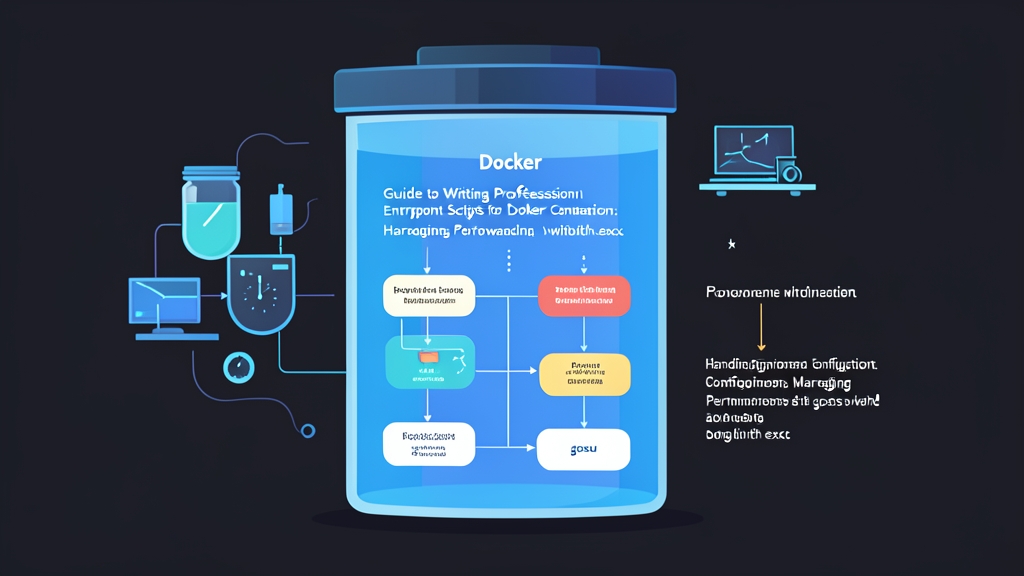
Context: When a Default Dockerfile Isn’t Enough
Containers are often compared to sealed hotel rooms. Before a guest checks in, the air conditioning must be turned on, the hot water running, and the bed made. Your application is no different. It needs to load environment variables, initialize directories, and verify database connections before it starts listening for requests.
Many developers simply dump their application’s start command directly into the CMD directive of their Dockerfile. While this works fine on a local machine, you will quickly run into three major headaches once you move to staging or production:
- Running as Root by Default: This is the most dangerous habit. If your application suffers from a Remote Code Execution (RCE) vulnerability, attackers immediately gain root access inside the container. From there, the risk of a container breakout to compromise the host machine increases dramatically.
- 10-Second Delay on Container Shutdown (Ungraceful Shutdown): You type
docker stop, and your terminal hangs for exactly 10 seconds. This happens because the shell script swallows theSIGTERMsignal. Docker waits until the timeout expires and is forced to send aSIGKILLto terminate the container. The fallout: in-flight transactions are abruptly cut off, partially written files get corrupted, and users run into 502 Bad Gateway errors during rolling updates. - Static, Inflexible Configuration Files: Dev, staging, and prod environments each require different settings. Hardcoding configuration files into your image makes image reuse virtually impossible.
When we implemented standardized entrypoint scripts across a cluster of 30+ microservices in my project, container shutdown times dropped from 10 seconds to under 800ms. Database connection bottlenecks during deployments virtually vanished.
Tooling Setup: Why gosu?
We need the container to start as root to prepare resources, but that privileged access must be revoked as soon as the application runs.
Why not use sudo or su? Because sudo spawns an intermediate process and handles system signals poorly. In contrast, gosu was built to do one thing and do it well: drop privileges from root to a standard user via the setuid/setgid syscalls and hand PID 1 over to the child process. It is significantly lighter and safer.
Here is a sample Dockerfile based on Debian/Ubuntu:
FROM ubuntu:22.04

# Install curl, SSL certificates, and gosu
RUN apt-get update && apt-get install -y --no-install-recommends \
    ca-certificates \
    curl \
    gosu \
    && rm -rf /var/lib/apt/lists/*

# Create a dedicated system user without root privileges
RUN groupadd -r appuser && useradd -r -g appuser -d /app appuser

WORKDIR /app

# Copy source code and set permissions upfront in the image
COPY . /app
RUN chown -R appuser:appuser /app

# Copy entrypoint script into the system PATH
COPY entrypoint.sh /usr/local/bin/entrypoint.sh
RUN chmod +x /usr/local/bin/entrypoint.sh

ENTRYPOINT ["entrypoint.sh"]
CMD ["node", "server.js"]
Inside the entrypoint.sh Script
This script coordinates the entire boot lifecycle. It guarantees three essentials: failing immediately on error, generating dynamic configuration, and cleanly handing off PID 1.
Create an entrypoint.sh file alongside your Dockerfile:
#!/bin/bash
# Exit immediately if any command returns a non-zero exit code
set -eo pipefail

echo ">>> [1/3] Initializing environment configuration..."
APP_PORT=${APP_PORT:-8080}
APP_ENV=${APP_ENV:-production}

# Generate config.json dynamically from environment variables
cat <<EOF > /app/config.json
{
  "port": ${APP_PORT},
  "environment": "${APP_ENV}"
}
EOF

echo ">>> [2/3] Setting permissions for generated files..."
# Only chown newly generated files/directories to avoid slow boot times from chown -R on large volumes
chown appuser:appuser /app/config.json

echo ">>> [3/3] Handing off process to the application..."
# If running the node command as root, drop privileges to appuser
if [ "$1" = 'node' ] && [ "$(id -u)" = '0' ]; then
    exec gosu appuser "$@"
fi

# Preserve exec for other commands (e.g., docker run ... bash for debugging)
exec "$@"
Two Technical Details to Keep in Mind:
-
The privilege-dropping mechanism of
gosu appuser:
Because the container boots as root, it can freely generate files, configure networking, or bind to privileged ports. Once initialization is complete,gosudrops privileges toappuser. The Node.js application runs entirely in unprivileged user space. -
The crucial role of the
execcommand:
The"$@"token represents the arguments passed in fromCMD. Theexeccommand instructs the Linux kernel to replace the current bash process with the new process. No child process is spawned. Your application officially takes over PID 1 inside the container.
Real-World Verification
Once set up, verify that the system correctly assigns PID 1 and shuts down cleanly.
1. Verifying PID 1 and the Execution User
Build and start the demo container:
docker build -t secure-demo .
docker run -d --name test-app -e APP_PORT=3000 secure-demo
Check the process list from inside the container:
docker exec test-app ps aux
Expected output:
USER       PID %CPU %MEM    VSZ   RSS TTY      STAT START   TIME COMMAND
appuser      1  0.5  0.8 712340 34560 ?        Ssl  10:00   0:00 node server.js
If PID is 1 and USER is appuser, your setup is correct.
2. Measuring Graceful Shutdown Speed
Use the Linux time command to measure how long the container takes to stop:
time docker stop test-app
Sample output on a successful configuration:
test-app
real    0m0.421s
user    0m0.015s
sys     0m0.008s
A shutdown time between 0.3 and 1 second means your application successfully caught SIGTERM and exited gracefully. If your terminal hangs for exactly 10 seconds before returning the prompt, the stop signal was swallowed somewhere. In that case, double-check whether you missed the exec keyword.
3. Inspecting Boot Logs
docker logs test-app
The three initialization steps should be clearly logged. If there is a misconfigured environment variable or volume mount permission issue, you can spot it immediately in the logs.