Background: When Backups Only Exist in Theory
At 2:15 AM, my phone buzzed incessantly. PagerDuty alerted that the NVMe partition hosting production PostgreSQL had suffered bad physical sectors. I bolted upright, fired up my terminal, and SSH’d straight into the replica node. In my mind, the data was still safe because our BorgBackup cronjob ran faithfully at 1:00 AM every single day. Yet, when I typed borg list to locate the latest archive, the screen returned a chilling result: the most recent snapshot had been created… 23 days ago.
Digging through the system logs revealed the culprit: the NFS share mounted from our NAS/SAN underwent a firmware maintenance update and was remounted in read-only mode. The borg create command immediately crashed with exit code 2. Regrettably, the crontab entry had ended with that disastrous redirection: > /dev/null 2>&1. The job had failed silently for over three weeks. No alert emails. Nobody knew.
Both BorgBackup and Restic excel at data deduplication and compression. However, by design, they are transient batch jobs that run and exit. Meanwhile, Prometheus operates on a periodic pull model. Once the cronjob finishes, Prometheus has no running endpoint left to scrape metrics from.
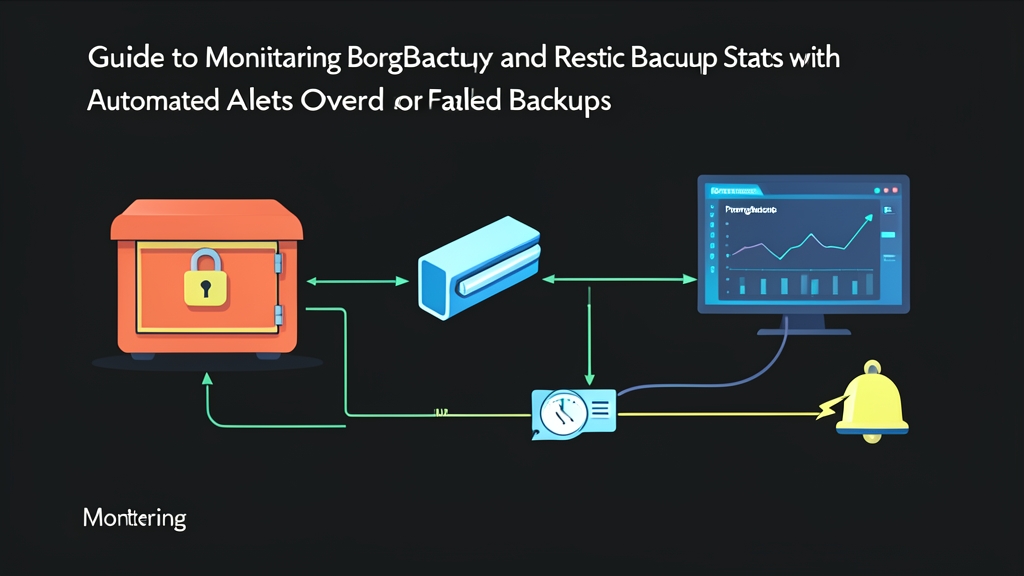
The most resilient solution on Linux is using Node Exporter’s Textfile Collector. The mechanism is straightforward: upon completion, the backup script dumps its metrics into a static text file following Prometheus exposition format. Node Exporter automatically ingests this file and exposes the metrics for the Prometheus server to scrape.
Setting Up the Textfile Collector
This approach requires no extra helper daemons or complex Pushgateway setups. We simply leverage the existing node_exporter already running on the backup node.
1. Configure the Metric Directory
Create a dedicated directory to store the metric files, then assign proper permissions to the user running Node Exporter:
sudo mkdir -p /var/lib/node_exporter/textfile_collector
sudo chown -R prometheus:prometheus /var/lib/node_exporter/textfile_collector
sudo chmod 775 /var/lib/node_exporter/textfile_collector
Open the Node Exporter systemd unit file (typically located at /etc/systemd/system/node_exporter.service) and append the --collector.textfile.directory flag:
ExecStart=/usr/local/bin/node_exporter \
  --collector.textfile.directory=/var/lib/node_exporter/textfile_collector
Reload the systemd daemon and restart the service:
sudo systemctl daemon-reload
sudo systemctl restart node_exporter
Detailed Configuration
1. Write an Atomic Metric Wrapper Script
A vital rule when writing textfile metrics: never write directly to the .prom file using the > operator. Always write to a temporary file first and atomically overwrite it using mv. If Prometheus scrapes just as the file is being truncated or partially written, it will fail to parse and drop all metrics from that job.
Here is the complete wrapper script for BorgBackup:
#!/usr/bin/env bash
set -uo pipefail

PROM_DIR="/var/lib/node_exporter/textfile_collector"
TARGET_NAME="db_production_borg"
PROM_FILE="${PROM_DIR}/backup_${TARGET_NAME}.prom"
TEMP_FILE="${PROM_FILE}.$$.tmp"

START_TIME=$(date +%s)
EXIT_CODE=0

# Declare credentials and target
export BORG_PASSPHRASE="YourSecretPassphraseHere"
export BORG_REPO="/mnt/backup_storage/borg_repo"

# Run actual backup
borg create --stats \
  ::"backup-{now:%Y-%m-%d_%H-%M-%S}" \
  /var/lib/postgresql/data 2>/tmp/borg_err.log || EXIT_CODE=$?

END_TIME=$(date +%s)
DURATION=$((END_TIME - START_TIME))

# Borg return codes: 0 = success, 1 = warning, 2 = error
SUCCESS=1
if [ "$EXIT_CODE" -ne 0 ]; then
  SUCCESS=0
fi

# Extract archive sizes using jq
ORIGINAL_SIZE=0
DEDUP_SIZE=0
if [ "$SUCCESS" -eq 1 ]; then
  ORIGINAL_SIZE=$(borg info --last 1 --json | jq '.archives[0].stats.original_size' 2>/dev/null || echo 0)
  DEDUP_SIZE=$(borg info --last 1 --json | jq '.archives[0].stats.deduplicated_size' 2>/dev/null || echo 0)
fi

# Write metrics to temporary file
cat <<EOF > "${TEMP_FILE}"
# HELP backup_last_run_timestamp_seconds Timestamp of the most recent backup completion
# TYPE backup_last_run_timestamp_seconds gauge
backup_last_run_timestamp_seconds{target="${TARGET_NAME}"} ${END_TIME}

# HELP backup_status_success Backup status (1 = success, 0 = failure)
# TYPE backup_status_success gauge
backup_status_success{target="${TARGET_NAME}",exit_code="${EXIT_CODE}"} ${SUCCESS}

# HELP backup_duration_seconds Backup execution duration in seconds
# TYPE backup_duration_seconds gauge
backup_duration_seconds{target="${TARGET_NAME}"} ${DURATION}

# HELP backup_original_bytes Original uncompressed data size in bytes
# TYPE backup_original_bytes gauge
backup_original_bytes{target="${TARGET_NAME}"} ${ORIGINAL_SIZE}

# HELP backup_dedup_bytes Deduplicated size written to repo in bytes
# TYPE backup_dedup_bytes gauge
backup_dedup_bytes{target="${TARGET_NAME}"} ${DEDUP_SIZE}
EOF

# Atomically overwrite and grant read permissions to prometheus
mv "${TEMP_FILE}" "${PROM_FILE}"
chmod 644 "${PROM_FILE}"

exit "$EXIT_CODE"
If you are using Restic, simply adjust the execution section:
# Configure Restic to back up directly to S3 / MinIO
export RESTIC_PASSWORD="SecretPass123"
export RESTIC_REPOSITORY="s3:https://s3.ap-southeast-1.amazonaws.com/company-backup/restic"
export AWS_ACCESS_KEY_ID="AKIAIOSFODNN7EXAMPLE"
export AWS_SECRET_ACCESS_KEY="wJalrXUtnFEMI/K7MDENG/bPxRfiCYEXAMPLEKEY"

restic backup /var/lib/postgresql/data --json 2>/tmp/restic_err.log || EXIT_CODE=$?
2. Set Up Prometheus Alert Rules
Save the alert rules at /etc/prometheus/rules/backup_alerts.yml:
groups:
  - name: backup_monitoring_alerts
    rules:
      - alert: BackupJobFailed
        expr: backup_status_success == 0
        for: 1m
        labels:
          severity: critical
        annotations:
          summary: "Backup failed on target {{ $labels.target }}"
          description: "Backup job {{ $labels.target }} exited with code {{ $labels.exit_code }}. Check server logs immediately."

      - alert: BackupJobOverdue
        expr: (time() - backup_last_run_timestamp_seconds) > 97200
        for: 15m
        labels:
          severity: critical
        annotations:
          summary: "Backup overdue on target {{ $labels.target }}"
          description: "More than 27 hours have passed without a new snapshot for target {{ $labels.target }}. The cronjob may have stopped running."

      - alert: BackupDurationTooLong
        expr: backup_duration_seconds > 14400
        for: 5m
        labels:
          severity: warning
        annotations:
          summary: "Abnormally long backup duration on {{ $labels.target }}"
          description: "Backup process took more than 4 hours, indicating potential network throttling or high disk I/O load."
Why 97,200 seconds (27 hours) instead of 24 hours? Early on, I configured a strict 86,400-second threshold for a job scheduled at 1:00 AM daily. Whenever heavy database write traffic caused the snapshot to run just 20 minutes longer, Alertmanager fired off noisy midnight alerts. A 27-hour window provides a 3-hour safety buffer—ample time for delayed backups to complete without causing alert fatigue.
Testing & Operations
1. Verify Metrics Locally
Execute the script once as root to test the file generation workflow:
sudo /usr/local/bin/run_borg_backup.sh
Query port 9100 on Node Exporter to confirm it exposes the metrics:
curl -s http://localhost:9100/metrics | grep backup_
The output should look clean and properly formatted as follows:
backup_dedup_bytes{target="db_production_borg"} 482344960
backup_duration_seconds{target="db_production_borg"} 184
backup_last_run_timestamp_seconds{target="db_production_borg"} 1730282400
backup_original_bytes{target="db_production_borg"} 12884901888
backup_status_success{exit_code="0",target="db_production_borg"} 1
2. Validate in the Prometheus Expression Browser
In the Prometheus Web UI, enter the following expression to monitor backup latency in real time:
(time() - backup_last_run_timestamp_seconds) / 3600
A healthy graph produces a steady sawtooth pattern oscillating between 0 and 24. If the graph crosses the 27-hour line, an overdue alert triggers immediately to your on-call team’s Slack or Telegram channel.
Want to simulate a failure? Simply edit the .prom file and set backup_status_success to 0. Exactly 1 minute later, the Alerts tab in Prometheus will flip from yellow (Pending) to red (Firing).
3. Replace Cron with Systemd Timers to Prevent Job Collisions
Traditional crontab has a critical drawback: it spawns new jobs regardless of whether the previous run has finished. When a database reaches 500GB or 1TB, backups can take hours. Overlapping jobs choke disk I/O, freeze the system, and trigger Borg repo lock conflicts.
The robust solution is pairing a Systemd Service with a Systemd Timer. Systemd automatically skips a scheduled execution if the previous service instance is still running.
Create the service unit at /etc/systemd/system/borg-backup.service:
[Unit]
Description=Borg Backup Service with Prometheus Textfile Metrics
After=network-online.target

[Service]
Type=oneshot
ExecStart=/usr/local/bin/run_borg_backup.sh
User=root
TimeoutSec=21600
Define the schedule in /etc/systemd/system/borg-backup.timer:
[Unit]
Description=Run Borg Backup daily at 1:00 AM

[Timer]
OnCalendar=*-*-* 01:00:00
Persistent=true
RandomizedDelaySec=300

[Install]
WantedBy=timers.target
Enable and start the timer:
sudo systemctl daemon-reload
sudo systemctl enable --now borg-backup.timer
sudo systemctl list-timers borg-backup.timer
The Persistent=true directive guarantees that if the server happens to reboot around 1:00 AM, the missed backup runs immediately once the system boots back up, rather than being skipped until the next day.