The Classic Mistake: Exposing Database Ports Directly on Your VPS
Back when I first started deploying projects to budget Ubuntu VPS instances, I learned a lesson I will never forget. To easily connect DBeaver from my local machine to inspect data, I bluntly added ports: - "5432:5432" to the PostgreSQL service in my Compose file.
The result after just 15 minutes: PostgreSQL logs were flooded with thousands of password brute-force requests. Automated botnets and crawlers from Shodan and Censys were relentlessly scanning the IP range every second.
Many people assume enabling UFW to block the port provides safety. That is a dangerous mistake! Docker manipulates iptables directly using its own custom DOCKER chain. These rules are evaluated before ufw-user-input. In other words, Docker punches a hole straight through your UFW firewall without your knowledge. Port 5432 ends up exposed directly to the public IP at 0.0.0.0.
The golden rule in production: If your database and backend share the same host, never expose the database port to the outside world. They only need to communicate within a private, internal network.
Understanding Docker Networks and the Power of the internal Flag
By default, Docker Compose provisions a custom bridge network with NAT (Network Address Translation). Containers can talk to one another while freely initiating outbound requests to the internet to install packages or call external APIs.
How Does internal: true Work?
Adding the internal: true attribute to a bridge network configuration forces Docker to enforce strict network isolation:
- No Default Gateway Assigned: Containers on this network are not allocated a default route pointing to an external gateway. Running ping
8.8.8.8orcurlimmediately returns Network is unreachable. - Complete Two-Way Traffic Block (Ingress & Egress): No NAT rules forward packets from physical network interfaces into this internal subnet. External attackers cannot reach the container. Conversely, the container cannot leak data out to the internet.
- Docker DNS Remains Intact: Internal service discovery works seamlessly. Services on the same network continue resolving each other via container names as usual.
The Dual-Network Architectural Pattern
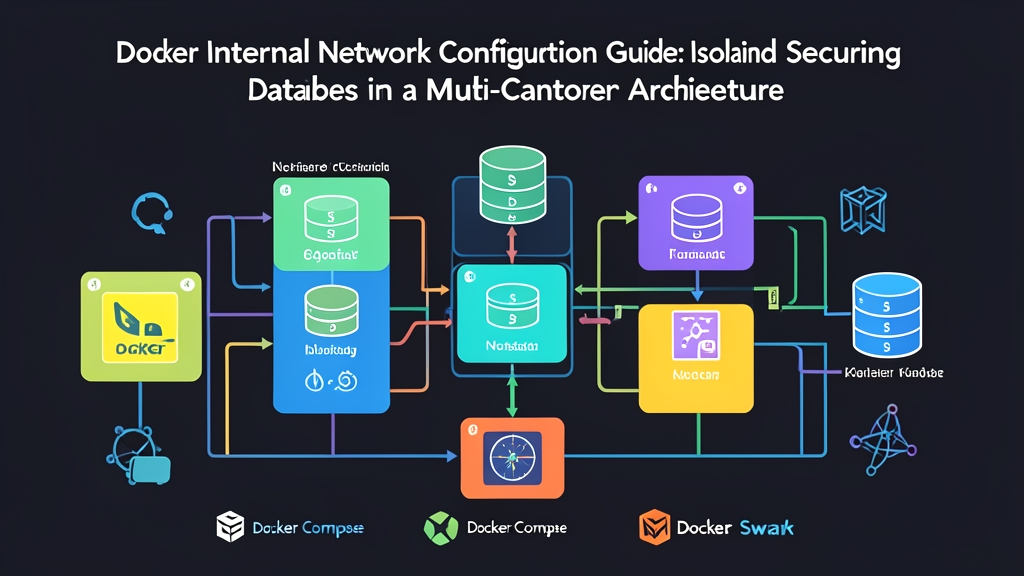
To enable an API service to accept incoming user requests while securely reading and writing to the database, split the system across two isolated network zones:
- public_net: The public-facing network. Only Nginx or API services expose ports here to handle client traffic and call third-party APIs.
- secure_db_net (internal): A strictly isolated internal network containing only the backend and the database.
Under this design, the backend acts as a bridge by joining both networks simultaneously. The database, on the other hand, connects exclusively to the internal network, remaining completely invisible to the public internet.
Hands-On Deployment with Docker Compose
Here is a complete setup running a Node.js API connected to a PostgreSQL database with multi-layer network segmentation.
Step 1: Set up docker-compose.yml
version: '3.8'

services:
  api-service:
    image: node:18-alpine
    container_name: production_api
    restart: unless-stopped
    environment:
      - DB_HOST=db-service
      - DB_PORT=5432
      - DB_USER=app_user
      - DB_PASSWORD=VeryStrongSecret_2026
      - DB_NAME=app_production
    networks:
      - public_net
      - secure_db_net
    ports:
      - "3000:3000"

  db-service:
    image: postgres:16-alpine
    container_name: production_postgres
    restart: unless-stopped
    environment:
      POSTGRES_USER: app_user
      POSTGRES_PASSWORD: VeryStrongSecret_2026
      POSTGRES_DB: app_production
    volumes:
      - pgdata:/var/lib/postgresql/data
    networks:
      - secure_db_net
    # Absolutely DO NOT use ports here

networks:
  public_net:
    driver: bridge
  secure_db_net:
    driver: bridge
    internal: true

volumes:
  pgdata:
    driver: local
Step 2: Start the Container Stack
Run the familiar command in detached mode:
docker compose up -dVerify that both networks have been created according to design:
docker network lsThe system will list the two new networks: <directory_name>_public_net and <directory_name>_secure_db_net.
Step 3: Verify Network Security
Real-world verification is the most crucial step. Try opening a shell inside the PostgreSQL container and pinging Google DNS:
docker exec -it production_postgres ping -c 2 8.8.8.8The terminal will return connect: Network is unreachable. This behavior is invaluable: even if a critical vulnerability (such as RCE) were discovered in the database, an attacker could not establish a reverse shell or download malware from a Command & Control (C2) server onto your VPS.
Next, test connectivity from the API container to the Postgres service:
docker exec -it production_api nc -zv db-service 5432The output db-service (172.x.x.x:5432) open will appear immediately. Internal connectivity remains 100% operational.
Operational Best Practices
If you need to perform database maintenance or backups using external GUI tools like DBeaver or pgAdmin, consider these two approaches, which are far safer than exposing ports directly:
- SSH Tunneling: Create an SSH tunnel authenticated via SSH keys to securely forward the internal port to your local machine on demand.
- Run Management Tools Internally: Deploy pgAdmin as an internal container attached to
secure_db_netand enforce multi-layer password authentication.
With just three lines of configuration using internal: true, you completely eliminate the threat of automated port scanning attacks on production databases.