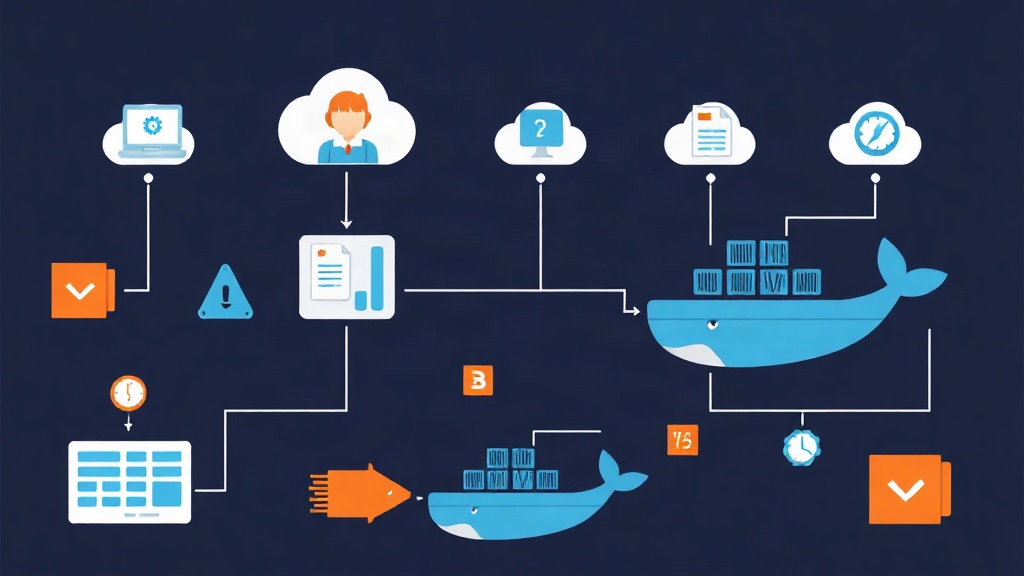
Background: Why should you put SQL Server into Docker?
Imagine starting a new project and spending an entire morning just installing SQL Server, configuring instances, and resolving version conflicts. With Docker, this process is condensed into a single command. Dockerizing SQL Server ensures environmental consistency from your local machine to Staging and Production, completely eliminating the classic phrase: “It works on my machine!”
Previously, SQL Server was synonymous with bulky Windows Server installations. Currently, the Linux version runs extremely light and stable. From my deployment experience, a SQL Server container starts in just 15-20 seconds, consuming significantly fewer resources than running directly on Windows.
Installing SQL Server with Docker Compose (V2)
Instead of using long and hard-to-remember docker run commands, you should use `docker-compose.yml`. This approach centralizes configuration management and makes it easy to share with teammates.
# Create workspace
mkdir mssql-docker && cd mssql-docker
touch docker-compose.yml
Below is an optimized configuration file. An important note: SQL Server requires at least 2GB of RAM to operate. If allocated less, the container will exit immediately with an unclear error code.
services:
  sqlserver:
    image: mcr.microsoft.com/mssql/server:2022-latest
    container_name: mssql_db
    restart: always
    environment:
      - ACCEPT_EULA=Y
      - MSSQL_SA_PASSWORD=YourStrong@Password123
      - MSSQL_PID=Developer
    ports:
      - "1433:1433"
    volumes:
      - mssql_data:/var/opt/mssql

volumes:
  mssql_data:
Points to note:
MSSQL_SA_PASSWORD: The password must include uppercase letters, lowercase letters, numbers, and special characters.MSSQL_PID: Choose theDeveloperedition to access full Enterprise features for free for development purposes.
Volume Configuration: The Secret to Keeping Data Safe
Data inside a container will disappear if you delete the container without using a Volume. However, mounting data on Linux often causes “Permission denied” errors due to UID permission issues.
SQL Server runs with a user named mssql which has a UID of 10001. If you use a Bind Mount (pointing directly to a directory on your machine), you must grant permissions manually. My advice is to use a Named Volume as shown in the example above to let Docker manage permissions automatically, ensuring a more stable system.
# If a bind mount is mandatory, run this command to grant permissions
sudo chown -R 10001:0 ./mssql-data
User Management: Never Use the SA Account for Apps
Using the sa account in application code is a serious security vulnerability. You should create a separate User with just enough permissions. Access the container directly to execute the command:
docker exec -it mssql_db /opt/mssql-tools/bin/sqlcmd \
   -S localhost -U sa -P 'YourStrong@Password123'
After connecting successfully, run the following script to initialize the database and a new user:
CREATE DATABASE MyProjectDB;
GO
USE MyProjectDB;
CREATE LOGIN app_user WITH PASSWORD = 'AnotherStrongPassword!';
CREATE USER app_user FOR LOGIN app_user;
EXEC sp_addrolemember 'db_owner', 'app_user';
GO
Standard Backup and Restore Workflow
Don’t wait until data is lost to scramble for a backup solution. With Docker, backing up is extremely fast and clean via sqlcmd.
1. Backing up data
This command will create a .bak file inside the container, then we will copy it to the host machine for storage:
# Step 1: Backup inside the container
docker exec -it mssql_db /opt/mssql-tools/bin/sqlcmd -S localhost -U sa -P 'YourStrong@Password123' -Q "BACKUP DATABASE [MyProjectDB] TO DISK = N'/var/opt/mssql/MyProjectDB.bak'"

# Step 2: Copy to host
docker cp mssql_db:/var/opt/mssql/MyProjectDB.bak ./MyProjectDB_$(date +%F).bak
2. Restoring data
When you need to restore data on another machine, simply do the reverse:
# Copy file into the container
docker cp ./MyProjectDB.bak mssql_db:/var/opt/mssql/

# Run the Restore command
docker exec -it mssql_db /opt/mssql-tools/bin/sqlcmd -S localhost -U sa -P 'YourStrong@Password123' -Q "RESTORE DATABASE [MyProjectDB] FROM DISK = N'/var/opt/mssql/MyProjectDB.bak' WITH REPLACE"
Checking Status and Management Tools
To know if SQL Server is “healthy,” check the logs regularly. If you see the line Service Broker manager has started, it means everything is ready.
docker logs -f mssql_dbRegarding management tools, I recommend using Azure Data Studio. It is much lighter than SQL Server Management Studio (SSMS) and provides excellent support for both Linux and macOS.
A small tip: If your application’s time is offset, add the environment variable TZ=Asia/Ho_Chi_Minh to your Compose file. Although the SQL Server engine usually uses UTC, syncing the timezone makes checking system logs much easier.
I hope these insights help you feel more confident when deploying SQL Server on Docker. Be bold and experiment, because the best part about Docker is that if you make a mistake, you can just delete it and start over in seconds!