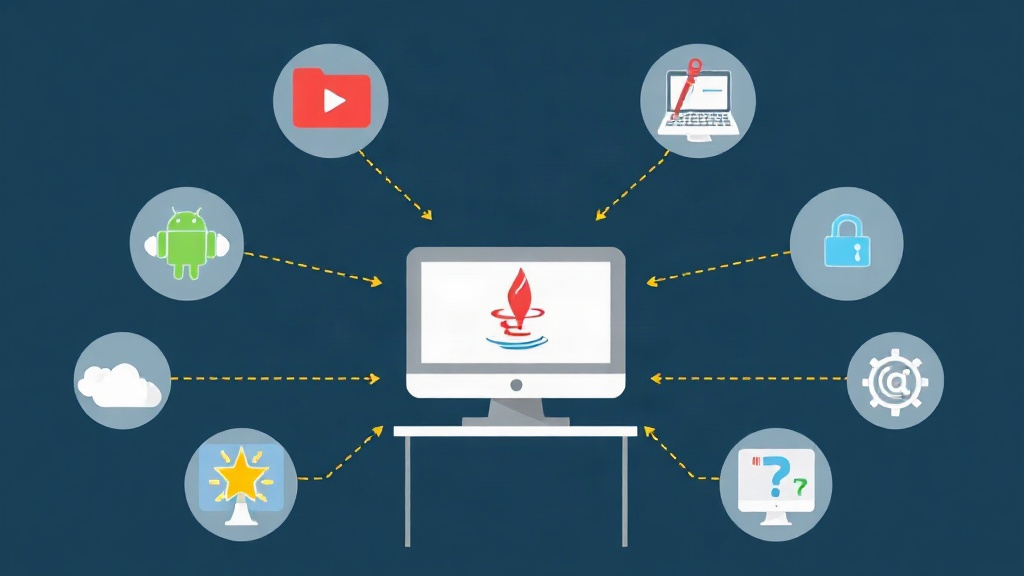
The Real Problem: A Java Desktop App Nobody Wants to Install
A client once handed my team a tough challenge: they had a legacy Java Desktop application (Swing GUI) that ran fine on Windows, but their entire team of 50 people wanted to use it from a browser — no JRE installation, no IT support visit to each machine. Rewrite it as a web app? That’s six months of work with no budget. Use TeamViewer or AnyDesk? Way too complicated when scaling to 50 concurrent users.
That was the first time I came across Webswing — and it solved exactly that problem in a matter of hours.
What Is Application Virtualization? Where Does Webswing Fit?
Before diving into the setup, let’s take a quick look at the big picture. Application Virtualization, at its core, means the app runs on a server while the client only receives a streamed interface. You can interact with it, see it, but nothing is installed on your machine.
Webswing applies that idea specifically to Java: the entire Swing/JavaFX app runs on the server, and its rendered output is streamed down to the browser as an HTML5 canvas. Every mouse click, every keystroke — the browser captures it and sends it up to the server, which processes it and pushes a new frame back down. The best part: the original Java app requires zero modifications. It has absolutely no idea it’s running inside a browser.
Key differences compared to solutions like Citrix or RDS:
- No Windows Server license needed: Webswing runs great on Linux
- No client plugin required: Any modern browser works (Chrome, Firefox, Edge)
- Native HTTP/WebSocket: Easy to reverse proxy through nginx and integrate into existing infrastructure
- Per-session isolation: Each user runs their own JVM instance, completely independent from others
In my homelab — Proxmox VE managing 12 VMs and containers, a playground for testing everything before pushing to production — Webswing runs inside an Ubuntu 22.04 LXC container. I set it up, verified it worked, then replicated the setup for the client.
Installing and Configuring Webswing
Preparing the Environment
Webswing requires Java 11+ to run. I’m using Ubuntu 22.04:
sudo apt update
sudo apt install -y openjdk-17-jdk wget unzip
java -version
# openjdk version "17.0.x"
Download Webswing from the official website. The Community Edition is free for non-commercial use:
# Check the latest version at webswing.org before downloading
wget https://webswing.org/download/webswing-23.2.zip -O webswing.zip
unzip webswing.zip -d /opt/
mv /opt/webswing-* /opt/webswing
Starting Webswing for the First Time
cd /opt/webswing
./webswing.sh
Webswing starts on port 8080. Visiting http://localhost:8080 brings up the Admin Console with several bundled demo apps like SwingSet3 and JFreeChart. Default credentials are admin / admin — change these immediately if you don’t want an embarrassing security incident in production.
Configuring Your Java Application
Say I have a JAR file called inventory-app.jar. Add an entry to /opt/webswing/webswing.config:
{
  "path": "inventory",
  "name": "Inventory Management",
  "mainClass": "com.company.inventory.MainApp",
  "classPathEntries": [
    "/opt/apps/inventory-app.jar",
    "/opt/apps/lib/*.jar"
  ],
  "vmArgs": "-Xmx512m -Dfile.encoding=UTF-8",
  "maxClients": 10,
  "isolatedFs": true
}
After saving the config, restart Webswing. The app will be available at http://localhost:8080/inventory.
Reverse Proxy with nginx
In production, you never expose port 8080 directly. Set up nginx like this:
server {
    listen 443 ssl;
    server_name apps.yourdomain.com;

    ssl_certificate /etc/letsencrypt/live/apps.yourdomain.com/fullchain.pem;
    ssl_certificate_key /etc/letsencrypt/live/apps.yourdomain.com/privkey.pem;

    location / {
        proxy_pass http://localhost:8080;
        proxy_http_version 1.1;

        # WebSocket support — required for Webswing
        proxy_set_header Upgrade $http_upgrade;
        proxy_set_header Connection "upgrade";
        proxy_set_header Host $host;
        proxy_set_header X-Real-IP $remote_addr;
        proxy_set_header X-Forwarded-For $proxy_add_x_forwarded_for;
        proxy_set_header X-Forwarded-Proto $scheme;

        # Increase timeout for long-running sessions
        proxy_read_timeout 3600s;
        proxy_send_timeout 3600s;
    }
}
The Upgrade and Connection: upgrade headers are mandatory — without them, WebSocket connections will fail and the app won’t render. I made this mistake my first time and spent nearly 30 minutes debugging it.
Running Webswing as a systemd Service
sudo tee /etc/systemd/system/webswing.service << 'EOF'
[Unit]
Description=Webswing Application Server
After=network.target

[Service]
Type=simple
User=webswing
WorkingDirectory=/opt/webswing
ExecStart=/opt/webswing/webswing.sh
Restart=on-failure
RestartSec=10

[Install]
WantedBy=multi-user.target
EOF

# Create a dedicated user — never run a service as root
sudo useradd -r -s /bin/false webswing
sudo chown -R webswing:webswing /opt/webswing

sudo systemctl daemon-reload
sudo systemctl enable --now webswing
sudo systemctl status webswing
Things to Plan for Before Going to Production
RAM Planning
Each user session spawns its own JVM. If the app needs 256MB of heap, 10 concurrent users will consume 2.5GB+ of RAM before accounting for OS overhead. Set maxClients appropriately for your server’s RAM and monitor with jstat or Grafana if you already have a monitoring stack in place.
Filesystem Isolation
Enable isolatedFs: true so each session gets its own home directory, preventing users from reading each other’s files. This is critical if the app has save/open file functionality — I’ve seen a case where data got mixed between sessions because this option was left disabled.
Clipboard and File Transfer
Copy-paste text and file upload/download via browser dialogs do work, but require thorough testing with your specific app. Not all Swing components behave perfectly — particularly custom renderers and some native OS dialogs.
Community Edition Limitations
It’s free, but comes with some practical constraints: concurrent sessions are capped, there’s no SSO/LDAP integration, no session recording, and no cluster mode. Fine for evaluation or small internal use; if you need to scale large or require an audit trail, the commercial edition becomes necessary.
I tested it with a Swing app from 2008 — without changing a single line of code, just matching the right JDK version, it ran in the browser. Latency on a LAN is virtually imperceptible; even over the internet at around 20ms RTT, it’s perfectly usable for typical business workflows.
Conclusion
Is rewriting it as a native web app an option? Go for it — it’s cleaner in the long run. But you don’t always have six months and the budget to do a full rewrite. When you’re stuck between those two extremes, Webswing is the least painful escape route I’ve ever tried.
Under two hours from zero to a working URL. Not a single line of Java code touched. Compared to rewriting the app from scratch or buying a Citrix license, that’s a number worth considering for any legacy Java app sitting around waiting to be “web-ified.”