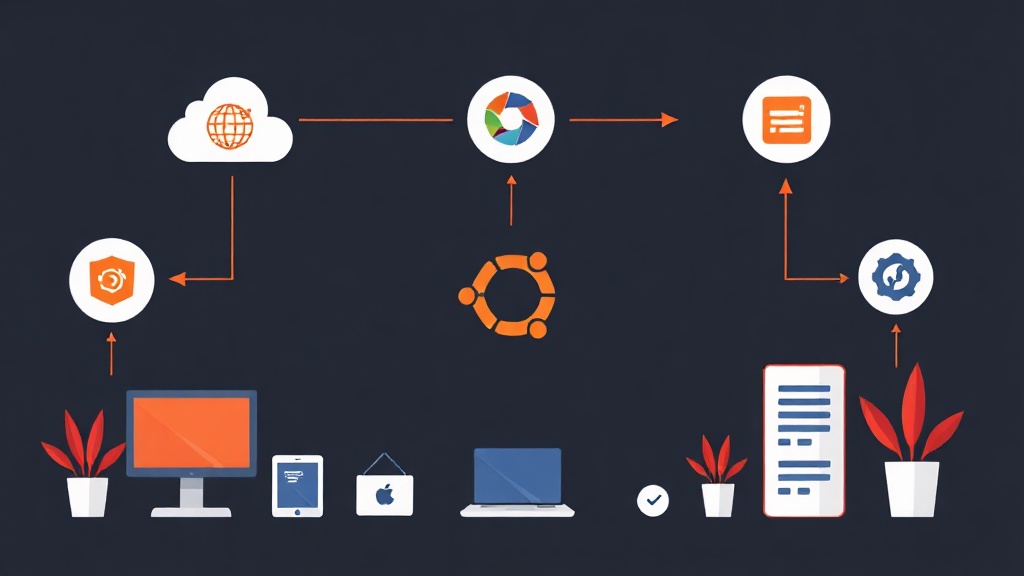
The Problem I Faced: Browser Isolation for a Remote Team
Early last year, our team had a painful incident: one of our developers opened an email attachment on his personal laptop, got hit with a keylogger, and had his VPN credentials stolen. It wasn’t his fault — he worked from home and used his personal computer to access company systems.
The challenge was clear: how do you let employees access internal systems without worrying about whether their personal devices are clean? I started looking into Browser Isolation — the idea of running the browser in a completely isolated environment, fully separated from the user’s machine.
Analysis: Why Traditional Solutions Don’t Cut It
I went through several approaches before landing on Kasm:
- RDP to Windows Server: Expensive licensing, complex management, and each user needs a dedicated session that devours RAM.
- Enterprise VDI (Citrix, VMware Horizon): Astronomical licensing costs, week-long setup, and total overkill for a team of 20.
- Guacamole + KVM: I ran this combo for a while on my Proxmox homelab. Technically solid, but managing sessions and VM lifecycles was entirely manual — every time you needed a fresh environment, you had to spin up a VM by hand.
The common problem: none of these options were cheap, fast, and capable of spinning up browser or desktop environments on demand in seconds.
Available Solutions
Option 1: Apache Guacamole + VM Pool
Guacamole is an HTML5 gateway for RDP/VNC/SSH. Paired with a pre-warmed VM pool, it can work — but you have to write your own session distribution logic and handle cleanup when users disconnect. I tried it and gave up after two weeks.
Option 2: Neko (m1k1o/neko)
Neko runs a browser inside Docker and streams it via WebRTC. Clean interface, low latency — but it only supports one user per container and has no management portal.
Option 3: Kasm Workspaces (Community Edition)
This is what I’m running in production. Kasm runs browsers, desktops, even full Linux desktops inside Docker containers, streamed over HTTPS/WebSocket. The Community Edition is free and supports up to 5 concurrent sessions.
The Best Approach: Installing Kasm Workspaces on Ubuntu
I run Kasm on a VM inside my Proxmox VE homelab — my testing playground before anything goes to production. The VM specs: Ubuntu 22.04, 4 vCPUs, 8GB RAM, 50GB disk. Kasm requires at minimum 2 CPUs and 4GB RAM.
Step 1: Prepare the System
# Update the system
sudo apt update && sudo apt upgrade -y

# Install required packages
sudo apt install -y curl wget gnupg2

# Disable swap (Kasm doesn't play well with swap)
sudo swapoff -a
sudo sed -i '/swap/d' /etc/fstab
Step 2: Download and Install Kasm
# Download the installer (check for the latest version at kasm.io)
cd /tmp
wget https://kasm-static-content.s3.amazonaws.com/kasm_release_1.16.0.a12b22.tar.gz

# Extract the archive
tar -xf kasm_release_*.tar.gz

# Run the installer (--accept-eula skips the confirmation prompt)
sudo bash kasm_release/install.sh --accept-eula
Installation takes about 5–10 minutes depending on your network speed — Kasm pulls a bunch of Docker images. Once complete, the terminal will print something like this:
Kasm UI Login Credentials
-----------------------------
Username: [email protected]
Password: XXXXXXXXXXXXXX

Kasm UI is available at https://<YOUR_IP>
Copy that password immediately — it only appears once.
Step 3: Access and Initial Configuration
Open your browser and navigate to https://<IP_SERVER>. You’ll likely see a self-signed SSL warning — click Advanced → Proceed. Log in with [email protected] and the password you just copied.
Go to Admin → Workspaces to see the list of built-in workspace templates: Chrome, Firefox, Ubuntu Desktop, VS Code… Each one is its own Docker image.
Step 4: Add Users and Set Permissions
# Kasm also provides a REST API for automated user creation
# Example: create a user via API
curl -k -X POST https://localhost/api/public/register_user \
  -H 'Content-Type: application/json' \
  -d '{
    "api_key": "YOUR_API_KEY",
    "api_key_secret": "YOUR_API_SECRET",
    "target_user": {
      "username": "[email protected]",
      "first_name": "Dev",
      "last_name": "User",
      "password": "SecurePass123!",
      "locked": false,
      "disabled": false
    }
  }'
You can find the API key under Admin → API Configurations. For small teams, manually creating users through the UI works just fine.
Step 5: Configure a Custom Workspace
I typically create a Chrome workspace with custom security settings — disabling clipboard access from the container to the host, restricting microphone and camera:
Go to Admin → Workspaces → Add Workspace:
- Workspace Type: Container
- Docker Image:
kasmweb/chrome:1.16.0 - Cores: 2
- Memory (MB): 2048
- GPU Count: 0
The Persistent Profile Path setting matters if you want users to retain their bookmarks and settings between sessions:
/mnt/kasm_profiles/{username}/chromeStep 6: Set Up a Reverse Proxy with Nginx
Kasm runs its own HTTPS on port 443 by default. If you want to use a custom domain, you’ll need a reverse proxy. I run Nginx on a separate VM in Proxmox:
server {
    listen 443 ssl;
    server_name kasm.yourdomain.com;

    ssl_certificate /etc/letsencrypt/live/kasm.yourdomain.com/fullchain.pem;
    ssl_certificate_key /etc/letsencrypt/live/kasm.yourdomain.com/privkey.pem;

    location / {
        proxy_pass https://KASM_SERVER_IP;
        proxy_set_header Host $host;
        proxy_set_header X-Real-IP $remote_addr;
        proxy_set_header X-Forwarded-For $proxy_add_x_forwarded_for;
        proxy_set_header X-Forwarded-Proto $scheme;

        # WebSocket support — critical, without this the stream won't work
        proxy_http_version 1.1;
        proxy_set_header Upgrade $http_upgrade;
        proxy_set_header Connection "upgrade";

        proxy_read_timeout 1800;
        proxy_send_timeout 1800;
    }
}
Step 7: Check and Monitor
# Check Kasm services status
sudo /opt/kasm/bin/stop
sudo /opt/kasm/bin/start

# View logs
sudo docker logs kasm_proxy
sudo docker logs kasm_api
sudo docker logs kasm_manager

# Check running containers
sudo docker ps | grep kasm
Lessons Learned from Real-World Experience
After a few months running Kasm in my homelab and then pushing it to production, here’s what I’ve learned:
- RAM is your main bottleneck: Each Chrome session consumes roughly 1.5–2GB RAM. With 8GB, you can comfortably handle 4–5 concurrent sessions.
- Persistent profiles need regular cleanup: Profile directories balloon quickly if users download files. Set a retention policy.
- Community Edition caps at 5 concurrent sessions: Enough for a small team. Beyond that, you’ll need to pay or build a multi-node cluster (significantly more complex).
- WebRTC and UDP: On strict firewalls, streaming may fall back to WebSocket — slower but still functional. Open UDP port 4902 for best performance.
Kasm vs. Guacamole — Which Should You Choose?
I get asked this a lot. If your team primarily needs SSH or RDP access to existing servers, Guacamole is simpler and lighter. But if you need true Browser Isolation — where the browser runs entirely inside a container and never touches the user’s machine — Kasm is the much better fit.
I actually use both: Guacamole for SSH jump host access, and Kasm for browser isolation and throwaway desktop environments when I need to test something without touching my main machine.