Enable Unity Mode in 3 Simple Steps
If you’re tired of switching back and forth between two screens, try this virtual machine “integration” method. First, ensure that VMware Tools is installed on your guest OS.
- Power on the virtual machine: Start Windows or Linux on VMware as usual.
- Enter Unity Mode: On the menu, select View > Unity or press
Ctrl + Shift + U. - Open apps: The VM window will hide. Simply hover over the host Start button, and a sub-menu will appear to let you select applications from the VM.
At this point, the VM app will sit comfortably on your host’s Taskbar. A colored border (usually green) will surround the window so you don’t confuse it with host applications.
What exactly is Unity Mode?
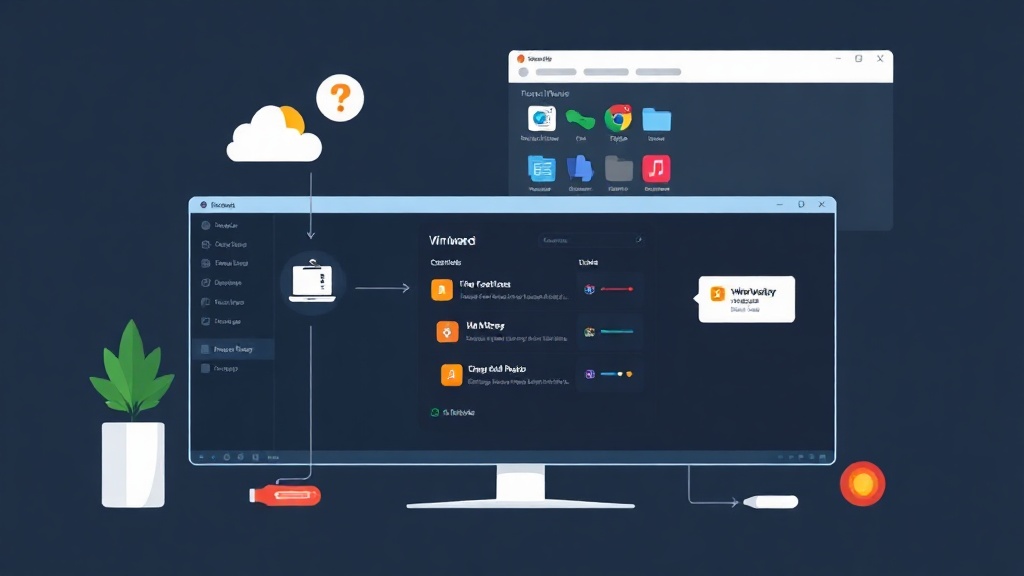
Normally, using VMware is like watching TV within a fixed frame. Unity Mode breaks that frame. It brings individual windows from the virtual machine (Guest OS) directly onto the host screen (Host OS). You’ll see VM apps and host apps running side-by-side, fully integrated.
Technically, VMware Tools continuously “pushes” application coordinates and visuals from the VM to the host’s display layer. You can drag-and-drop or resize windows with extreme flexibility. Alt-Tabbing between Chrome on the host and Excel on the VM happens in an instant with no perceptible lag.
Why do IT pros love this feature?
- Declutter your screen: Forget about the massive VMware window taking up space. Only display what you need.
- Super-fast app testing: Code in VS Code on your host while keeping IE11 open in the VM to check compatibility for old banking projects.
- Shared Clipboard: Copy code from the host and paste it directly into the VM Terminal without any middleman.
Best configuration for a smoother experience
To keep Unity running stable without lag or the “grayed out” button issue, keep these 3 points in mind.
1. Always prioritize open-vm-tools on Linux
Don’t install the legacy drivers. For Linux distributions like Ubuntu or Mint, run the following command for the best graphics performance:
sudo apt update && sudo apt install open-vm-tools-desktop -y
sudo reboot
2. Change the border color for a “Pro” look
If you find the default green border a bit distracting, go to Edit > Preferences > Unity. Here, you can choose a standout red or disable the border entirely if you want the VM app to look 100% like a native app.
3. Troubleshooting the “grayed out” Unity button
This issue is usually caused by three main factors:
- Lock screen: Unity won’t work if the VM is at the login screen. Log in first.
- Admin privileges (UAC): Some high-privilege apps on Windows VMs may block Unity for security reasons.
- 3D not enabled: Go to VM Settings > Display and check Accelerate 3D graphics.
Pro Tip: Using scripts to enable Unity
Instead of tedious clicking, you can use the vmrun tool for automation. Creating a desktop shortcut to open a VM and enter Unity mode directly is very simple.
Try this command in the host’s CMD:
"C:\Program Files (x86)\VMware\VMware Workstation\vmrun.exe" -T ws enterUnityMode "D:\VMs\Win10\Win10.vmx"Practical Experience: When should you disable Unity?
Despite its convenience, Unity Mode isn’t a “silver bullet.” After years of lab work, I’ve noted a few drawbacks:
- Performance drop: Games or heavy graphics apps will run about 15-20% slower due to display overhead.
- HiDPI issues: If you use a 4K screen with 150% scaling on the host and 100% on the VM, the mouse cursor can easily become misaligned. It’s best to keep both at the same scaling level.
- Sad news for Linux fans: VMware stopped supporting Unity for Linux guests starting with Workstation 12. While it occasionally works via patches, the stability doesn’t match Windows VMs.
Compared to VirtualBox, VMware’s Unity is still noticeably smoother. If you need to run legacy accounting software available only on Windows 7 while using Windows 11, this is the top solution.
Quick tip: If a Unity app freezes, don’t rush to reset the VM. Press Ctrl + Shift + U to return to windowed mode; you’ll often find an error pop-up hidden behind.