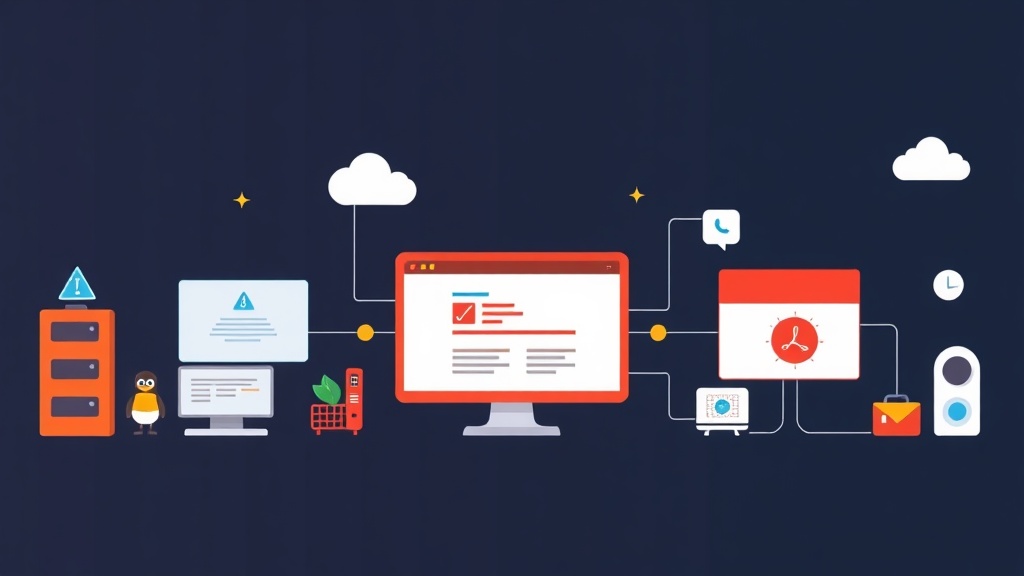
Introduction: KVM/QEMU – The Core Virtualization Platform on Linux Server
After years of experiencing all kinds of virtualization platforms, from VirtualBox, VMware Workstation to enterprise-grade solutions like vSphere, or even homelab systems like Proxmox VE that I’m currently using to manage 12 VMs and containers – a great “playground” to test everything before real-world deployment. Nevertheless, KVM/QEMU on Linux remains the top choice, especially for CentOS/RHEL servers.
I often envision KVM/QEMU as a high-performance race car engine, while solutions like Proxmox or OpenStack are the racetrack management and garage systems. KVM’s performance is almost native, a significant advantage when you need to run demanding applications without incurring licensing costs.
If you’re looking for an efficient, stable, and completely free virtualization solution for your CentOS/RHEL server, then this article is for you. I will guide you in detail from basic installation and configuration to practical tips for optimizing performance.
Quick Deployment: Install KVM/QEMU in 5 Minutes
To get started immediately, here are the steps to set up a basic KVM/QEMU environment and have your virtual machines ready to run in just a few minutes. These commands apply to CentOS/RHEL 8 and later.
1. Check for Hardware Virtualization Support
KVM requires your CPU to support hardware virtualization (Intel VT-x or AMD-V). Most modern CPUs have this, but you should double-check. Ensure this feature is enabled in your server’s BIOS/UEFI.
lscpu | grep -E 'svm|vmx'
If the result shows vmx (Intel) or svm (AMD), your CPU is ready. Next, check if the KVM module has been loaded into the kernel:
lsmod | grep kvm
If you don’t see any results, don’t worry. The module will automatically load when the libvirtd service starts.
2. Install Necessary Packages
We need to install the main packages: qemu-kvm (emulator tool), libvirt (KVM management daemon), libvirt-client (virsh command-line tool), virt-install (command-line VM creation tool), and bridge-utils (very useful for configuring network bridges).
sudo dnf update -y
sudo dnf install qemu-kvm libvirt libvirt-client virt-install bridge-utils -y
3. Start and Enable the libvirtd Service
libvirtd is the service that manages hypervisors (here, KVM). You need to start and enable this service so it runs with the system.
sudo systemctl enable --now libvirtd
Check the service status to ensure it’s running stably:
sudo systemctl status libvirtd
The output will show active (running) if everything is successful.
4. Add User to libvirt Group
To manage virtual machines with the virsh command or virt-manager without needing sudo every time, add your current account to the libvirt group:
sudo usermod -aG libvirt $(whoami)
After executing this, you need to log out and log back in (or restart your terminal) for the changes to take effect.
5. Create Your First Virtual Machine
Assume you already have the ISO file of the operating system you want to install (e.g., CentOS-Stream-8-x86_64-latest-dvd1.iso) in the /home/user/isos/ directory.
We will use virt-install to create a virtual machine with a basic configuration. Networking will use libvirt’s default NAT, which is sufficient for this quick start.
sudo virt-install \
--name my_centos_vm \
--ram 2048 \
--vcpus 2 \
--disk path=/var/lib/libvirt/images/my_centos_vm.qcow2,size=20,format=qcow2 \
--os-variant centos-stream8 \
--network default,model=virtio \
--cdrom /home/user/isos/CentOS-Stream-8-x86_64-latest-dvd1.iso \
--graphics spice \
--noautoconsole
--name my_centos_vm: Name for the virtual machine.--ram 2048: Allocate 2GB RAM for the VM.--vcpus 2: Allocate 2 virtual CPUs.--disk ...: Create a 20GB qcow2 disk image at the specified path.--os-variant centos-stream8: Optimize settings for CentOS Stream 8.--network default,model=virtio: Use default NAT network (virbr0) and VirtIO driver for best performance.--cdrom ...: Specify the path to the installation ISO file.--graphics spice: Use the SPICE protocol to access the graphical interface.--noautoconsole: Do not automatically open the console after VM creation.
After the command runs, a virt-viewer window will appear for you to begin installing the operating system. If the window doesn’t open automatically, you can connect manually using the command virt-viewer my_centos_vm.
Detailed Explanation of KVM/QEMU and Libvirt
Once the virtual machine is running stably, it’s time to delve deeper into the operating mechanism of this virtualization system.
What is KVM? What is QEMU?
We often refer to KVM/QEMU as a pair, but in reality, they are two separate, mutually supportive components:
- KVM (Kernel-based Virtual Machine): KVM is not a complete virtualization software. It is a Linux kernel module, whose task is to turn the Linux kernel into a Type 1 hypervisor (or bare-metal hypervisor). KVM allows direct access to CPU virtualization features (like Intel VT-x or AMD-V), enabling virtual machines to run with near-native performance.
- QEMU (Quick EMUlator): QEMU is an open-source computer system emulator software. It can emulate an entire system, including CPU, memory, I/O devices, and BIOS. When run independently, QEMU is quite slow because it has to emulate everything through software. However, when combined with KVM, QEMU leverages the hardware virtualization capabilities provided by KVM to execute guest CPU instructions directly on the physical CPU. This significantly improves performance.
In summary, KVM provides the hardware virtualization “power”, while QEMU is responsible for the virtual machine’s “body”, including device emulation and I/O management.
Libvirt: Versatile Management Tool
Libvirt is a software library, daemon, and system that helps manage various virtualization platforms, such as KVM, Xen, VMware ESX, and VirtualBox. It provides a unified API interface for interacting with these hypervisors, simplifying virtual machine management regardless of the platform you use.
libvirtddaemon: A background service responsible for communicating with KVM and managing virtual machines.virshCLI: A highly effective command-line interface for interacting withlibvirtd. I frequently usevirshwhen working with KVM on servers because it’s very fast, concise, and easily automatable with scripts.virt-managerGUI: An easy-to-use graphical interface (GUI), convenient for those who prefer not to use the command line. This tool provides an intuitive overview of virtual machines, helping you create, edit, start, and stop VMs easily. (Although there’s a separate article aboutvirt-manager, I still want to recommend it as a good option for beginners.)
Some basic virsh commands you will use frequently:
virsh list --all              # List all virtual machines (including running and stopped)
virsh start my_centos_vm      # Start the virtual machine named 'my_centos_vm'
virsh shutdown my_centos_vm   # Gracefully shut down the virtual machine (the guest OS will power off itself)
virsh destroy my_centos_vm    # Forcefully shut down the virtual machine (similar to pulling the power cord)
virsh console my_centos_vm    # Connect to the virtual machine's console (requires serial configuration in the VM)
virsh dominfo my_centos_vm    # Display detailed information about the virtual machine
virsh edit my_centos_vm       # Edit the virtual machine's XML configuration file
Storage Management with KVM/QEMU
Disk management is a critical aspect of virtualization. KVM supports a variety of storage types:
- Local directory: Stores disk image files in a directory on the physical host. This is the simplest method to get started.
- LVM (Logical Volume Management): Uses Logical Volumes as disks for virtual machines, providing good performance and more flexibility in capacity management.
- NFS/iSCSI: Network-attached storage, ideal for cluster environments or systems requiring high scalability.
Libvirt manages these storage areas through the concept of a “Storage Pool”.
virsh pool-list --all           # List all existing storage pools
virsh pool-define-as my_pool dir --target /data/kvm_disks # Define a new storage pool named 'my_pool' pointing to '/data/kvm_disks'
virsh pool-start my_pool        # Start the storage pool
virsh pool-autostart my_pool    # Configure the pool to auto-start when the host boots
Regarding disk image formats, we have two main options:
- RAW: The simplest format. The file has a fixed size equal to the virtual disk size. Good performance but does not support advanced features like snapshots or thin provisioning.
- QCOW2 (QEMU Copy-On-Write 2): A much more popular and flexible format. The disk image file can automatically expand its capacity as needed (thin provisioning), and supports snapshots, compression, and encryption. This is the format I recommend for most use cases.
To create a new qcow2 disk image file:
qemu-img create -f qcow2 /var/lib/libvirt/images/new_vm_disk.qcow2 50G
Advanced KVM Performance Optimization
After more than half a year of running KVM in both production and homelab environments, I’ve gathered some useful tips to make the virtualization system run much smoother and more efficiently.
1. Optimize VirtIO Drivers
This is a crucial factor for achieving near-native I/O performance. VirtIO is an optimized set of drivers that helps virtual machines communicate directly with the hypervisor instead of emulating traditional hardware devices. This significantly reduces CPU overhead and increases I/O speed for both disk (VirtIO-BLK) and network (VirtIO-NET).
When creating VMs with virt-install, always specify model=virtio for network and disk if the guest operating system supports it. Most modern Linux operating systems (such as CentOS/RHEL, Ubuntu, Debian) have built-in VirtIO drivers, providing superior performance compared to emulated drivers.
In the VM’s XML configuration file (check with virsh edit my_centos_vm), you will see lines similar to the following when VirtIO is enabled:
<interface type='network'>
  <model type='virtio'/>
  ...
</interface>
<disk type='file' device='disk'>
  <driver name='qemu' type='qcow2' cache='none'/>
  <target dev='vda' bus='virtio'/>
  ...
</disk>
2. Optimize Network Bridge
In the Quick Start section, we used the default NAT network (virbr0) because it’s simple. However, in production or homelab environments, a network bridge is a more optimal choice. It allows virtual machines to act as physical devices on the same LAN as the physical host, receiving IPs from your router and communicating directly with other devices on the internal network, providing higher connection efficiency.
To create a network bridge (e.g., br0) on CentOS/RHEL 8+ using NetworkManager:
sudo nmcli connection add type bridge con-name br0 ifname br0
sudo nmcli connection modify br0 ipv4.method manual ipv4.addresses 192.168.1.100/24 ipv4.gateway 192.168.1.1 ipv4.dns 8.8.8.8
sudo nmcli connection modify br0 bridge.stp no
sudo nmcli connection add type ethernet con-name enp0s3 slave-type bridge master br0
sudo nmcli connection up br0
sudo nmcli connection up enp0s3
(Note: Replace enp0s3 with your physical network card name and adjust the IP information to match your internal network. Or, if you want the bridge to receive an IP via DHCP, simply change ipv4.method to auto.)
Then, when creating or editing a VM, replace `–network default,model=virtio` with `–network bridge=br0,model=virtio` for the VM to use the new bridge.
3. Optimize Storage
Storage optimization significantly impacts the overall performance of virtual machines. Some points to note:
- Cache Mode: In the VM’s XML file, you can adjust the
cachemode for the disk.cache='none'mode often provides the best performance for I/O-intensive applications, as it bypasses the host operating system’s cache and communicates directly with the physical disk. However, the risk of data loss will be higher if the host crashes unexpectedly.cache='writeback'mode offers a better balance between performance and data safety. - Direct LVM/Disk Passthrough: For extremely critical VMs requiring maximum I/O performance (e.g., database servers), you can directly allocate a Logical Volume (LVM) or an entire physical disk to the VM. This method bypasses the intermediate layer of QEMU and the filesystem, providing near-physical disk performance, potentially increasing read/write speeds by 15-20% in some cases.
- Use SSD/NVMe: Whether you use disk image files or LVM, placing them on the host’s SSD or NVMe drive will significantly improve VM I/O performance, reduce response times, and increase data processing speed.
4. Advanced CPU and Memory Management
To make the most of your resources, you can apply the following CPU and memory management techniques:
- CPU Pinning: Attaching a virtual CPU (vCPU) of a virtual machine to a specific core/thread of the physical CPU. This helps avoid “CPU oversubscription” and reduces “context switching”, especially useful for latency-sensitive applications (e.g., financial applications, game servers), helping to reduce processing latency by 10-15ms.
- Memory Ballooning: Allows libvirt to “reclaim” unused memory from a running virtual machine to allocate to other VMs or to the host. This feature helps optimize RAM usage on the host, particularly effective when running multiple VMs with varying RAM requirements. For Memory Ballooning to work effectively, you need to install
qemu-guest-agentinside the VM’s operating system.
Practical Tips from an Expert
For me, KVM/QEMU is the cornerstone for many important services in my homelab. When I need to test a new Linux version, a database software, or even set up a mini Kubernetes cluster, I quickly spin up a KVM VM. It’s not just fast and lightweight, but also extremely flexible.
One time, I needed to run a VM with graphics card passthrough for special tasks, and KVM worked smoothly without any hitches. My experience managing 12 VMs and containers on Proxmox (which is essentially an interface layer for KVM/LXC) has given me an overall view of how KVM operates at scale. I always try to apply that experience to standalone CentOS/RHEL server systems.
1. Monitor Virtual Machines
Monitoring VM performance is crucial to ensure system stability. You can use:
virsh list --all: Quickly view the status of all VMs.top,htopon host: Observe CPU and RAM consumption of QEMU processes corresponding to each VM.virt-top: A great tool that displays CPU, RAM, Network, Disk I/O resources currently used by each VM. It works similarly totopbut is optimized specifically for KVM.
sudo dnf install virt-top -y
virt-top
2. Backup Virtual Machines
Data backup is extremely important for all systems. For KVM, you can apply the following methods:
- Backup disk image files and XML: The simplest way is to stop the VM, then copy the
.qcow2file and the XML configuration file (usually located at/etc/libvirt/qemu/my_centos_vm.xml) to a safe place. - Snapshot: KVM/QEMU supports the snapshot feature. With the qcow2 format, you can quickly create snapshots using
virsh snapshot-create-asto easily revert to a previous state when needed. For example:
virsh snapshot-create-as my_centos_vm snapshot_lan1 --description "Snapshot before system update"
- Professional solutions: In my homelab, I use Proxmox Backup Server (PBS) for automatic VM backups. If you need a more robust backup solution for a standalone KVM server, integrating tools like
rsyncorborgbackupfor periodic disk image backups is a very good option, helping to ensure data safety.
3. Automation and Scripting
When managing many VMs, automation is key to saving time and ensuring consistency. You can write shell scripts using virsh commands to automatically create, start, stop, or configure multiple virtual machines. I also often use Ansible to manage configurations and deploy VMs in my homelab, making everything synchronized and much easier to manage.
Conclusion
KVM/QEMU on CentOS/RHEL is a very effective solution, offering superior virtualization performance and high flexibility. Whether you are new to it or an experienced system admin, mastering KVM will open up countless possibilities for building and managing your own virtualization infrastructure. From basic installation steps to advanced performance optimization tips, I hope this article has provided enough information for you to confidently deploy and fully utilize the power of this platform.
Feel free to “tinker” and experiment a lot! This is the best way to truly understand and master the technology. Good luck with KVM/QEMU!