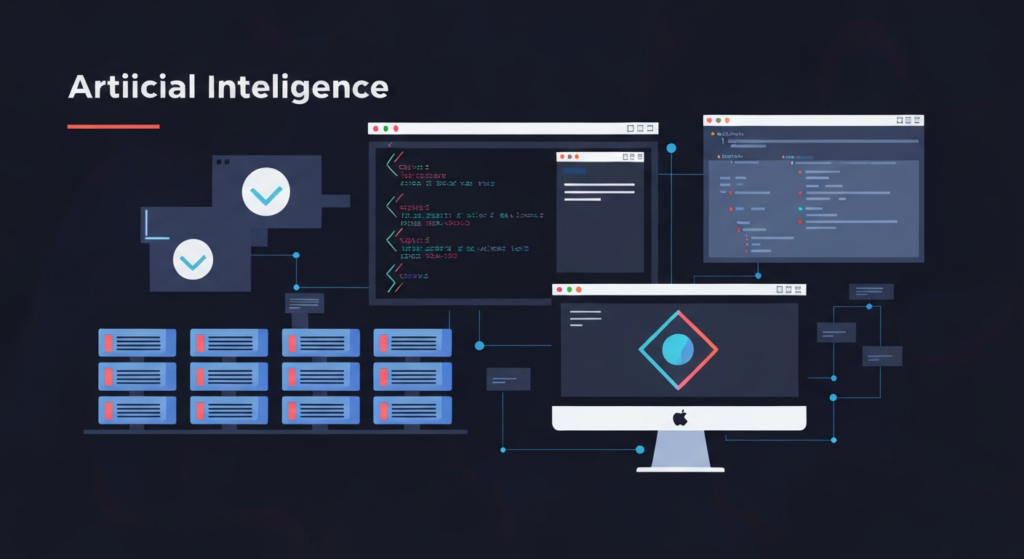
I’ve been working with AI models for a while now, and the biggest problem isn’t that the model lacks intelligence — it’s that the model is completely isolated from real project data. Every time I wanted the AI to analyze server logs, read a database schema, or check a config file, I had to manually copy-paste everything. MCP was created to solve exactly that pain point.
Why Do AI Models Need MCP?
Think about how a junior developer works on their first day: they have solid foundational knowledge, but they don’t know anything about the codebase, database schema, or team conventions. Someone needs to sit down and onboard them, walking through everything from scratch.
AI models are in the same situation. Claude, GPT, and Gemini are all trained on massive amounts of knowledge, but they don’t know:
- What’s in your machine’s file system
- What schema your production database has
- How your company’s internal APIs work
- What files are in your current GitHub repository
Before MCP, each team invented their own solution — ad-hoc plugins, custom API wrappers, or simply copy-pasting. There was no standard. Every AI application had a different integration approach, nothing was reusable.
Anthropic recognized this problem. In late 2024, they released MCP as an open protocol — standardizing the approach to solve it at the root rather than patching things one by one.
What Is MCP — The Simplest Explanation
At its core, MCP is a protocol that standardizes how AI models communicate with external data sources and tools. In short: MCP is a “common language” — the one that AI and tools use to understand each other.
If you’re familiar with web architecture, think of MCP like a REST API. But instead of defining how clients and servers communicate over HTTP, MCP defines how AI models (clients) communicate with data sources (servers).
The strength of MCP lies in its modularity. An MCP Server written once works with any AI client that supports MCP. Write an MCP Server for your database, and Claude Desktop, Cursor, and Zed can all use it immediately — no rewriting needed.
MCP Architecture: 3 Key Components
Before diving into setup, you need to understand the 3 main components of MCP architecture:
MCP Host
The application that hosts the AI model and initiates MCP connections. Examples: Claude Desktop, Cursor IDE, or an application you build yourself. The Host is responsible for managing the lifecycle of MCP connections.
MCP Client
A component that lives inside the Host, maintaining a 1-to-1 connection with an MCP Server. The Client handles protocol negotiation, sends requests, and receives responses according to the MCP standard.
MCP Server
The “connector” on the tools and data side. Each MCP Server exposes a set of capabilities: Resources (readable data), Tools (executable actions), and Prompts (pre-built prompt templates). A Server can be a separate local process or connect over a network.
Basic flow:
AI Model (Host) → MCP Client → [stdio / SSE] → MCP Server → Database / Files / APISetting Up Your MCP Environment
Method 1: Using Claude Desktop (Fastest Way to Get Started)
Claude Desktop is the most popular MCP Host right now. After installing it, add an MCP Server to the config file:
# Open Claude Desktop config file
# macOS:
open ~/Library/Application\ Support/Claude/claude_desktop_config.json

# Windows:
# %APPDATA%\Claude\claude_desktop_config.json
The JSON config file has this structure:
{
  "mcpServers": {
    "filesystem": {
      "command": "npx",
      "args": [
        "-y",
        "@modelcontextprotocol/server-filesystem",
        "/Users/yourname/projects"
      ]
    }
  }
}
Restart Claude Desktop after saving. When the connection is successful, the MCP icon appears in the bottom corner of the chat interface.
Method 2: Using the Python MCP SDK (For Developers)
To integrate MCP into your Python application, install the official SDK:
pip install mcp
# Or use uv (recommended)
uv add mcp
Connect and call tools from Python:
import asyncio
from mcp import ClientSession, StdioServerParameters
from mcp.client.stdio import stdio_client

async def main():
    server_params = StdioServerParameters(
        command="npx",
        args=["-y", "@modelcontextprotocol/server-filesystem", "/tmp/data"],
    )

    async with stdio_client(server_params) as (read, write):
        async with ClientSession(read, write) as session:
            await session.initialize()

            # List available tools
            tools = await session.list_tools()
            print("Available tools:", [t.name for t in tools.tools])

            # Call the file reading tool
            result = await session.call_tool(
                "read_file",
                arguments={"path": "/tmp/data/config.txt"}
            )
            print(result.content)

asyncio.run(main())
Detailed Configuration — Connecting to Real Data
Connecting PostgreSQL via MCP
I’ve used this approach in a production environment and it works great — the AI can query the schema, view explain plans, and suggest indexes without me having to manually describe each table.
pip install mcp-server-postgresConfig in claude_desktop_config.json:
{
  "mcpServers": {
    "postgres": {
      "command": "python",
      "args": ["-m", "mcp_server_postgres"],
      "env": {
        "POSTGRES_CONNECTION_STRING": "postgresql://user:pass@localhost:5432/mydb"
      }
    }
  }
}
MCP Security — What’s Often Overlooked
MCP Server runs with the permissions of the currently logged-in user. A few easy-to-miss points:
- Filesystem: Only expose the directories you need — NEVER expose
/or your entire~home directory - Database: Create a dedicated read-only user for MCP, don’t use a superuser account
- Network MCP: If using SSE transport over a network, HTTPS and authentication are mandatory
-- Create a dedicated read-only user for MCP
CREATE USER mcp_readonly WITH PASSWORD 'secure_password';
GRANT CONNECT ON DATABASE mydb TO mcp_readonly;
GRANT USAGE ON SCHEMA public TO mcp_readonly;
GRANT SELECT ON ALL TABLES IN SCHEMA public TO mcp_readonly;
Testing and Debugging Your MCP Connection
Using MCP Inspector
Anthropic provides an official debugging tool — use this before you start writing any code:
npx @modelcontextprotocol/inspector npx @modelcontextprotocol/server-filesystem /tmp/testInspector opens a web interface at http://localhost:5173, where you can:
- View the list of Resources, Tools, and Prompts the server exposes
- Call tools directly and see the raw response
- Trace protocol messages step by step
Viewing MCP Logs in Claude Desktop
# macOS — view real-time logs
tail -f ~/Library/Logs/Claude/mcp-server-filesystem.log

# View all MCP logs
ls ~/Library/Logs/Claude/mcp-*.log
Quick Connection Test Script
import asyncio
from mcp import ClientSession, StdioServerParameters
from mcp.client.stdio import stdio_client

async def test_connection():
    params = StdioServerParameters(
        command="npx",
        args=["-y", "@modelcontextprotocol/server-filesystem", "/tmp"],
    )
    try:
        async with stdio_client(params) as (read, write):
            async with ClientSession(read, write) as session:
                await session.initialize()
                tools = await session.list_tools()
                print(f"OK: {len(tools.tools)} tools available")
                for tool in tools.tools:
                    print(f"  - {tool.name}: {tool.description}")
    except Exception as e:
        print(f"FAIL: {e}")

asyncio.run(test_connection())
Wrapping Up
What really convinced me to invest time in MCP wasn’t the protocol itself — it was the exploding ecosystem around it. Shortly after Anthropic open-sourced it, the community shipped hundreds of MCP Servers within just a few months: Slack, GitHub, Google Drive, Notion, AWS, Jira — you name it.
Build an AI app without MCP and you’ll end up reinventing the wheel — your own way, incompatible with everything else. Instead of writing a custom integration layer for every data source, just plug into that ecosystem and you’re done.
Try it now: deploy a Filesystem MCP Server pointing to your project directory, open Claude Desktop, then ask “which file handles authentication in this project?” The answer will be completely different from when you chat without any context.