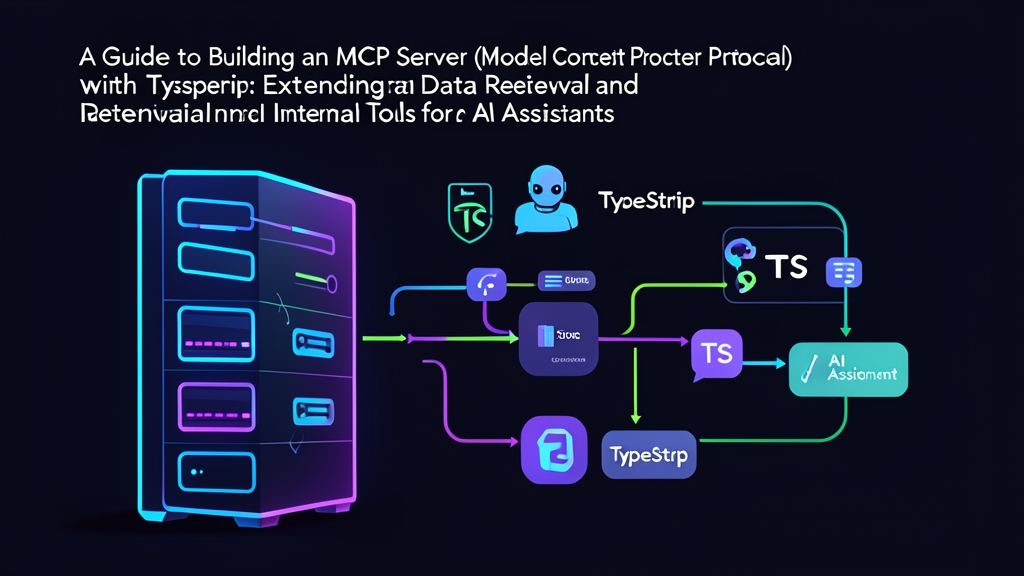
The Problem: LLMs Are Powerful but Blind to Internal Data
Using Claude or ChatGPT for daily coding tasks is incredibly convenient. However, when integrated into a team’s actual workflow, Large Language Models (LLMs) quickly hit a wall because they are completely isolated. AI cannot directly access your internal PostgreSQL database to inspect a failing order. It cannot read a 500MB log file on a staging server, nor can it call an API to automatically create a Jira ticket.
Previously, enabling AI to perform such tasks required developers to write custom Function Calling implementations for each platform. Integration code written for OpenAI could not be reused with Claude. If you switched to Cursor or Windsurf, you had to rewrite another batch of glue code. As projects grew, maintenance costs skyrocketed. This fragmentation is precisely why Anthropic introduced the open standard: Model Context Protocol (MCP).
What is Model Context Protocol (MCP)?
Simply put, MCP acts like a universal USB-C port for AI applications. Just as every device manufacturer used to have its own proprietary charging cable before converging on a single standard, MCP provides a unified interface for AI.
This protocol operates similarly to the Language Server Protocol (LSP) in the IDE ecosystem. Instead of every code editor having to rewrite a parser for each language, LSP standardizes syntax analysis. Similarly, MCP allows any AI client to plug into external data sources through the exact same standard interface.
Client-Server Architecture
The MCP system operates on a familiar Client-Server architecture:
- MCP Host / Client: The AI application you interact with daily (Claude Desktop, Cursor, Zed, or custom-built AI agents). The client manages conversational context and decides when to call external tools.
- MCP Server: An independent process built by you or the community. It acts as a gateway, safely exposing data or executable functions to the outside world.
- Transports: The Client and Server communicate using the JSON-RPC 2.0 protocol. The two most common transport mechanisms are:
stdio(communication via Standard Input/Output streams, optimized for local processes) andSSE / HTTP Stream(suitable for remote servers over a network).
3 Core Primitives Provided by an MCP Server
- Tools: Executable functions that can produce side effects (calling REST APIs, running SQL queries, triggering builds). The AI can proactively suggest calling a tool with specific arguments, but the user retains final approval.
- Resources: Static or dynamic data sources exposed as files/URIs (configuration files, system logs, database schemas). The client reads this data to inject it into the prompt’s context window.
- Prompts: Pre-built prompt templates with parameterized inputs. These help standardize prompt engineering workflows across a team (e.g., pull request review templates, error investigation templates).
Hands-On: Building Your First MCP Server with TypeScript
We will build a local server running on Node.js and TypeScript. This server exposes two practical tools: one to check server hardware metrics (`get_system_metrics`) and another to calculate sales discounts (`calculate_discount`).
Step 1: Initialize the TypeScript Project
Open your terminal and create a new directory:
mkdir my-mcp-server
cd my-mcp-server
npm init -y
npm install @modelcontextprotocol/sdk zod
npm install -D typescript @types/node tsx
Create a tsconfig.json file to configure the module settings:
{
  "compilerOptions": {
    "target": "ES2022",
    "module": "NodeNext",
    "moduleResolution": "NodeNext",
    "outDir": "./dist",
    "rootDir": "./src",
    "strict": true,
    "esModuleInterop": true,
    "skipLibCheck": true,
    "forceConsistentCasingInFileNames": true
  },
  "include": ["src/**/*"]
}
Open package.json, switch to ES Modules, and add convenient scripts:
{
  "name": "my-mcp-server",
  "version": "1.0.0",
  "type": "module",
  "bin": {
    "my-mcp-server": "./dist/index.js"
  },
  "scripts": {
    "build": "tsc",
    "start": "node dist/index.js",
    "dev": "tsx src/index.ts"
  }
}
Step 2: Write the MCP Server Source Code
Create src/index.ts. The code below initializes a server communicating over standard stdio transport:
import { Server } from "@modelcontextprotocol/sdk/server/index.js";
import { StdioServerTransport } from "@modelcontextprotocol/sdk/server/stdio.js";
import {
  CallToolRequestSchema,
  ListToolsRequestSchema,
} from "@modelcontextprotocol/sdk/types.js";
import os from "os";

// Initialize MCP Server
const server = new Server(
  {
    name: "internal-system-tools",
    version: "1.0.0",
  },
  {
    capabilities: {
      tools: {},
    },
  }
);

// 1. Declare tool definitions for the AI Client schema discovery
server.setRequestHandler(ListToolsRequestSchema, async () => {
  return {
    tools: [
      {
        name: "get_system_metrics",
        description: "Retrieve current server hardware metrics (free memory, total memory, uptime)",
        inputSchema: {
          type: "object",
          properties: {},
        },
      },
      {
        name: "calculate_discount",
        description: "Calculate discounted price for an order based on discount percentage",
        inputSchema: {
          type: "object",
          properties: {
            price: { type: "number", description: "Original product price (VND or USD)" },
            discountPercent: { type: "number", description: "Discount percentage (from 0 to 100)" },
          },
          required: ["price", "discountPercent"],
        },
      },
    ],
  };
});

// 2. Route handlers when the Client requests tool execution
server.setRequestHandler(CallToolRequestSchema, async (request) => {
  const { name, arguments: args } = request.params;

  if (name === "get_system_metrics") {
    const totalMem = (os.totalmem() / (1024 ** 3)).toFixed(2);
    const freeMem = (os.freemem() / (1024 ** 3)).toFixed(2);
    const uptimeHours = (os.uptime() / 3600).toFixed(1);

    return {
      content: [
        {
          type: "text",
          text: JSON.stringify({
            platform: os.platform(),
            arch: os.arch(),
            totalMemoryGB: totalMem,
            freeMemoryGB: freeMem,
            uptimeHours: uptimeHours,
          }, null, 2),
        },
      ],
    };
  }

  if (name === "calculate_discount") {
    const { price, discountPercent } = args as { price: number; discountPercent: number };

    if (discountPercent < 0 || discountPercent > 100) {
      throw new Error("Discount percentage must be between 0 and 100.");
    }

    const finalPrice = price - (price * discountPercent) / 100;

    return {
      content: [
        {
          type: "text",
          text: `Original price: ${price.toLocaleString()} | Discount: ${discountPercent}% | Final price: ${finalPrice.toLocaleString()}`,
        },
      ],
    };
  }

  throw new Error(`Tool not found: ${name}`);
});

// 3. Start the Stdio transport connection
async function run() {
  const transport = new StdioServerTransport();
  await server.connect(transport);
  console.error("[INFO] MCP Server started successfully on stdio transport");
}

run().catch((error) => {
  console.error("[FATAL] Failed to start server:", error);
  process.exit(1);
});
Crucial debugging note: With the stdio transport, all JSON-RPC packets travel through the stdout stream. If you use console.log() for arbitrary logging, that text is injected directly into the JSON stream, causing the client to fail parsing immediately. Always use console.error() for debug logging.
When working with complex JSON-RPC payloads, you can leverage online formatting utilities like the JSON Formatter on toolcraft.app to quickly inspect schema structures or validate data without opening a new tab in your IDE.
Step 3: Build the Project
Run the build command to compile TypeScript source code into JavaScript in the dist directory:
npm run buildStep 4: Configure Claude Desktop
Open the Claude Desktop configuration file on your machine:
- macOS:
~/Library/Application Support/Claude/claude_desktop_config.json - Windows:
%APPDATA%\Claude\claude_desktop_config.json - Linux:
~/.config/Claude/claude_desktop_config.json
Add the newly created server under mcpServers (be sure to replace with the absolute path to your project directory):
{
  "mcpServers": {
    "my-system-tools": {
      "command": "node",
      "args": ["/Users/username/my-mcp-server/dist/index.js"]
    }
  }
}
Restart Claude Desktop. Look at the bottom-right corner of the chat input, and you will see the hammer icon representing Tools light up. Now simply type: “Check how many GB of free RAM my machine has.” Claude will automatically invoke get_system_metrics, read the JSON returned from your local server, and respond in seconds.
Conclusion
The MCP architecture solves a core challenge: data privacy and security. Instead of uploading your entire database to OpenAI’s or Anthropic’s cloud, you only expose specific endpoints right on your local machine. By writing it once in TypeScript, your server can plug directly into Claude Desktop, Cursor, or any MCP-compliant AI client without tedious modifications.