Quick Start: Enable in 5 Minutes
To deploy an ESXi virtual machine inside a physical ESXi host (Nested ESXi), you only need to configure two essential settings:
Step 1: Enable Hardware Virtualization for the VM
By default, ESXi prevents guest VMs from accessing the CPU’s hardware virtualization extensions. Enable this flag before installing the OS:
- Log in to the ESXi Host Client web interface.
- Power off the VM intended to run as a nested ESXi host.
- Right-click the VM > Edit settings.
- Under the CPU section, check Hardware virtualization: Expose hardware assisted virtualization to the guest OS.
- Click Save to apply the changes.
If you are working via SSH, you can simply append this parameter directly to the .vmx file:
echo 'vhv.enable = "TRUE"' >> /vmfs/volumes/datastore1/Nested-ESXi-01/Nested-ESXi-01.vmxStep 2: Enable Security Flags on the Port Group
Without enabling the following three settings, VMs inside your nested ESXi host will lose network connectivity entirely—unable to receive DHCP leases or ping the gateway:
- Navigate to Networking > select the Port groups tab.
- Select the Port Group assigned to your nested VM (e.g.,
VM Network) > click Edit settings. - Expand the Security section and set all three options to Accept:
- Promiscuous mode: Accept
- MAC address changes: Accept
- Forged transmits: Accept
- Click Save. You can now power on the VM and proceed with the ESXi installation as normal.
How Does Nested Virtualization Work?
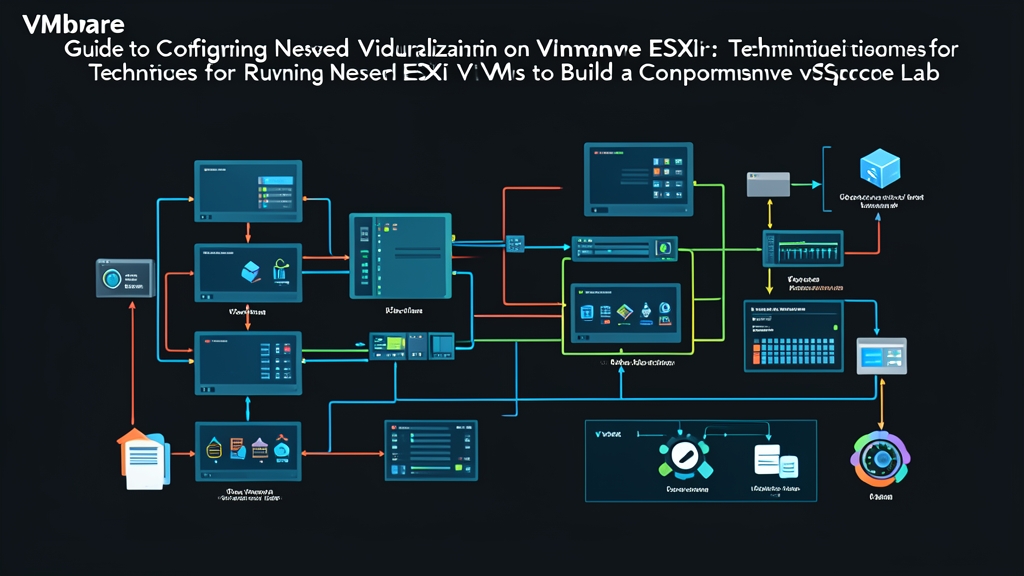
Put simply, this is a “virtualization inside virtualization” architecture. You install a nested ESXi hypervisor inside a virtual machine, and then run additional VMs inside that nested ESXi instance.
Why do this? When testing features like vSphere HA, DRS, or vSAN, VMware requires a minimum of three ESXi hosts. Asking management for three dedicated physical servers just to experiment with features is often unrealistic due to steep hardware costs. With Nested ESXi, you can consolidate the entire cluster onto a single physical server—or even a sufficiently powerful desktop workstation.
Under the hood, Hardware Assisted Virtualization (VHV) hooks directly into CPU virtualization extensions (Intel VT-x or AMD-V). Instead of emulating CPU instructions, the host hypervisor passes instructions straight through to the guest hypervisor, allowing it to interact with hardware almost as if it were running on bare metal.
Network Optimization and Automation for Lab Scaling
Manually creating 3 to 4 nested hosts is time-consuming. Instead, use PowerCLI to enable virtualization flags in bulk with a single command:
# Enable Nested Virtualization for all lab VMs whose names start with Nested-ESXi
Get-VM -Name "Nested-ESXi*" | Get-VMResourceConfiguration | Set-VMResourceConfiguration -NestedHVEnabled $true
From a networking standpoint, enabling Promiscuous mode on a Standard vSwitch is only a workaround. It forces virtual NICs to process unnecessary traffic, increasing CPU overhead on the parent host. When using a Distributed Switch (VDS), switch to MAC Learning instead:
# Enable MAC Learning for the lab port group on the vSphere Distributed Switch via esxcli
esxcli network vswitch dvs vmware mac-learning set -v "DVSwitch-Lab" -p "Nested-PG" -e true
This mechanism dynamically learns MAC addresses just like a physical switch, ensuring seamless traffic flow without saturating the CPU with broadcast storms.
Real-World Tips for Building Nested ESXi Labs
Here are several practical lessons learned from building multiple staging and test environments:
- At least 64GB of physical RAM: Each nested ESXi host requires at least 8GB of RAM to run smoothly. A Tiny vCenter Server Appliance (VCSA 8.0) deployment consumes a full 14GB of RAM on its own. Avoid over-relying on Memory Ballooning for host VMs—if a nested ESXi host is forced to swap memory to disk, all nested VMs running inside it will grind to a halt.
- Configure Disk UUID for vSAN labs: To build a vSAN cluster on virtual ESXi hosts, you must enable disk identification flags. Add this line to each nested host’s
.vmxfile; otherwise, vSAN will fail to detect the disks:
disk.EnableUUID = "TRUE"- Avoid spinning HDDs: Running three nested hosts generates massive random I/O. Using traditional HDDs will cause disk latency to spike to 2,000ms – 5,000ms, often hanging the system during boot. Use at least SATA III SSDs, though NVMe SSDs are strongly recommended for vSAN testing.
- Prevent network switching loops: When Promiscuous Mode is enabled, never bridge parent and guest vSwitches together without BPDU Guard or STP configured. A single broadcast loop can bring down your entire office network switch within seconds.