Context & Why You Need It
At 2 AM, the alerts started blaring non-stop. The /var/log/auth.log file had ballooned to hundreds of megabytes, flooded with over 60,000 SSH brute-force attempts from random IP ranges. That was the moment it hit home: simply changing the default SSH port and disabling password authentication isn’t enough.
Moving port 22 to a random port like 2222 or 58222 is merely security through obscurity. Tools like Masscan can sweep all 65,535 ports in under three minutes. Immediately after discovery, botnets swarm in with garbage traffic, wasting bandwidth and bloating system logs.
What about IP whitelisting with a firewall (UFW/Iptables)? That works fine if you always work from an office with a static IP. In reality, DevOps engineers frequently grab their laptops and work from coffee shops, hop between Wi-Fi networks, or tether from mobile 4G/5G. Constantly shifting IPs makes manual whitelisting a daily nightmare.
That is precisely why Port Knocking using the Knockd daemon is a game changer. It offers the ideal balance between rock-solid security and day-to-day flexibility.
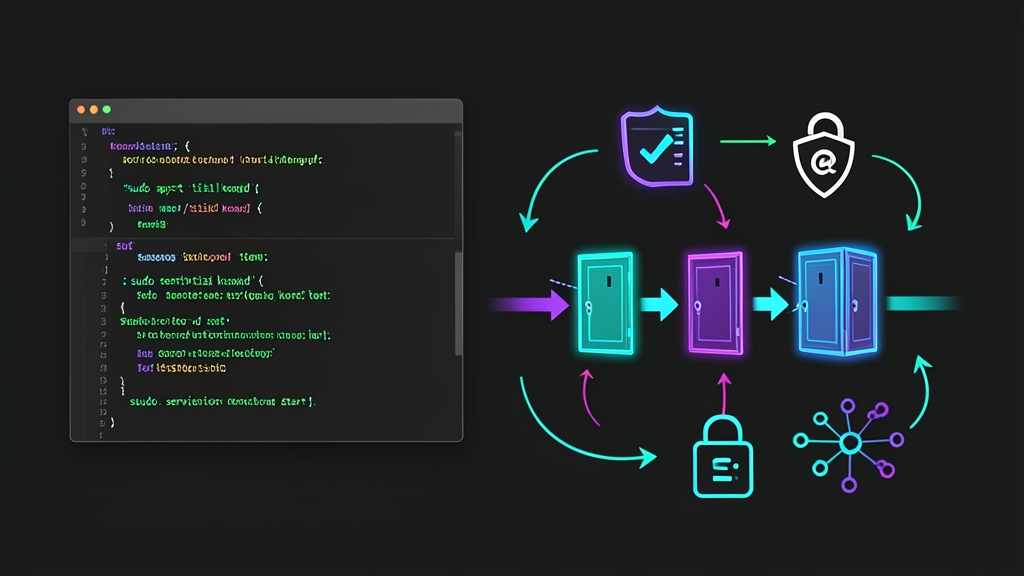
The concept is straightforward: the SSH port remains permanently set to DROP on the firewall. When hackers or automated scanners probe the server, the port appears completely invisible—as if the service isn’t even running.
Behind the scenes, Knockd runs silently, monitoring network interfaces. Once your client machine transmits a specific sequence of packets (a knock sequence) targeting predefined ports and protocols—much like tapping a secret Morse code knock on a door—Knockd instructs Iptables to dynamically open port 22 exclusively for your IP. After a short grace period (e.g., 30 seconds), the door automatically closes behind you.
After running this in production for six months, SSH brute-force logs dropped to absolute zero. Connecting takes just an extra second for the knock step.
Installation
Knockd is an extremely lightweight daemon that consumes only 3-4MB of RAM and is readily available across most major Linux distributions.
On Ubuntu or Debian, install the knockd package along with iptables-persistent to save firewall rules across reboots:
sudo apt update
sudo apt install knockd iptables-persistent -y
On CentOS, RHEL, or AlmaLinux, install it via the EPEL repository:
sudo dnf install epel-release -y
sudo dnf install knock-server -y
On your local client machine used to access the server, install the knock client:
# On Ubuntu/Debian client
sudo apt install knockd -y

# On macOS (using Homebrew)
brew install knock
Detailed Configuration
The setup involves three steps: establishing baseline firewall rules, defining knock sequences in Knockd, and starting the service.
1. Configure Iptables to Block the SSH Port
First, keep your existing SSH session open. Do not close your terminal under any circumstance until testing is complete, avoiding accidental lockouts caused by misconfiguration.
# Allow loopback traffic and keep existing established connections alive
sudo iptables -A INPUT -m conntrack --ctstate ESTABLISHED,RELATED -j ACCEPT
sudo iptables -A INPUT -i lo -j ACCEPT

# Block all new incoming connections to port 22
sudo iptables -A INPUT -p tcp --dport 22 -j DROP

# Save rules to persist across server reboots
sudo netfilter-persistent save
2. Configure /etc/knockd.conf
Open the primary Knockd configuration file:
sudo nano /etc/knockd.confReplace the default sample contents with the following configuration:
[options]
    UseSyslog
    Interface = eth0

[opencloseSSH]
    sequence      = 7412:tcp,8523:tcp,9631:tcp
    seq_timeout   = 10
    tcpflags      = syn
    start_command = /sbin/iptables -I INPUT -s %IP% -p tcp --dport 22 -j ACCEPT
    cmd_timeout   = 30
    stop_command  = /sbin/iptables -D INPUT -s %IP% -p tcp --dport 22 -j ACCEPT
Configuration directives explained:
- Interface: The external network interface of your server (run
ip -br ato verify, typicallyeth0orens3). - sequence: The target port knock sequence. Customize this with your own random sequence, combining TCP and UDP ports as desired (e.g.,
7412:udp,8523:tcp,9631:tcp). - seq_timeout: Maximum time (in seconds) allowed to complete the entire sequence. Set to 10 seconds here.
- tcpflags = syn: Only inspects TCP SYN packets, filtering out ambient packet noise and preventing accidental triggers.
- start_command: The command executed upon a valid knock. The
%IP%token is automatically substituted with your client source IP. - cmd_timeout: 30 seconds after opening, Knockd executes
stop_commandto remove the temporary allow rule. Any SSH connection established during this window remains uninterrupted thanks to theESTABLISHED,RELATEDrule configured earlier.
3. Enable and Start the Knockd Service
On Ubuntu, edit /etc/default/knockd to allow the daemon to run:
sudo nano /etc/default/knockdUpdate the following two lines:
START_KNOCKD=1
KNOCKD_OPTS="-i eth0"
Restart the service and enable it to launch automatically at system boot:
sudo systemctl restart knockd
sudo systemctl enable knockd
sudo systemctl status knockd
Testing & Verification
Now switch to your client machine to verify the setup.
Verify the Closed Port Baseline
Scan port 22 on the server using Nmap:
nmap -Pn -p 22 198.51.100.24The state should report as filtered. Attempting to run ssh [email protected] should hang and eventually return Operation timed out.
Knocking and Connecting
Send the knock sequence matching your configured ports:
knock 198.51.100.24 7412:tcp 8523:tcp 9631:tcpThe command completes almost instantly (around 0.3 seconds). Immediately connect via SSH:
ssh [email protected]You should connect right away. After 30 seconds, the firewall quietly closes the port again, yet your active session remains open and completely uninterrupted.
Automating with ~/.ssh/config
Running the knock command manually before every connection is cumbersome. You can automate this directly in ~/.ssh/config on your client machine:
Host my-server
    HostName 198.51.100.24
    User ubuntu
    IdentityFile ~/.ssh/id_rsa
    ProxyCommand knock %h 7412 8523 9631 && sleep 1 && nc %h %p
From now on, simply run ssh my-server. Your client automatically sends the knock sequence, pauses for 1 second, and establishes the SSH tunnel seamlessly.
Monitoring Knockd Logs on the Server
To inspect status or troubleshoot failed attempts, inspect logs using systemd journal:
sudo journalctl -u knockd -fA successful knock sequence produces distinct stages in the log:
knockd[1234]: 203.0.113.50: opencloseSSH: Stage 1
knockd[1234]: 203.0.113.50: opencloseSSH: Stage 2
knockd[1234]: 203.0.113.50: opencloseSSH: Stage 3
knockd[1234]: 203.0.113.50: opencloseSSH: OPEN SESAME
knockd[1234]: opencloseSSH: running command: /sbin/iptables -I INPUT -s 203.0.113.50 -p tcp --dport 22 -j ACCEPT
knockd[1234]: 203.0.113.50: opencloseSSH: command timeout
knockd[1234]: opencloseSSH: running command: /sbin/iptables -D INPUT -s 203.0.113.50 -p tcp --dport 22 -j ACCEPT
If logs stall at Stage 1 or Stage 2 without reaching OPEN SESAME, intermediate network devices (such as public Wi-Fi routers or transparent proxies) may be dropping or reordering TCP SYN packets. If this occurs, switch your sequence to UDP packets or increase seq_timeout to 15 seconds to accommodate higher network jitter.