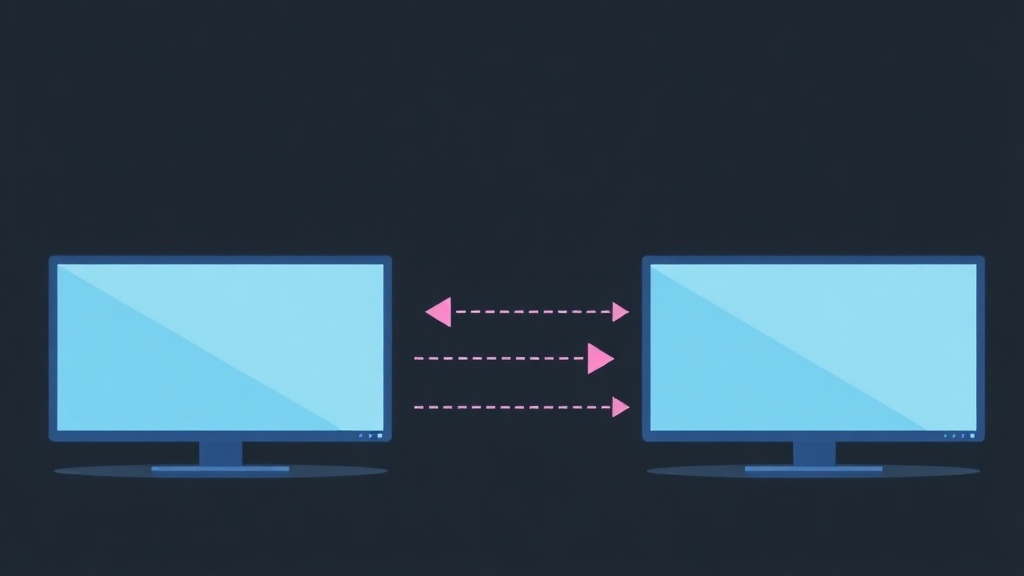
The Nightmare of Traditional GPU Passthrough
If you’ve ever set up GPU Passthrough to run a Windows virtual machine on Linux, you’ve likely experienced the inconvenience of using two monitors. Having to buy a second monitor or constantly toggle input source buttons is a major hassle.
The feeling of coding smoothly on Linux only to wait 3-5 seconds for the monitor to pick up the signal from Windows completely breaks your workflow. If you only have one set of keyboard and mouse, switching back and forth (KVM Switch) is expensive and can degrade image quality.
Why Traditional Remote Desktop Isn’t Good Enough?
Many users often think of RDP, VNC, or Parsec as quick fixes. However, when doing heavy graphics work or playing fast-paced games, these solutions show clear limitations, even when compared to high-performance cloud PCs for gaming:
- Latency: Even with a 1Gbps local network, latency remains at 15-30ms. For FPS titles like CS2 or Valorant, this is a disaster.
- Image Compression: To maintain smooth transmission, images are often compressed, leading to artifacts. This causes color inaccuracies, making it unusable for professional color grading or video editing.
- System Overhead: Encoding video on the VM and decoding it on the host consumes significant CPU, reducing overall FPS.
Common Display Solutions Today
The virtualization community usually considers three options for handling VM display output:
- Dual Monitors: Simple and stable, but takes up space and money.
- Capture Card: Using external hardware to capture the image and feed it back to Linux via USB/PCIe. This costs around $100-$200 and still has some latency.
- Looking Glass: The most optimal software solution currently available for professional Linux users.
Looking Glass: Leveraging Shared Memory for Sub-1ms Latency
After 6 months of running a Homelab with an RTX 3070, I can confirm that Looking Glass is a game-changer for resource optimization for homelab environments. Instead of transmitting images over the network, it creates a Shared Memory region (IVSHMEM) between the Host and Guest.
The Windows VM copies frames directly into RAM, and the Linux Host simply reads them for display. Since data travels directly over the memory bus, latency is almost zero. Real-world experience shows incredibly smooth frames, indistinguishable from using a bare-metal machine, especially when optimizing virtual machine performance for low latency.
Step 1: Initialize Inter-VM Shared Memory (IVSHMEM)
First, we need to create a file in /dev/shm to act as the Frame Buffer. The file size depends on the resolution. Formula: Width x Height x 4 x 2 (bytes). For example, a 1080p screen needs about 32MB, but you should allocate 64MB or 128MB to be safe for 4K, a practice similar to optimizing Huge Pages for Proxmox/KVM.
# Create a systemd configuration file to automatically initialize on boot
sudo nano /etc/tmpfiles.d/10-looking-glass.conf

# Add the following line (replace 'username' with your user)
f /dev/shm/looking-glass 0660 username kvm -
Apply the configuration immediately with the command: systemd-tmpfiles --create /etc/tmpfiles.d/10-looking-glass.conf.
Step 2: Configure XML for the KVM Virtual Machine
Open the KVM virtual machine configuration file using virsh edit <vm_name>. Inside the <devices> tag, add the following code snippet at the end:
<shmem name='looking-glass'>
  <model type='ivshmem-plain'/>
  <size unit='M'>64</size>
  <address type='pci' domain='0x0000' bus='0x10' slot='0x01' function='0x0'/>
</shmem>
Double-check to ensure the bus and slot values do not conflict with existing devices.
Step 3: Installation on Windows Guest
Boot the Windows VM and follow these steps:
- Download the IVSHMEM Driver from the VirtIO-Win repository.
- Open Device Manager and update the driver for the “PCI Standard RAM Controller” device using the downloaded file.
- Install the Looking Glass Host (.exe). This program handles pushing frames from the GPU into the shared RAM.
Step 4: Install the Client on the Linux Host
On Linux, you need to install the Looking Glass Client to view the image. For Ubuntu or Debian, build from source for the best performance:
# Install dependencies
sudo apt install cmake libsdl2-dev libsdl2-ttf-dev libspice-protocol-dev libfontconfig1-dev libx11-dev

# Clone source code and build
git clone --recursive https://github.com/gnif/LookingGlass.git
cd LookingGlass/client
mkdir build && cd build
cmake ../
make -j$(nproc)
Run the command ./looking-glass-client to open the VM window. You will see the Windows screen appear with incredible responsiveness.
Important Notes for Optimizing the Experience
While using it to play Cyberpunk 2077 and work in Adobe Premiere, I’ve gathered three key tips:
- Use an HDMI Dummy Plug: The GPU needs to detect a physical monitor to activate output. A dummy plug costing a few dollars will completely solve this issue.
- Exit Shortcut: Looking Glass will “capture” your mouse. Press the
Scroll Lockkey to release control and return to Linux. - Audio Synchronization: Looking Glass only transmits video. Install Scream to transmit audio over the virtual network with ultra-low latency.
Overall, Looking Glass is the final piece of the puzzle to turn Linux into the perfect workstation and entertainment machine. Good luck with your setup!