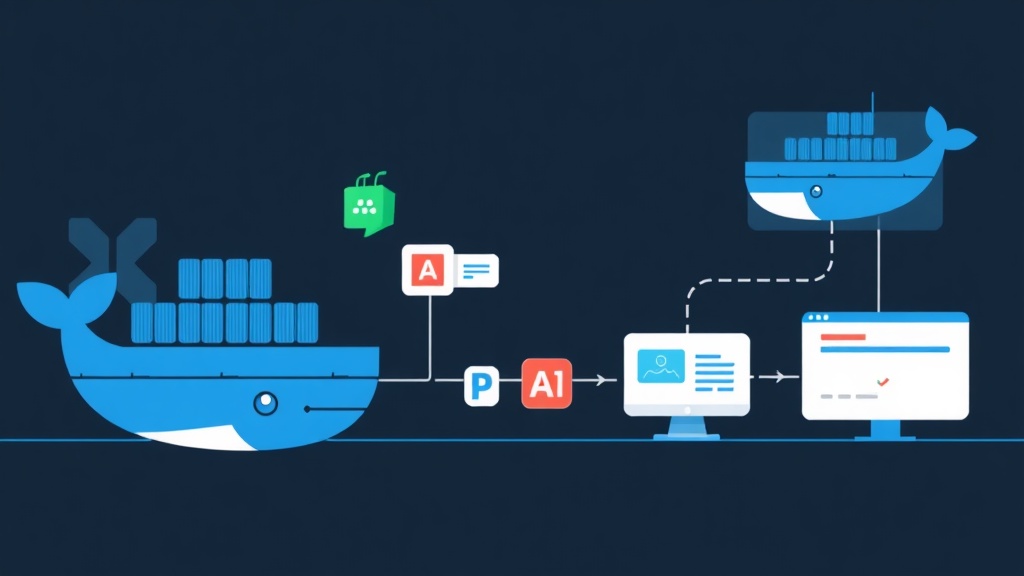
Editing 1 Line, Waiting 1 Minute to Build: A Shared ‘Pain Point’
As developers, we’re all familiar with the endless loop: Edit code → Hit Save → Run docker-compose up --build → Wait dozens of seconds for the image to build → Switch back to the browser to check. If you edit code 100 times a day, that “idle time” can easily eat up 1-2 hours of your precious workday.
The classic solution was using Bind Mounts to map your code folder into the container. While it works, it often leads to permission issues or conflicts between node_modules on your host machine and the container. More importantly, Bind Mounts fail when you install new libraries—you still have to rebuild the image from scratch.
Docker Compose Watch was created to eliminate that friction. It’s more than just simple file mounting; it’s a smart sync mechanism that makes developing in Docker feel as smooth as running it natively on your machine.
How Does Docker Compose Watch Work?
Put simply, Docker Compose Watch is like a “silent detective” monitoring every change in your project directory. As soon as you hit Ctrl+S, it triggers one of three actions based on your configuration:
- Sync: Pushes new files into the container immediately (usually under 1s, perfect for frontend hot reloading).
- Rebuild: Automatically rebuilds the image and restarts the container when configuration files (
package.json,requirements.txt) change. - Sync + Restart: Pushes files and restarts the service (useful for backends without a built-in auto-reload mechanism).
Everything happens automatically in the background. You focus on writing code; Docker handles the rest.
Configuring a Node.js Project
To give you a clear picture, let’s look at a basic Node.js project. Suppose your directory structure is as follows:
my-app/
├── src/
│   └── index.js
├── package.json
└── compose.yaml
Step 1: Tuning your compose.yaml
Instead of just using the old-school volumes, we’ll add a develop block to enable the watch feature:
services:
  web:
    build: .
    ports:
      - "3000:3000"
    develop:
      watch:
        - path: ./package.json
          action: rebuild
        - path: ./src
          action: sync
          target: /app/src
          ignore:
            - node_modules/
Key parameters explained:
- path: ./package.json: When this file changes (e.g., you install a new library),
action: rebuildruns. Docker automatically rebuilds the image to update dependencies without you having to type a single command. - path: ./src: Any changes in the src folder are immediately
synced totarget: /app/src. - ignore: Excludes heavy folders like
node_modulesfor better performance.
Step 2: Activating Watch Mode
Instead of the traditional up command, run:
docker compose watchNow, Docker will start the container and keep a background process running. Try changing a log line in index.js and save; you’ll see the container pick up the new code with almost zero latency.
Why Should You Switch from Bind Mounts to Watch?
You might wonder: “Mounting volumes seems fast enough, why bother?” There are actually 3 compelling reasons:
- Superior Speed: On macOS or Windows, Bind Mounts through virtualization layers can be quite slow when a project has thousands of files. Watch uses an event-based mechanism, making it extremely lightweight.
- Precise Control: Watch lets you choose exactly which files to sync. You won’t have to worry about “junk” files from your host machine messing up your clean Docker environment.
- Full Automation: The ability to automatically
rebuildwhen adding libraries is something Bind Mounts can never do.
Real-World Stats: Saving 40% in Resources
Many worry that running a file-watching process will slow down their machine. In reality, it’s the opposite if you ignore the right folders correctly.
In a real-world project with over 30 containers, I reduced CPU usage by 40% by ditching third-party sync tools (like Mutagen or Docker Sync) and moving entirely to Compose Watch. My tip: keep the develop section in a separate file or use extends to keep your main compose.yaml clean.
For larger projects, prioritize using action: sync for logic code and only use rebuild for manifest files.
A Few Tips to Avoid Headaches
- Check your version: You need Docker Desktop 4.24 or Docker Compose 2.22.0 or higher. Run
docker compose versionto check right now. - App hot reload: Docker Watch only pushes files into the container. Whether the application actually reloads itself still depends on your code (e.g., using
nodemonfor Node.js oruvicorn --reloadfor Python).
Conclusion
Docker Compose Watch is a major leap forward in bridging the gap between local and containerized environments. It allows us to focus on creative coding instead of repetitive, boring tasks. If you use Docker daily, set up Watch today—I bet you won’t want to go back.
Having trouble with the setup? Leave a comment below, and I’ll be happy to help!