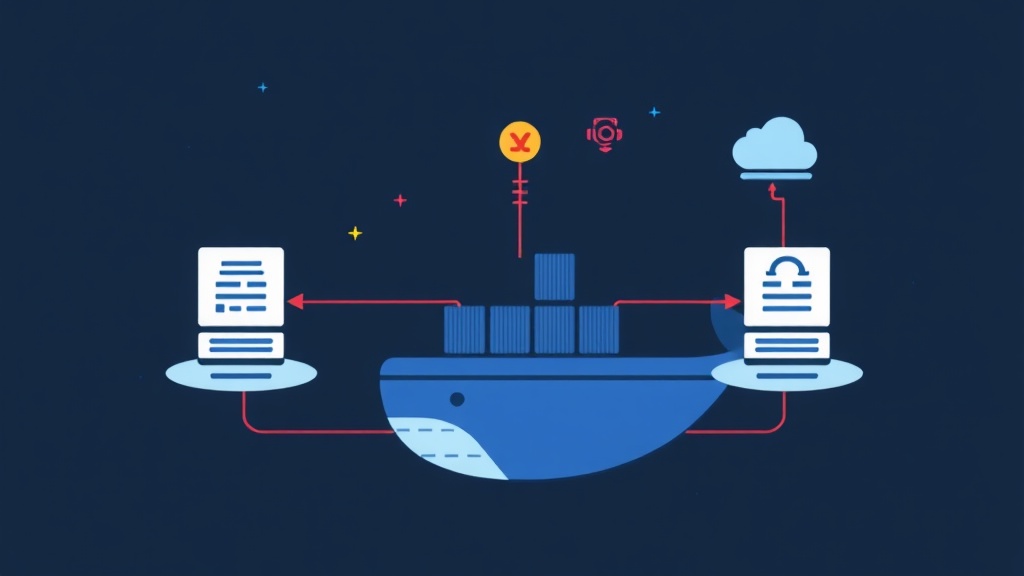
From a “Connection Refused” Incident to Mastering Docker Networks
I still remember vividly the first day I deployed a microservices system to a Staging server. Locally, everything ran perfectly with docker-compose up. The frontend (React) called the backend (Node.js) swiftly, and the backend communicated with the Database (Postgres) and Redis seamlessly. But on the server, a nightmare unfolded: the frontend couldn’t connect to the backend at all. The Connection Refused error blazed across the screen.
I spent almost half a day just scrambling to find the error. Pinging the container’s IP from the server worked, but one container calling another by its service name (e.g., http://backend-api:3000) failed completely. Where was the problem?
The Root of the Problem: Each Container is a Network “Island”
After digging deep into documentation and forums, I realized a core principle: by default, each Docker container is a completely isolated environment, including its networking.
When you run docker run without specifying a network, Docker automatically assigns the container to a default network named bridge. Two containers running separately like this, although on the same bridge network, cannot resolve each other by name to communicate. They can only talk through the internal IP addresses assigned by Docker, which can change every time a container restarts, causing instability.
In contrast, docker-compose is much “smarter.” It automatically creates a private bridge network for all services defined in the docker-compose.yml file. Thanks to this, containers within the same compose “family” can easily call each other by their service name. My problem on the Staging server was precisely because I had run the containers individually instead of using compose, causing them to get “lost” from each other.
Understanding this mechanism didn’t just help me fix the immediate error. It also became the foundation for confidently designing more complex systems. In the world of Docker, there are three main network drivers we need to master: Bridge, Host, and Overlay.
Docker Networking Solutions
1. Bridge Network: The Safe Choice for Most Scenarios
You can think of Bridge as the “go-to” network type in Docker. It’s both the default and flexible enough for most scenarios. When used, Docker creates a virtual gateway and subnet on the host machine, acting as a “bridge” for the containers.
- How it works: Each container is assigned a private IP within a virtual subnet (e.g., 172.17.0.0/16). Docker handles the routing and NAT (Network Address Translation). This allows containers to communicate with each other and connect to the internet via the host’s IP.
- Internal DNS: The “secret weapon” when you use a user-defined bridge network is the built-in DNS system. Containers on the same network can find and communicate with each other just by using the container name (e.g.,
postgres,redis). This is the magic behind the convenience ofdocker-compose.
Practical example: Instead of letting Docker use the default bridge, always create your own network.
# 1. Create a custom bridge network
docker network create my-app-net

# 2. Run the database container on that network
docker run -d --name my-postgres --network my-app-net -e POSTGRES_PASSWORD=mysecretpassword postgres

# 3. Run the application container on the same network
# It can connect to the DB using the hostname "my-postgres"
docker run -d --name my-app --network my-app-net -e DATABASE_HOST=my-postgres my-app-image
Personal experience: For projects running on a single server, 99% of the time I only use a user-defined bridge network. It’s secure enough (good isolation) and convenient (DNS resolution). Oh, by the way, I’ve migrated my entire stack from docker-compose v1 to v2 and the process was quite smooth; the networking still works identically, just with a cleaner syntax in the YAML file.
2. Host Network: Breaking Isolation for Maximum Speed
When network performance is the absolute priority, the Host network allows you to “remove” the virtualization layer. Imagine the container no longer has its own network interface. Instead, it directly shares the host’s network card, as if it were an application running straight on the host.
- How it works: The container doesn’t get its own IP address but uses the host’s network stack. An application running on port 8080 inside the container will directly occupy port 8080 on the host machine.
- Pros: Peak performance. Since there’s no intermediate NAT layer to go through, the network speed is nearly equivalent to a native application on the host.
- Cons: A significant trade-off in security and management. The immediate problem is port conflicts. You can’t run two containers that use the same port. More importantly, it breaks the principle of isolation—one of Docker’s most fundamental values.
Example:
# This container will directly use port 80 on the host
# If port 80 is already in use, this command will fail
docker run -d --name nginx-host --network host nginx
When should you use it? In practice, I very rarely use the host network. It’s only suitable for specific tasks, such as system monitoring agents (Prometheus Node Exporter, Datadog Agent) that need direct access to the host’s network interfaces to collect metrics. Or in some scenarios that require processing massive network data streams with the lowest possible latency. Always consider the trade-offs carefully before choosing it.
3. Overlay Network: Powering Distributed Systems
So, your app is running smoothly on one server. Your boss pats you on the shoulder and says, “Let’s scale it to 3 servers for better stability!” At this point, a Bridge network is no longer sufficient. How can a container on server A talk to a container on server B?
Overlay network is the answer. It’s the foundational technology that enables communication between containers across multiple hosts, playing a key role in orchestration systems like Docker Swarm or Kubernetes.
- How it works: An overlay network creates a virtual layer 2 network that spans across multiple Docker hosts. It’s like an invisible “mesh” laid on top of the servers’ physical network. Containers connected to this “mesh” can communicate with each other by name, regardless of which host in the cluster they are running on.
- Requirements: To create and manage an overlay network, you need a container orchestration tool. With Docker, the built-in tool is Docker Swarm.
Example with Docker Swarm:
# (On the manager node)
# 1. Initialize Docker Swarm
docker swarm init

# 2. Create an overlay network
docker network create --driver overlay my-distributed-net

# 3. Deploy a service with 3 replicas on that overlay network
# Docker Swarm will automatically distribute these 3 containers across the nodes in the cluster
docker service create --name my-api --network my-distributed-net --replicas 3 my-api-image
At this point, the three containers of the my-api service might be on three different physical servers. However, they can still “see” and call each other seamlessly through the my-distributed-net network.
Summary Table: Which Network for Which Scenario?
There is no “best” choice for every situation. Instead, choose the network that is the “most suitable” for your architecture and requirements.
- User-defined Bridge Network: The default choice for applications running on a single host. It offers a perfect balance of security, convenience (thanks to internal DNS), and good performance.
- Host Network: Reserved for special cases where you need maximum network performance and are willing to accept the trade-offs in security and port conflicts. Use it purposefully and cautiously.
- Overlay Network: The mandatory solution for applications distributed across multiple hosts. It is the foundation of highly available systems using Docker Swarm or Kubernetes.
Mastering these three network types has completely changed how I design system architecture. From a simple application on a single VPS to a complex microservices system, it all comes down to choosing the right network. I hope this practical experience will help you work with Docker more confidently.