You’re working on a project and want to ask Claude: “What does the current database schema look like?” — only to get back something like “I don’t have access to your database.” Sound familiar?
That’s the fundamental weakness of AI assistants: the model is incredibly capable, but completely isolated from your actual working environment. MCP (Model Context Protocol) was created to solve exactly this pain point — letting AI connect directly to your file system, database, GitHub, or any tool you’re using.
This post covers 7 of the most popular MCP servers, with concrete installation instructions to get up and running immediately. If you want to build your own MCP server from scratch, there’s a separate post on the blog for that — here I’ll focus solely on using existing servers.
How MCP Works — A 2-Minute Overview
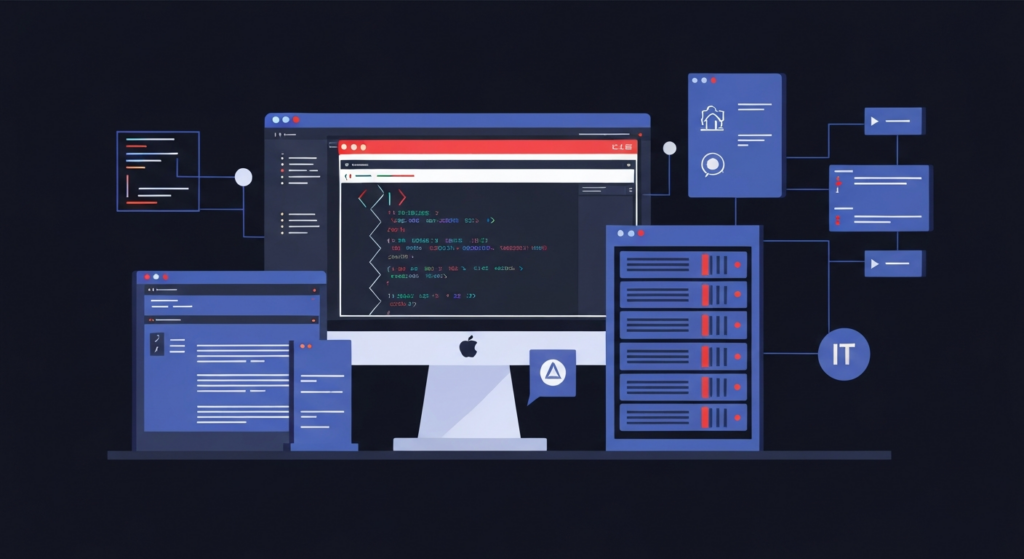
MCP is an open protocol developed by Anthropic. Think of it as USB-C for AI: instead of every tool having its own connection method, MCP standardizes the communication flow between AI clients (Claude Desktop, Cursor, VS Code…) and “servers” that provide data or actions.
Each MCP server is an independent process that exposes “tools” the AI can call. The filesystem server exposes tools like read_file, write_file, and list_directory. When you ask Claude “what’s in config.yaml?”, Claude calls that tool directly — instead of asking you to paste the contents into the chat.
Setting Up Your Environment
Most MCP servers run via Node.js (npx) or Python (uvx). Install both of these first:
# Node.js 18+ — use nvm for easy version management
nvm install 20
nvm use 20

# uv — Python package manager faster than pip
pip install uv
The MCP configuration for Claude Desktop lives in a JSON file:
- macOS:
~/Library/Application Support/Claude/claude_desktop_config.json - Windows:
%APPDATA%\Claude\claude_desktop_config.json
Basic structure:
{
  "mcpServers": {
    "server-name": {
      "command": "npx",
      "args": ["-y", "@modelcontextprotocol/server-server-name"],
      "env": {
        "API_KEY": "your-key-here"
      }
    }
  }
}
After editing the config file, restart Claude Desktop to apply the changes.
Top MCP Servers for Real-World Developer Use
1. Filesystem — Read/Write Local Files Without Copy-Pasting
The most basic server, but the one I use most. Claude can read, write, and search files directly on your machine — review code, refactor, read logs without having to paste every snippet into the chat.
"filesystem": {
  "command": "npx",
  "args": [
    "-y",
    "@modelcontextprotocol/server-filesystem",
    "/Users/yourname/projects",
    "/Users/yourname/documents"
  ]
}
Pass the directory paths you want to allow access to. Claude can only operate within those directories — anything outside the list is invisible to Claude.
2. GitHub — Interact with Repositories Through Chat
The most time-saving server in my workflow. Clone repos, read files, create issues, list PRs — all through chat, no tab-switching required.
"github": {
  "command": "npx",
  "args": ["-y", "@modelcontextprotocol/server-github"],
  "env": {
    "GITHUB_PERSONAL_ACCESS_TOKEN": "ghp_xxxxxxxxxxxx"
  }
}
Create a Personal Access Token at GitHub Settings → Developer settings → Personal access tokens. Granting repo scope is sufficient. After that, questions like “Summarize the last 10 commits of repo X” or “Create issue Y for repo Z” all work.
3. PostgreSQL — Query Databases in Natural Language
I’ve run this against a production database and the results were more reliable than expected — Claude inspects the schema itself and writes accurate queries without needing a table structure explanation every time.
"postgres": {
  "command": "npx",
  "args": [
    "-y",
    "@modelcontextprotocol/server-postgres",
    "postgresql://localhost/mydb"
  ]
}
Replace mydb with your actual database name. This server is read-only by default — safe to connect to production.
Using SQLite instead of PostgreSQL? Change the config to:
"sqlite": {
  "command": "uvx",
  "args": ["mcp-server-sqlite", "--db-path", "/path/to/database.db"]
}
4. Brave Search — Real-Time Web Search
Claude’s knowledge has a fixed cutoff date — after that, the model knows nothing new. This server lets Claude search the web when it needs up-to-date information: new documentation versions, recently reported bugs, or last week’s release notes.
"brave-search": {
  "command": "npx",
  "args": ["-y", "@modelcontextprotocol/server-brave-search"],
  "env": {
    "BRAVE_API_KEY": "BSA_xxxxxxxxxx"
  }
}
Register for a free API key at api.search.brave.com. The free tier allows 2,000 queries/month — more than enough for personal use.
5. Puppeteer — Browser Automation
Puppeteer runs Chromium in the background, letting Claude open URLs, click elements, fill forms, and take screenshots. Most useful for UI testing or scraping sites that don’t have an API.
"puppeteer": {
  "command": "npx",
  "args": ["-y", "@modelcontextprotocol/server-puppeteer"]
}
No additional configuration needed. The first run will automatically download Chromium (~200MB). After that, you can say things like: “Open page X and screenshot the hero section” or “Check if the login form displays the correct error message.”
6. Fetch — Make Arbitrary HTTP Requests
Much lighter than Puppeteer: just calls HTTP endpoints and reads the response, no browser needed. Great for testing REST APIs, reading online documentation, or fetching data from public APIs.
"fetch": {
  "command": "uvx",
  "args": ["mcp-server-fetch"]
}
7. Memory — Claude Remembers Information Across Sessions
Claude forgets everything after each conversation — including things you just explained. The memory server creates a persistent knowledge graph on your machine. I store things like: “Project Alpha: PostgreSQL 15, deployed on AWS ECS, CI/CD via GitHub Actions, team of 3” — open a new chat and Claude already has the context, no need to explain from scratch.
"memory": {
  "command": "npx",
  "args": ["-y", "@modelcontextprotocol/server-memory"]
}
Complete Config: Combining Multiple Servers
A combined full config — copy and adjust as needed:
{
  "mcpServers": {
    "filesystem": {
      "command": "npx",
      "args": [
        "-y",
        "@modelcontextprotocol/server-filesystem",
        "/Users/yourname/projects"
      ]
    },
    "github": {
      "command": "npx",
      "args": ["-y", "@modelcontextprotocol/server-github"],
      "env": {
        "GITHUB_PERSONAL_ACCESS_TOKEN": "ghp_xxxxxxxxxxxx"
      }
    },
    "brave-search": {
      "command": "npx",
      "args": ["-y", "@modelcontextprotocol/server-brave-search"],
      "env": {
        "BRAVE_API_KEY": "BSA_xxxxxxxxxx"
      }
    },
    "fetch": {
      "command": "uvx",
      "args": ["mcp-server-fetch"]
    },
    "memory": {
      "command": "npx",
      "args": ["-y", "@modelcontextprotocol/server-memory"]
    }
  }
}
Practical note: Running many servers simultaneously consumes RAM and lengthens Claude’s tool list — both affect response speed. In practice, I find 3–4 servers to be the sweet spot.
Troubleshooting When MCP Servers Don’t Work
The three most common errors:
- Server doesn’t appear in Claude: The JSON config has a format error. Paste it into
jsonlint.comto validate quickly — a single extra comma is enough to break the whole file. - npx error “command not found”: Node.js isn’t installed or isn’t in your PATH. Restart your terminal after installing Node and try again.
- Permission error with filesystem: You must use absolute paths — don’t use
~or environment variables in the args.
Claude Desktop writes logs to ~/Library/Logs/Claude/mcp*.log (macOS) — check there before Googling.
Conclusion
After using this full set of servers, the way I interact with Claude changed completely. No more pasting snippets of code, explaining schemas from scratch, or opening new tabs to check docs — Claude already has enough context to actually get work done.
If you’re just getting started: install filesystem and github first. Those two cover the majority of daily needs. Add more as you feel the gaps. The community is shipping new servers every week — the modelcontextprotocol/servers repository on GitHub is the best place to stay up to date.