What is vCLS and Why Did It Suddenly Appear in Your vCenter?
If you’ve just upgraded your system to vSphere 7.0 Update 1 or higher, you’ll see some strange virtual machines named vCLS-xxxx... appear. They have no IP addresses, their disk capacity is only about 100MB-2GB, and most importantly, you never clicked the create button.
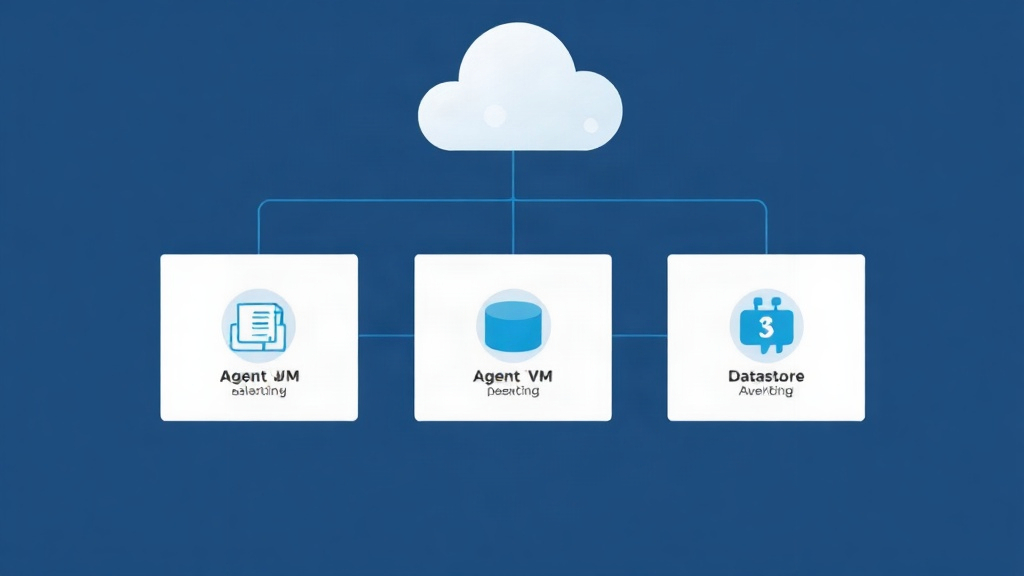
In reality, this is vSphere Cluster Services (vCLS). Previously, core features like DRS or HA depended entirely on vCenter. If vCenter went down, these features would be immediately paralyzed. To eliminate this critical single point of failure, VMware decoupled the cluster management logic from vCenter. They placed them into tiny Agent VMs running directly on ESXi hosts. This allows the cluster to maintain its stable state even if vCenter loses connection.
When I tried migrating some nodes from VMware to Proxmox, I noticed Proxmox manages quorum via Corosync quite neatly. However, with vSphere’s massive ecosystem, vCLS is a necessary step towards a fully decentralized architecture.
Why Can vCLS Sometimes Be a Nuisance?
While the intention is good, vCLS often frustrates administrators for two practical reasons:
- Indiscriminate Datastore Usage: By default, vCLS will pick any Datastore it finds convenient. There have been cases where vCLS automatically jumped into LUNs reserved for high-speed Databases or disks that were nearly out of capacity.
- Obstacle During Maintenance: When you need to put an ESXi Host into Maintenance Mode or want to delete an old Datastore, these vCLS VMs often report vMotion errors or simply refuse to move.
How to Move vCLS VMs to a Designated Datastore
Instead of letting vCLS “stay wherever it likes,” I usually gather them into a separate small Datastore. A partition of about 10GB is more than enough to keep the system tidy. Here are the steps:
- Access the Cluster in the vSphere Client interface.
- Go to the Configure tab, find the vSphere Cluster Services section, and select Datastores.
- Click on Edit Allowed Datastores.
- From here, select the Datastores you want to authorize or block from vCLS initialization.
Hard-earned experience: Prioritize selecting Shared Storage with low latency to ensure DRS services always respond as quickly as possible.
The “Retreat Mode” Trick: Wiping vCLS VMs When Necessary
There are times when you need to clear out vCLS VMs to decommission a cluster or fix EAM (ESX Agent Manager) errors. You cannot delete them using the standard “Delete from Disk” because vCenter will automatically revive them after just a few seconds.
The solution here is to activate Retreat Mode. This is how we command vCenter to temporarily suspend all cluster services for technical handling.
How to Get the Exact Cluster ID
Each Cluster has a unique identifier. Just select that Cluster and look at the browser’s address bar. Look for a string like domain-c<number>, for example: domain-c8.
Activating Retreat Mode via Advanced Settings
- Select the vCenter Server at the top level of the management tree.
- Go to the Configure tab and select Advanced Settings.
- Click Edit Settings and add a new Key with the following structure:
# Replace domain-c8 with your actual Cluster ID
config.vcls.clusters.domain-c8.enabled = false
Just a few seconds after clicking Save, the vCLS VMs will disappear as if they never existed. Once maintenance is complete, simply change the value above back to true to restore DRS and HA features.
Using PowerCLI for a Quick Status Check
If you’re managing a large system with dozens of Clusters, manual clicking is a nightmare. I often use the PowerCLI script below to quickly scan all running vCLS VMs:
# Connect to vCenter
Connect-VIServer -Server vcenter.yourdomain.com

# List vCLS VMs and their storage locations
Get-VM | Where-Object {$_.Name -like "vCLS-*"} | Select-Object Name, PowerState, Host, Datastore

# Check the health status of the Cluster
$clusters = Get-Cluster
foreach ($cluster in $clusters) {
    Write-Host "Cluster: $($cluster.Name) - Status: $($cluster.ExtensionData.VclsConfigStatus)"
}
Troubleshooting: When vCenter Reports Missing vCLS
Sometimes vCenter reports “vCLS VMs are missing” even though the VMs are clearly running. This error is often caused by the ESX Agent Manager (EAM) service hanging. Instead of restarting the entire vCenter Appliance, which takes 15-20 minutes, try restarting the EAM service separately via SSH:
# Access VCSA via SSH as root
service-control --restart vmware-eam
After the command executes, vCenter will rescan the Cluster and automatically reconnect the Agent VMs. If it still doesn’t work, combine it with the “Retreat Mode” trick (turn it off and back on) to force a system reconfiguration.
Conclusion
vCLS is an indispensable part of modern virtualization infrastructure. Understanding how to direct it to a specific Datastore will help you avoid unnecessary headaches during maintenance. Don’t let these tiny Agent VMs disrupt your system’s uptime plans.
Have you ever encountered a vCLS error that stalled a Datastore deletion? Share your experience in the comments. Wishing all sysadmins smooth operations!