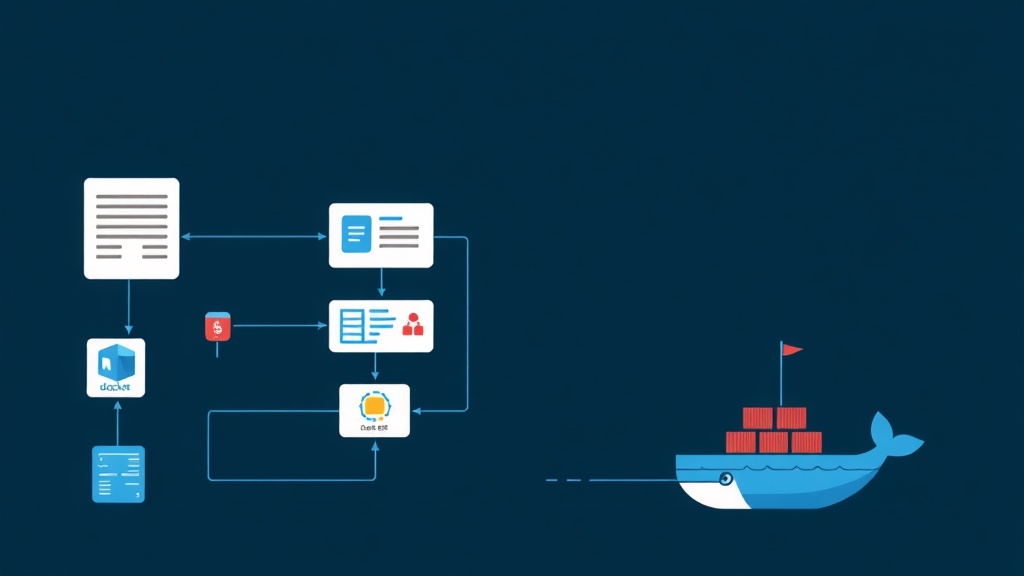
Why does .NET 8 need Docker?
“It works on my machine but fails on the server” is every developer’s nightmare. The cause is usually a mismatch in SDK versions, runtimes, or environment variables. .NET 8 offers superior performance, but if you’re still deploying by copying publish files to a VPS, you’re wasting your project’s potential.
Containerization (Dockerizing) helps package the entire runtime and libraries into a single Image. However, without optimization, a .NET Image can weigh up to 800MB, wasting CI/CD bandwidth. By applying Multi-stage Builds, we can slim the Image down to about 200MB—making deployment lightning-fast.
When I first started with Docker, I made a silly mistake: copying both the bin and obj folders into the image. The result was an extremely slow build and a massive image size. Here is the standard process so you don’t make the same mistake.
Setting up the Environment
Before starting, make sure you have installed:
- .NET 8 SDK: The latest version for local development.
- Docker Desktop: Or Docker Engine if you are using Linux.
- VS Code / Visual Studio 2022: Excellent Docker extension support.
Quickly create a Web API project for practice:
dotnet new webapi -n MyDotnetApp
cd MyDotnetApp
dotnet run
Optimizing Dockerfile with Multi-stage Builds
This technique separates the Build environment (requires the heavy SDK) from the Runtime environment (requires only minimal libraries). This is the secret to a lightweight and secure Image. To ensure your configuration follows best practices, consider cleaning up your Dockerfile with linting tools.
1. Create a .dockerignore file
Don’t skip this step! It helps Docker exclude junk files, reducing context compression time during builds.
**/.git
**/.vs
**/bin
**/obj
Dockerfile
.dockerignore
2. A Standard Dockerfile for .NET 8
Note: Starting with .NET 8, Microsoft defaults to running applications on port 8080 instead of port 80 like older versions.
# Stage 1: Build & Restore
FROM mcr.microsoft.com/dotnet/sdk:8.0 AS build
WORKDIR /src

# Cache layer for NuGet: Only restore if .csproj file changes
COPY ["MyDotnetApp.csproj", "./"]
RUN dotnet restore "MyDotnetApp.csproj"

# Copy code and build the application
COPY . .
RUN dotnet build "MyDotnetApp.csproj" -c Release -o /app/build

# Stage 2: Publish
FROM build AS publish
RUN dotnet publish "MyDotnetApp.csproj" -c Release -o /app/publish /p:UseAppHost=false

# Stage 3: Final Image (Runtime only)
FROM mcr.microsoft.com/dotnet/aspnet:8.0 AS final
WORKDIR /app
EXPOSE 8080

# Only copy the files actually needed to run the app
COPY --from=publish /app/publish .

ENV ASPNETCORE_ENVIRONMENT=Production
ENTRYPOINT ["dotnet", "MyDotnetApp.dll"]
Points to note: The COPY csproj command is placed before COPY . .. If you only modify code without adding NuGet packages, Docker will reuse the cached restore step, saving about 1-2 minutes per build. For maximum security in the final stage, you might also explore using Distroless Docker Images to further reduce the attack surface.
Professional Environment Configuration Management
In practice, each environment (Staging, Production) will have its own appsettings.json file. Never hardcode these values in the Dockerfile.
Instead, leverage the ASPNETCORE_ENVIRONMENT environment variable. When running a container, you can easily switch configurations without rebuilding the Image.
Testing and Operation
Build the Image with a specific tag:
docker build -t my-dotnet-app:v1 .Run the container and map port 5000 on the host to port 8080 in the container:
docker run -d -p 5000:8080 --name my-app -e ASPNETCORE_ENVIRONMENT=Staging my-dotnet-app:v1Access http://localhost:5000/swagger to check. If you want to see logs for debugging, use the command: docker logs -f my-app, or manage Docker via terminal using more interactive tools.
Quick Tip for Production
Always set up Health Checks in .NET 8. Docker or Kubernetes will rely on this endpoint to automatically restart the container if the application hangs (Deadlock) or loses Database connection. This helps your system self-heal without manual intervention in the middle of the night.
Mastering Dockerfiles and environment management doesn’t just make deployment easier. It also demonstrates the professional systems thinking of a true Backend Developer.