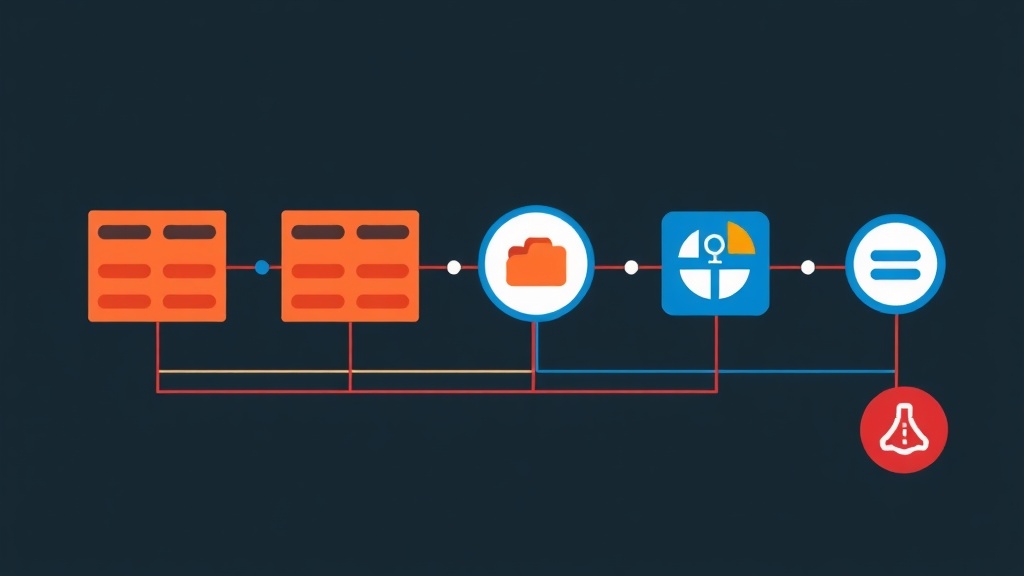
Server Crashes at 2 AM and the Uptime Challenge
Imagine you are running an e-commerce platform generating thousands of dollars in revenue every hour. Suddenly, a server hardware failure occurs or Nginx crashes in the middle of the night. If you’re only using a single server, the system will stay “dead” until you can get to your computer to fix it. That’s where a High Availability (HA) Cluster becomes a lifesaver.
I once learned this the hard way when a system lacked an HA mechanism. When CentOS 8 reached its End of Life (EOL) abruptly, I had to migrate 5 production servers to Rocky Linux in just 7 days. The pressure was immense because every minute of downtime translated directly into lost revenue. Thanks to having Pacemaker and Corosync implemented beforehand, I was able to move resources between nodes without users even noticing. Here is the process for building a “resilient” system that I’ve refined over time.
Quick Start: Running an HA Cluster in 5 Minutes
Before typing any commands, prepare at least 2 servers running CentOS, Rocky Linux, or AlmaLinux. Assume the configuration is as follows:
- Node 1: 192.168.1.10 (hostname: node1)
- Node 2: 192.168.1.11 (hostname: node2)
- Virtual IP (VIP): 192.168.1.100 (The address representing the entire cluster)
Step 1: Installing Software Packages
Install the core components on both nodes:
# Install repo and necessary packages
yum install -y pacemaker corosync pcs

# Enable pcsd to run at system startup
systemctl enable --now pcsd
Step 2: Setting the Password for the hacluster User
The system automatically creates the hacluster user after installation. You need to set a consistent password on both nodes so they can communicate with each other.
passwd haclusterStep 3: Initializing the Cluster
Now, you only need to run these commands from Node 1:
# Authenticate between nodes
pcs host auth node1 node2 -u hacluster

# Create a cluster named 'my_cluster'
pcs cluster setup my_cluster node1 node2

# Start the cluster on all nodes
pcs cluster start --all
pcs cluster enable --all
Step 4: Configuring the Virtual IP (VIP)
The VIP is the face of the system. If Node 1 fails, this IP will automatically migrate to Node 2 in less than 5 seconds.
# Disable STONITH (only applicable for Lab/Test environments)
pcs property set stonith-enabled=false

# Create a virtual IP resource
pcs resource create virtual_ip ocf:heartbeat:IPaddr2 ip=192.168.1.100 cidr_netmask=24 op monitor interval=30s
Use the command pcs status to check. If you see virtual_ip reported as Started, you are halfway there.
Decoding the Mechanism: The Heart and Brain of the Cluster
Many people confuse Pacemaker and Corosync. Think of the Cluster like a football team to make it easier to distinguish:
Corosync: The Messaging Layer
Corosync acts as the heartbeat. It continuously sends small packets between servers to confirm: “I’m okay!”. When Node A stops receiving messages from Node B, Corosync immediately signals an alarm that Node B is offline.
Pacemaker: The Resource Manager
Pacemaker acts as the controlling brain. Based on information from Corosync, it makes decisions. If Node B crashes, Pacemaker checks the service list (Web, DB, VIP) and commands them to start on Node A. The ultimate goal is to always keep services in a ready state.
The “Split-brain” Nightmare and the STONITH Solution
What happens if the network connection between 2 nodes is cut but both are still running? Both will try to claim the Virtual IP and overwrite each other’s data. This is a extremely dangerous Split-brain error that can corrupt the entire database.
To handle this, we use STONITH (Shoot The Other Node In The Head). When a conflict occurs, the healthy node sends a command to “knock out” the failing node via hardware (like iLO, IPMI). This ensures that at any given time, only one node has control.
Advanced Configuration for Web Servers
A Virtual IP alone is not enough; we need to bind it to an actual service like Nginx.
1. Installing Nginx
yum install -y nginx
systemctl enable nginx # Note: Do not start manually; let Pacemaker manage it
2. Creating the Nginx Resource
pcs resource create web_server ocf:heartbeat:nginx configfile=/etc/nginx/nginx.conf op monitor timeout=20s interval=10s3. Setting Up Constraints
By default, Pacemaker might run the VIP on Node 1 but the Web service on Node 2. This renders the system ineffective. You need to force them to stay together (Colocation) and in a specific sequence (Order).
# Force VIP and Web Server to run on the same node
pcs constraint colocation add web_server with virtual_ip INFINITY

# Ensure VIP starts first, followed by the Web Server
pcs constraint order virtual_ip then web_server
Real-world Experience: Common Pitfalls to Avoid
From my previous large-scale system migrations, I’ve gathered 4 vital tips for sysadmins:
- Open Firewall Ports: The cluster needs to communicate via ports 2224, 3121, 5403/tcp and 5404, 5405/udp. If
pcs statusshowsOFFLINEeven though services are running, check firewalld immediately. - Handling Quorum: In a 2-node cluster, if one node dies, the other loses the majority vote (Quorum) and will stop services by itself. Run
pcs property set no-quorum-policy=ignoreto keep the remaining node operational. - Data Synchronization: Pacemaker only manages start/stop; it doesn’t help you sync code or config files. You should combine it with
rsyncor use Shared Storage like NFS/GlusterFS. - Be Careful with SELinux: Don’t disable SELinux entirely as it reduces security. Use
semanageto grant permissions to Pacemaker scripts. You can refer back to the SELinux guide on my blog to do it properly.
Mastering Pacemaker and Corosync gives you more confidence when operating large systems. When an incident occurs, the cluster handles it automatically in seconds, allowing you to sleep soundly instead of being on call all night.