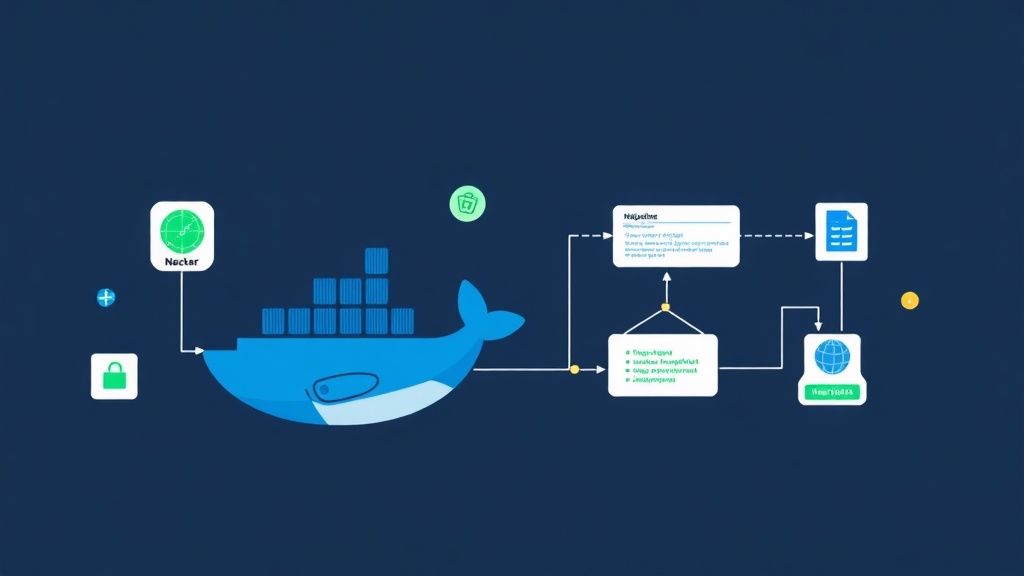
The “502 Bad Gateway” Nightmare During Deployment
As a developer, you’re likely familiar with the heart-pounding anxiety of hitting the deploy command on production at 2 AM. In traditional deployments, stopping the old container to start the new one often creates a “downtime” gap. Even if it only lasts 30 seconds, if 100 users are checking out simultaneously, a “Connection Refused” error becomes a UX disaster. For real-world projects, this disruption is a sign of lack of professionalism.
Blue-Green Deployment is the cure. Imagine instead of taking down an old shop sign to hang a new one (making customers wait outside), you build an identical new shop right next door. Once everything inside is ready, you simply invite the flow of customers to the new shop. Customers continue shopping as usual, completely unaware of the major change that just occurred.
While Docker Compose lacks advanced orchestration features like Kubernetes, we can still manually set up a highly stable Zero-Downtime system using Nginx as a Reverse Proxy.
Preparing the Directory Structure
First, your server needs Docker and Docker Compose installed. To keep management organized, I usually structure the directories as follows:
/my-app/
├── docker-compose.yml
├── nginx/
│   └── default.conf
└── app/
    └── (application source code)
The key to this strategy is maintaining two parallel environments: Blue (the stable running version) and Green (the latest version about to go live).
Docker Compose and Nginx Configuration
1. Setting up the docker-compose.yml file
We will define two nearly identical services, differing only in name. Important note: do not map the application ports directly to the host to avoid port conflicts. All traffic must pass through the Nginx “gateway.”
version: '3.8'
services:
  app_blue:
    image: my-app:v1
    networks:
      - app_network

  app_green:
    image: my-app:v2
    networks:
      - app_network

  nginx:
    image: nginx:alpine
    ports:
      - "80:80"
    volumes:
      - ./nginx/default.conf:/etc/nginx/conf.d/default.conf
    depends_on:
      - app_blue
      - app_green
    networks:
      - app_network

networks:
  app_network:
    driver: bridge
2. Using Nginx to Route Traffic Flow
The default.conf file acts as an intelligent gatekeeper. Instead of hardcoding a single container, we use an upstream block to easily switch traffic when needed.
upstream my_app {
    server app_blue:8080; # Current traffic is going to Blue
}

server {
    listen 80;
    server_name localhost;

    location / {
        proxy_pass http://my_app;
        proxy_set_header Host $host;
        proxy_set_header X-Real-IP $remote_addr;
    }
}
Practical “Go-Live” Steps
Whenever there’s new code, the process is extremely smooth:
- Build the latest Docker image for the Green version.
- Start the Green container (at this point, customers are still using the old Blue version).
- Use
curlto check if the Green version is ready (Health check). - Edit the Nginx file: replace
app_blue:8080withapp_green:8080. - Command Nginx to reload:
docker exec nginx nginx -s reload.
Nginx’s reload process happens in an instant; existing connections are finished while new customers are routed straight to the Green version. If the Green version encounters unexpected errors? Simply revert the Nginx config and reload. Extremely safe.
When debugging JSON responses from the new container to see if the data returned is correct, I often use the formatter at toolcraft.app/en/tools/developer/json-formatter. It’s faster and lighter than installing extensions or opening heavy IDEs.
Monitoring and Optimization
Don’t rush to shut down the Blue version immediately after switching traffic. Spend about 5-10 minutes monitoring logs using docker logs -f app_green. If the request volume increases steadily and no 5xx errors appear, only then should you clean up the old container.
A pro tip: create a /health endpoint that returns the status of your Database and Redis. Before modifying the Nginx config, run this command to ensure everything has “warmed up”:
docker exec nginx curl http://app_green:8080/healthIf you receive an HTTP 200, you can confidently hit the switch. This method, while manual, is extremely stable for small to medium projects, avoiding the need for bulky CI/CD systems that waste server resources.
Sometimes, simplicity is the key to stability. Docker Compose working in harmony with Nginx is more than enough to have a proper Zero-Downtime system without needing to be a veteran DevOps expert.