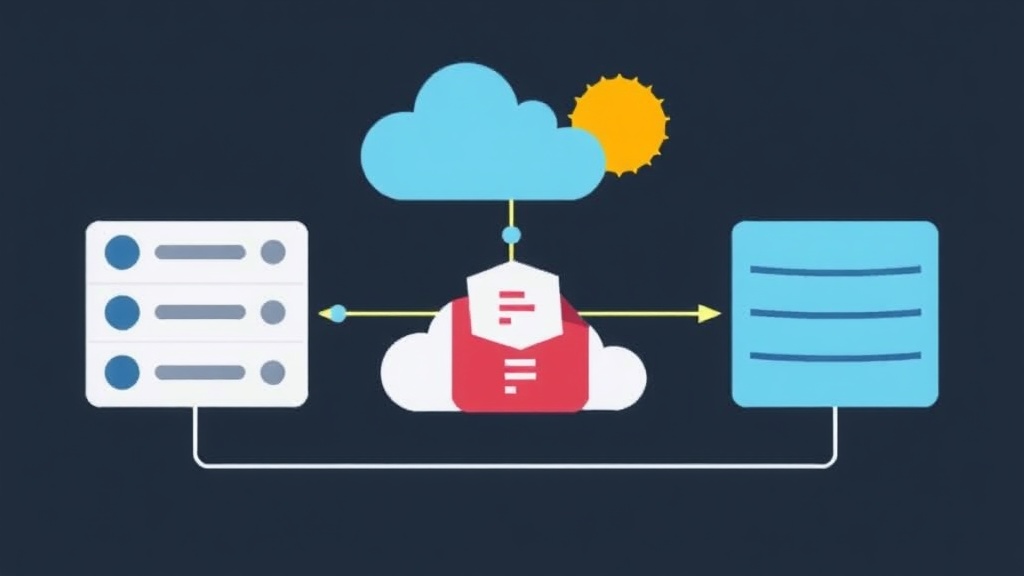
Why is iSCSI the Most Cost-Effective Solution for Shared Storage?
If you are running a VMware Cluster but still using Local Storage for each node, your system is only utilizing half of its potential. Without Shared Storage, “premium” features like vMotion (live VM migration), High Availability (automatic VM recovery on host failure), or DRS will be completely useless.
In deployment projects for SMEs or when infrastructure costs need optimization, iSCSI is always my top choice. Instead of investing in expensive 8Gbps/16Gbps Fiber Channel (FC) systems with dedicated switches, iSCSI leverages existing Ethernet infrastructure. When running on a 10Gbps backbone and configured correctly, iSCSI performance is comparable to high-end storage solutions.
Three Core Concepts You Must Master
Don’t start clicking just yet. You need to understand these three components to avoid confusion during troubleshooting:
- iSCSI Initiator: These are the ESXi hosts. They act as the requester for data access from the storage.
- iSCSI Target: This is the storage device (e.g., Synology RackStation, Dell PowerVault, or TrueNAS). This is where the LUNs that we will mount as Datastores are located.
- IQN (iSCSI Qualified Name): A unique identifier for the device. A standard IQN usually looks like:
iqn.1998-01.com.vmware:esxi-01-72a3b4.
Pro tip: Copy the IQN list for each host into a Notepad file. This makes LUN Masking on the storage management interface faster and more accurate, preventing confusion between hosts in the cluster.
5-Step Workflow for Production-Grade iSCSI Connection
Here are the steps I typically follow to ensure maximum system stability.
Step 1: Set Up Network Infrastructure (VMkernel Networking)
The most common mistake is running iSCSI traffic alongside Management traffic. Separate iSCSI into a dedicated VLAN (e.g., VLAN 100) to ensure bandwidth and security.
- Access vSphere Client, select Host -> Configure -> Networking -> VMkernel adapters.
- Click Add Networking, select VMkernel Network Adapter.
- Create a new vSwitch or use an existing one, assigning a dedicated physical network card (vmnic) for storage.
- Assign a static IP. Ensure this IP range can reach the Storage IP (e.g., in the same 10.10.10.x subnet).
Performance Note: If the Switch supports it, set the MTU to 9000 (Jumbo Frames). Based on my experience, this can reduce host CPU load by about 10-15% during large data transfers.
Step 2: Enable iSCSI Software Adapter
By default, ESXi does not have this feature enabled. You need to activate it manually in the virtual hardware management section:
- Go to the Configure tab -> Storage -> Storage Adapters.
- Click Add Storage Adapter -> select Add software iSCSI adapter.
- A new adapter (usually
vmhba64) will appear in the list after a few seconds.
For those who prefer the CLI, just run a single command via SSH:
# Enable the adapter
esxcli iscsi software set --enabled=true

# Confirm the list
esxcli iscsi adapter list
Step 3: Configure Network Port Binding
This is a critical step for enabling Multipathing. Port Binding helps the iSCSI Adapter correctly identify which VMkernel is allowed to route the traffic.
- Select the
vmhba64adapter created in the previous step. - Find the Network Port Binding section below and click Add.
- Select the dedicated iSCSI VMkernel adapter created in Step 1.
Step 4: Declare Target and Rescan
Now it’s time to “guide” ESXi to the disks on the Storage:
- In the adapter configuration, select the Dynamic Discovery tab.
- Click Add, enter the Storage Server IP (Portal).
- The system will prompt for a Rescan. Confirm to let ESXi scan and identify the mapped LUNs.
Check the Devices tab; if you see the new disks with a “Connected” status and the correct capacity, you’ve succeeded 90% of the way.
Step 5: Create a Shared Datastore for the Cluster
The final step is formatting the disk so virtual machines can store data:
- Right-click the Host -> Storage -> New Datastore.
- Select VMFS 6 format (best for ESXi 6.7 and 7.0+).
- Give it a descriptive name, e.g.,
SAN_DATA_PRODUCTION_01. - Complete the default parameters and click Finish.
When configuring the second host in the cluster, you only need to go up to Step 4. Then run Rescan Storage, and the newly created Datastore will automatically appear without requiring a reformat.
Optimization: Multipathing and Security
To ensure smooth system operation, consider these two settings:
- Multipathing: Use at least 2 physical network cards. Change the Native Multipathing policy to Round Robin. Small tip: Adjust the IOPS limit from 1000 down to 1 to force the paths to rotate data continuously, maximizing bandwidth optimization.
- CHAP Authentication: In a shared network environment, enable CHAP to require a password when connecting to the Target, preventing unauthorized machines from “seeing” sensitive data.
Conclusion
Setting up iSCSI Shared Storage is not overly complex, but it requires meticulous network configuration. A small mistake in the Port Binding step can lead to a noticeable drop in system performance or connection loss during link failure. Once you have a stable Shared Datastore, deploying HA or vMotion becomes incredibly simple. Good luck with your implementation!