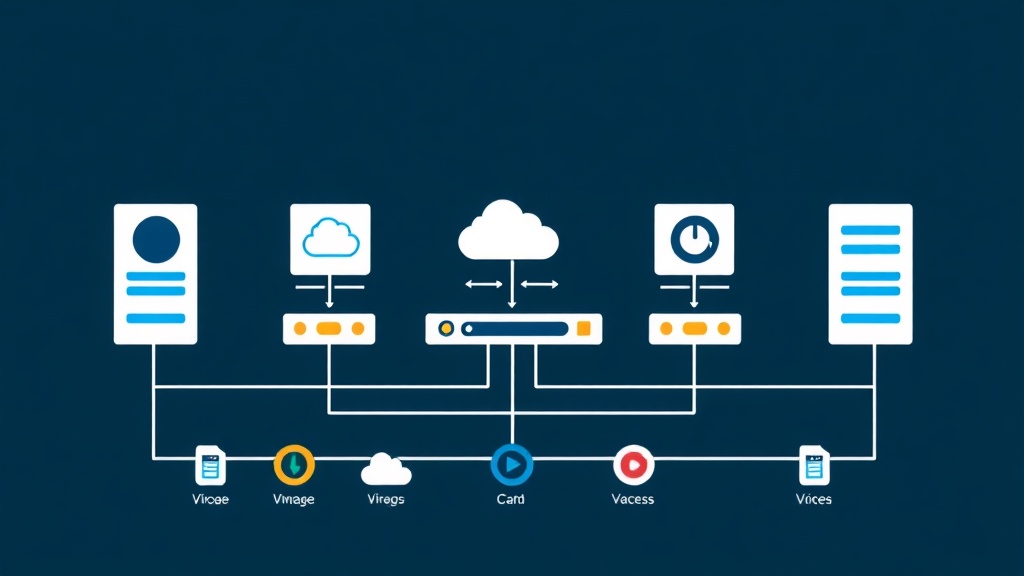
Running a Cluster without vDS is a major oversight
After six months on the front lines with vCenter optimizing infrastructure, I’ve learned a valuable lesson. If you’re managing a cluster of 3 or more ESXi nodes and still using Standard Switches (vSS), you’re making life unnecessarily difficult for yourself.
Every time you add a new VLAN or change an MTU setting, logging into each host manually is a nightmare. A single typo can easily cause a local network outage. vDS (vSphere Distributed Switch) was created to eliminate this chaos.
It consolidates all virtual switches across hosts into a single management point. I once tried moving part of my lab to Proxmox using Open vSwitch (OVS). While OVS is powerful, vDS is on a completely different level when it comes to the smoothness and intuitiveness of managing vMotion or Port Mirroring.
Deploying vDS in 15 Minutes (Quick Start)
Don’t let the VMware interface overwhelm you. To get a basic vDS running, follow these three quick steps:
- Initialize the Switch: In vCenter, go to the Networking tab. Right-click the Datacenter, select Distributed Switch, then New Distributed Switch. Use a memorable name like
vDS-Core-Production. Ensure you select a version compatible with the oldest ESXi host in your cluster to avoid connection issues. - Create Port Groups: Right-click the newly created vDS and select New Distributed Port Group. This is where you isolate your network layers. For example: VLAN 10 for Web, VLAN 20 for Database.
- Connect Hosts: Right-click the vDS and select Add and Manage Hosts. Choose your target hosts and map the physical network cards (vmnics) to the corresponding Uplinks.
Pro Tip: When migrating from vSS to vDS, keep at least one network card (vmnic) on the vSS. This serves as a safety net if a misconfiguration cuts off your connection to vCenter.
3 Reasons vDS is Worth Every Penny of the License
1. Centralized Management
With vSS, switches exist discretely on each host. Conversely, vDS is a unified entity across the entire cluster. Creating an “App-Internal” Port Group on the vDS immediately applies that configuration to all 20 of your ESXi hosts. In my experience, this reduces manual configuration errors by 80%.
2. Rollback Mode: A “Lifesaver” for Accidental Errors
This feature has saved me at least twice during “heart-stopping” moments. When you misconfigure network settings (like an incorrect VLAN ID on the Management Network) and lose connectivity, vDS automatically rolls back to the last known good state. With vSS, you’d be heading to the data center with a laptop or connecting a KVM to fix it manually.
3. Bandwidth Control with NIOC
In production environments, vMotion, iSCSI, and VM traffic often compete for 10Gbps bandwidth. NIOC (Network I/O Control) allows you to divide this “pie” fairly.
# Real-world NIOC configuration example
vMotion Traffic: Share 50 (Medium Priority)
Virtual Machine Traffic: Share 100 (Highest Priority)
Management Traffic: Share 20 (Low Priority)
During network congestion, NIOC automatically throttles less critical services to prioritize Virtual Machine traffic.
Advanced: LACP and Layer 2 Security
Link Aggregation with LACP
If your physical Cisco or Juniper switches are ready, use LACP to bundle two 10Gbps cards into a 20Gbps Link Aggregation Group (LAG). On the vDS, simply go to the LACP section and create a LAG in Active mode. Network performance will skyrocket, and fault tolerance becomes significantly better than standard Teaming.
Private VLAN (PVLAN) – Preventing Malware Spread
I often deploy PVLANs for DMZ zones. This feature allows VMs to share a subnet while remaining completely unable to “see” each other (Isolated mode). It’s an extremely effective barrier against lateral malware movement within the Data Center.
Hard-Learned Lessons from the Field
Operational experience has taught me a few points that you should pay special attention to:
- Enable Network Health Check: Don’t forget to turn this on. It automatically detects if VLAN and MTU settings on the physical switch match the vDS.
- Be Cautious with Jumbo Frames: Only enable MTU 9000 for iSCSI or vMotion traffic. Don’t enable it blindly for VM traffic unless you want to deal with frustrating packet drops.
- Backup is Vital: vCenter holds the “soul” of the vDS. If vCenter goes down, the network keeps running, but you won’t be able to make any changes. Export your vDS configuration to a .zip file weekly as a precaution.
Automation with PowerCLI
To be more professional, instead of clicking until your hand gets tired, use scripts to create Port Groups in bulk. The code below helps you set up a vDS in a flash:
# Connect to vCenter
Connect-VIServer -Server vcenter.itfromzero.local

# Create Port Groups from a list
$vDSName = "vDS-Core-Production"
$VLANs = @{ "Web-Tier"=10; "App-Tier"=20; "DB-Tier"=30 }

foreach ($pg in $VLANs.Keys) {
    Write-Host "Creating Port Group: $pg - VLAN: $($VLANs[$pg])"
    Get-VDSwitch -Name $vDSName | New-VDPortgroup -Name $pg -VlanId $VLANs[$pg]
}
Using scripts is not only faster but also prevents VLAN ID typos—every SysAdmin’s nightmare.
I hope these tips help your infrastructure run more smoothly. With vDS, network management will no longer be a Monday morning nightmare!